Create a Learning Course
Learning Objectives
In this project, you’ll:
- Create a new learning course.
- Add courses to a learning program.
Before You Start
Before you start this module, consider completing this recommended content.

Building your academic catalog is an essential task in Agentforce Education. By structuring your programs, courses, prerequisites, and other curriculum components, you can better manage your institution’s offerings over the course of academic years and terms, simplify degree planning and registration, and make the most out of Agentforce Education features.
Agentforce Education provides a Learning Data Model, a centralized and flexible framework for structuring your academic offerings. The data you store in the Learning Data Model objects, including learning programs and learning courses, works across different apps and helps to simplify the student experience, improve staff processes, and unify your operations.
As you learned in the Learning Data Model Fundamentals badge, the data model includes two primary categories of objects: learning objects and learner objects. Learning objects define the blueprint and templates for your academic offerings, while learner objects help to track each student’s engagement with your curriculum.
In this project, you learn how to set up and modify two important learning objects: learning courses and learning programs. You also get hands-on with two intuitive Agentforce Education tools: the Learning Wizard and the Learning Program Plan Builder.
Sign Up for a Developer Edition Org with Agentforce Education
To complete this project, you need a special Developer Edition org that contains Agentforce Education and our sample data. Get the free Developer Edition and connect it to Trailhead now so you can complete the challenges in this project. Note that this Developer Edition is designed to work with the challenges in this badge, and may not work for other badges. Always check that you’re using the Trailhead Playground or special Developer Edition org that we recommend.
- Sign up for a free Developer Edition org with Agentforce Education.
- Fill out the form:
- For Email, enter an active email address.
- For Username, enter a username that looks like an email address and is unique, but it doesn’t need to be a valid email account (for example, yourname@example.com).
- For Email, enter an active email address.
- After you fill out the form, click Sign me up. A confirmation message appears.
- When you receive the activation email (this might take a few minutes), open it and click Verify Account.
- Complete your registration by setting your password and challenge question. Tip: Save your username, password, and login URL in a secure place—such as a password manager—for easy access later.
- You are logged in to your Developer Edition.
Now connect your new Developer Edition org to Trailhead.
- Make sure you’re logged in to your Trailhead account.
- In the Challenge section at the bottom of this page, click the org name and then click Connect Org.
- On the login screen, enter the username and password for the Developer Edition you just set up.
- On the Allow Access? screen, click Allow.
- On the Want to connect this org for hands-on challenges? screen, click Yes! Save it. You are redirected back to the challenge page and ready to use your new Developer Edition to earn this badge.
Create a Learning Course from the Wizard
Now that you’ve got your Agentforce Education Developer org, you’re ready to get started building out some learning data.
The Learning Wizard is the tool of choice for quickly creating and modifying learning courses and programs. To get a better idea of how this tool works, start by creating a learning course, the basic unit upon which you build more elaborate offerings, such as learning programs. 
Follow these steps to create a Theory of Computation learning course using the Learning Wizard.
- From the App Launcher
 , find and select Academic Operations.
- Select Learning Courses in the app menu
 .
.
- Click New from Learning Wizard.
- On the New Course screen, enter these details.
- Name:
Theory of Computation
- Active From Date: Today’s date
- Duration:
3 - Duration Unit: Credit Hours
- Academic Level: Undergraduate
- Toggle on the Active checkbox.
- Name:
- In the Additional Course Details section, enter these details.
- Subject Abbreviation:
CS - Course Number:
350
- Subject Abbreviation:
- Click Next.
- On the Prerequisites tab, enter these details to specify the course prerequisites.
- For Achievement Type, select Learning Course.
- For Learning Achievement, enter
Computer Science, and then select Default Achievement: Computer Science I.
- For Achievement Type, select Learning Course.
- Click Next.
- Notice the default achievement that the Learning Wizard creates for the new course, and then click Create Course.
- Return to the Learning Courses list, refresh the list, and confirm that Theory of Computation is there. You may need to change the list view to All Learning Courses to see the course.
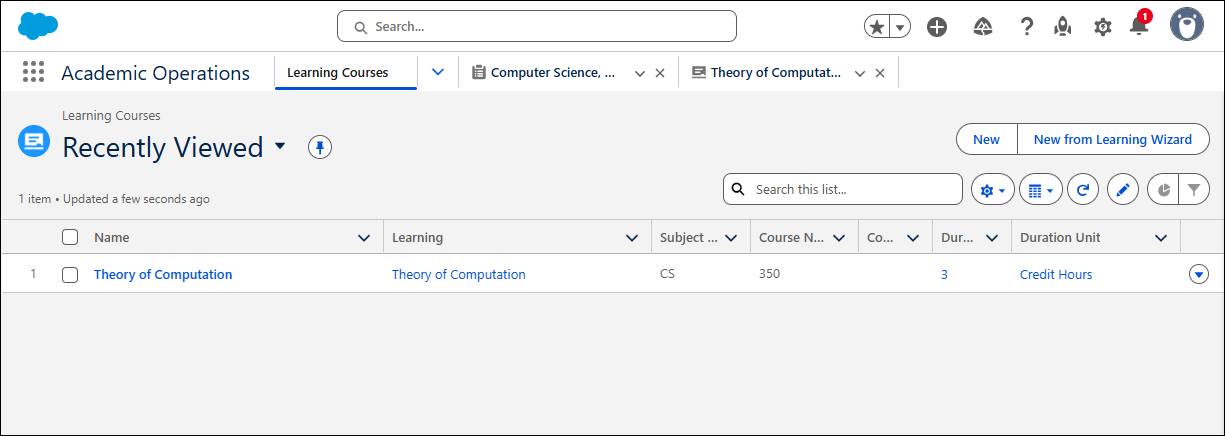
Nice work! You just created your first learning course. We’ve kept the setup simple for now, but you may have noticed several options for setting up your course. You can define and group multiple prerequisites, corequisites, and recommendations, and use Boolean conditions to specify which courses or groups of courses the learner needs to complete prior to enrollment. You can also set the required minimum grade and duration for each of these related courses. Use the Active From Date and Active To Date fields to control when the course is available. Leave the Active To Date blank to make the course available indefinitely.
You might’ve also noticed that you can include multiple key and additional learning outcomes for each course or program you create. These outcomes map to learning achievements, such as credit hours, skill sets, or certificates.
When you create either a learning course or learning program, Agentforce Education automatically creates an underlying Learning record. This record functions as a central reference for outcomes, achievements, or learning foundation items, and it helps to keep your curriculum structure consistent and scalable.
So far, you’ve explored how the Learning Wizard in Agentforce Education simplifies course creation. Next, you take your academic data to the next level by creating a learning program and a learning program plan that includes your new course.
But first, check your work by clicking Verify Step.