Author Your Agent Using Agent Script
Learning Objectives
In this badge, you’ll:
- Learn about Agent Script and authoring bundles.
- Preview an agent using its Agent Script file.
- Code an agent by updating and validating its Agent Script file.
- Publish an agent to an org.
- View the published agent in the org’s Agentforce Builder UI.
For this step, use the same Developer Edition org that you created in Step 1.
Meet Agent Script, the Agent Blueprint
Building an agent follows a specific lifecycle.
-
Develop: Code the Agent Script file to define your agent’s instructions and logic.
-
Publish: Deploy the Agent Script file to a development org to create the agent metadata.
-
Test: Verify the agent’s behavior in a sandbox or scratch org.
-
Deploy: Migrate the agent metadata to your production environment.
-
Activate: Turn the agent on to make it available to your customers.
This badge focuses on the develop and publish steps.
Agent Script is the foundation of the next generation of Agentforce agents. It’s a language that combines the flexibility of using natural language to vibe code, with the reliability of programmatic expressions for handling business rules. Agent Script gives you all the advantages of access to a large language model (LLM), while also providing ways to add more deterministic behaviors to your agent.
As with most things in Salesforce, an agent’s Agent Script file is part of a metadata component called AiAuthoringBundle, or simply authoring bundle. You can generate an authoring bundle from scratch using CLI commands or VS Code in your DX project, or by vibe coding. Or you can first create an agent in your org using Agentforce Builder and then retrieve the authoring bundle to your DX project. The authoring bundle includes a file with extension .agent; this is the Agent Script file which serves as the agent’s blueprint.
In this Trailhead badge, you start with an existing authoring bundle and Agent Script file in the repo that you cloned in the previous unit. Ready to dive in?
In VS Code, open the Agent Script file called Local_Info_Agent.agent, located in the force-app/main/default/aiAuthoringBundles/Local_Info_Agentdirectory of the DX project you cloned in the previous unit.

Note how the Agent Script file displays pretty colored syntax highlighting, visual cues (such as red squiggles) for syntax errors, code navigation, and so on. These colors display because the Salesforce VS Code extensions support Agent Script as a programming language, just like they support Apex and LWC.
Learning about the Agent Script language itself is beyond the scope of this badge, but it’s worth taking a few minutes to get a sense of the file. For example, the file is made of blocks, such as system, config, and variables. The config block contains configuration parameters that define the agent. You’ll change one of these parameters later in this badge.
Check out Get Started with Agent Script for more information and details.
Preview the Agent Using Only Its Agent Script File
As you code your agent's Agent Script file, it's helpful to periodically converse with it. You can check how it responds as you make changes and updates in real-time. These conversation previews serve as interactive tests to make sure the agent behaves as expected.
Start by previewing an agent using simulated mode, which uses only the Agent Script file to converse and simulate all the tools. This mode is particularly useful if the Apex classes, flows, or prompt templates that implement the tools aren’t yet available. The LLM uses the information that you've added about the subagents in the Agent Script file to simulate what the tool does or how it responds. You access the LLM through your org, which is why you still need to be authorized to your org even in simulated mode.
- In VS Code, open the context menu (right-click) in the Local_Info_Agent.agent Agent Script file.
- Select AFDX: Preview This Agent.
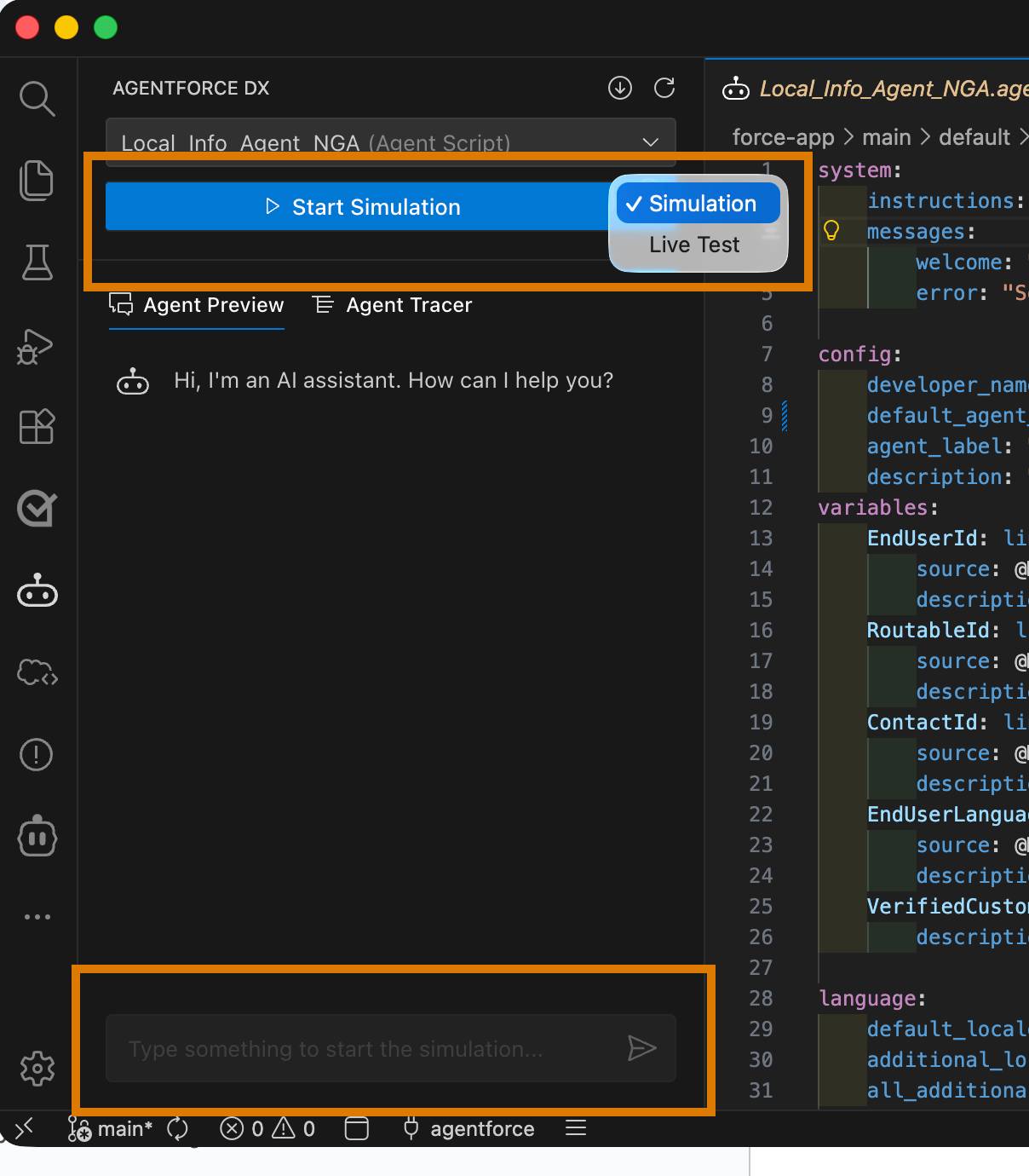
An Agentforce DX panel opens on the left.
- From the Select agent… dropdown list, select Local_Info_Agent which might already be selected.
Note its location in the Agent Script section in the list. Unless you’ve created a new agent, Local_Info_Agent is the only agent in the list.
- In the dropdown, select Simulation, then click Start Simulation to start the preview.

- In the chat box, enter this question to demo what the agent can do:
What can you help me with?
The agent thinks for a while and then offers a response.
- Enter this question:
What’s the weather like?
You get a summary of the weather, but did you notice that the agent is talking like a pirate? For example, its response likely starts with Arrr matey. How strange! The reason the agent is responding that way is because its Agent Script file is instructing it to talk like a pirate when describing the local weather.
While a pirate persona is a fun way to test personality, professional agents require a consistent brand voice. Learn how to modify the Agent Script file to refine your agent’s conversational responses.
Code the Agent Script File
If you want to change how the agent behaves, you code its Agent Script file. As you code, validate the file to make sure you haven’t introduced any errors. It’s probably a good time to stop the agent from responding as a pirate, are you ready to learn how?
- In VS Code, scan the Agent Script file to determine whether you can find the instruction that makes the agent respond like a pirate when it’s telling you about the local weather.
Hint: Check the reasoning instructions for local_weather. Still can’t find it? Check around line 117 for a line that starts Finally, ALWAYS give answers.
- To edit the file, remove the entire line that starts Finally, ALWAYS give answers. Don’t make any other changes unless you know what you’re doing!
- Save the file.
- Open the context menu (right-click) for the Agent Script file and choose AFDX: Validate this Agent.
A little window pops up in the bottom-right corner of VS Code as the file is being validated. If the validation is unsuccessful, the Problems tab opens with the error messages and hints to help you fix the issues. But if you’re following along, the Agent Script file should validate successfully.
- Click Restart Options and then click Compile & Restart in the top-right corner of the Agentforce DX preview window.

- Enter the same question (
What’s the weather like?) in the chat box. You can also select the up-arrow to use the chat history.
This time the reply should be more professional, which is good if a tad boring.
- Click Stop Simulation when you’re finished asking questions.
Preview the Agent Using Live Mode
When you preview the agent in live mode, it uses the actual Apex classes, flows, and prompt templates in your development org to provide the most accurate view of your agent’s behavior.
You already deployed the required Apex classes and related assets to your org as part of the initial setup for this Trailhead badge. If you later change them in your local DX project, then you must re-deploy them to ensure that the live preview uses them.
You’re also going to use a real org user in this live preview, specifically the one that was created in the previous unit. This requires a change to the Agent Script file. Let’s do it!
- In VS Code, open the Local_Info_Agent.agent Agent Script file in the editor.
- In the config section (around line 11), locate the default_agent_user property.
- Edit the Agent Script file by updating the UPDATE_WITH_YOUR_DEFAULT_AGENT_USER placeholder with the username generated by the script in the previous unit.
- For example, if the generated username is afdx-agent@testdrive.org98eca4a312-3456xyz, the updated property looks like this:
default_agent_user: "afdx-agent@testdrive.org98eca4a312-3456xyz"
- For example, if the generated username is afdx-agent@testdrive.org98eca4a312-3456xyz, the updated property looks like this:
- Validate the agent—a best practice whenever you modify an Agent Script file.
- If the Agentforce DX panel isn’t open, select the context menu (right-click) anywhere in the script file and select AFDX: Preview This Agent.
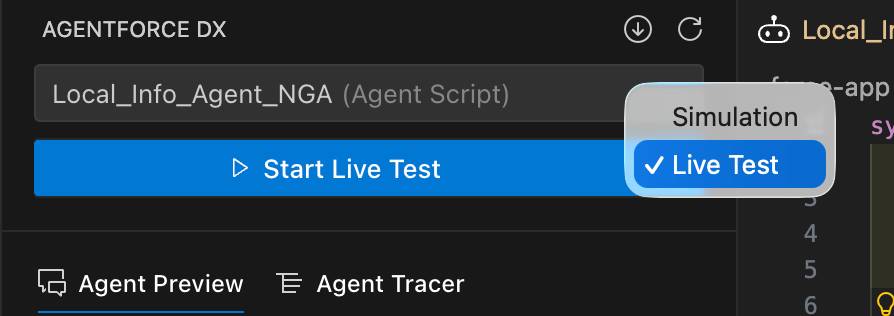
- In the dropdown, select Live Test, then click Start Live Test to preview the agent.

- Ask the question again:
What’s the weather like?
The response is similar to when you ran a simulation, but this time the temperature range should be exactly between 65.3F and 81.1F. This is because the agent is using the real Apex class (WeatherService) in the org, which, for testing purposes, hard codes the temperature in this range. Want to view it for yourself? Check out the force-app/main/default/classes/WeatherService.cls file.
View and Change the Agent in Agentforce Builder
Switch back to your org’s Agentforce Builder UI. Here you can preview and code your agent just like you did in VS Code. In fact, you’re going to change the agent to respond like a clown, because we decided that we like goofiness over being professional!
But before you do that, remember that you’ve made a few changes to the local Agent Script file. To ensure that you’re working with the same code when you use the in-org builder, you must deploy the Local_Info_Agent authoring bundle to your org. It’s important when using both pro- and low-code tools that you keep your DX project and org in sync.
- In VS Code, deploy the updated authoring bundle to your org by running this CLI command in the integrated terminal.
sf project deploy start --metadata aiAuthoringBundle:Local_Info_Agent
The terminal displays the following deployment status.
- To open Agentforce Studio in a browser, run the following CLI command in VS Code’s integrated terminal.
sf org open authoring-bundle
- If a message displays about being in the wrong location, click Take Me There.
- In the table, click Local Info Agent to open it in Agentforce Builder. If the agent isn’t available in the table, run the
sf org open authoring-bundlecommand in VS Code again.
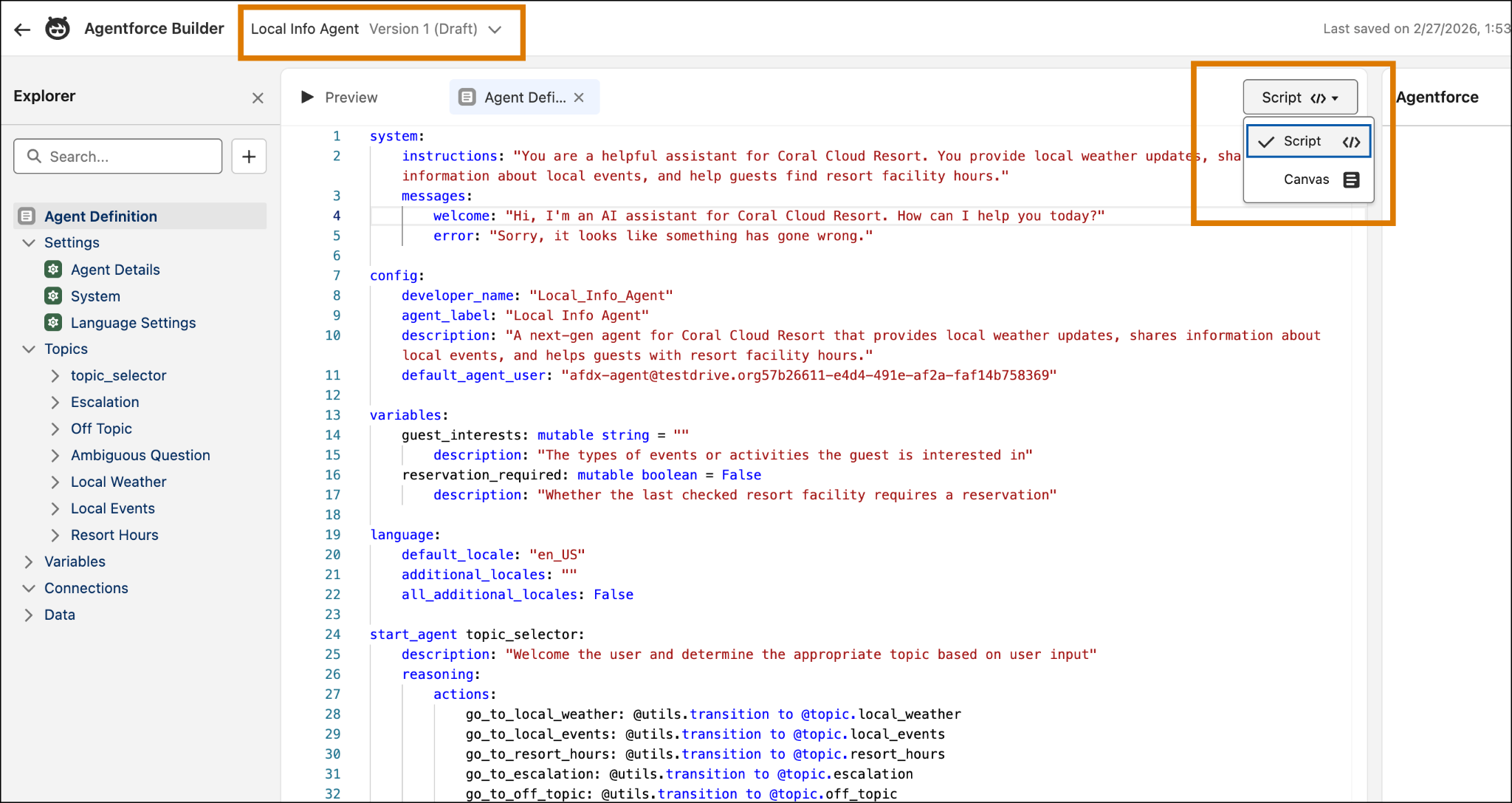
If Agentforce Builder is new to you, explore its features. Note that the version of the Local Info Agent is Version 1 (Draft).
- In Agentforce Builder, select the Script view and add the following instruction on a new line immediately after the line ALWAYS Provide forecasts that include a temperature range (around line 116):
Finally, ALWAYS give answers like you're a clown in a circus, using clown-themed language and expressions to make the interaction more engaging and fun for the user.
- Click Save.
- Optionally use the Preview button to preview the agent right inside the org.
- In VS Code, retrieve the updated authoring bundle to your DX project from your org by running this CLI command in the terminal.
sf project retrieve start --metadata AiAuthoringBundle:Local_Info_Agent
- Compile and restart the live mode preview, and then ask again about the weather. The agent should respond like a clown!
Publish the Authoring Bundle
When you publish an authoring bundle to your org, the org uses the Agent Script file to generate the associated agent metadata, either the initial version of that metadata or new versions. Agent metadata includes components such as Bot, BotVersion, GenAiPlannerBundle, GenAiFunction, and more. This agent metadata results in a new agent in your org, or a new version of an existing agent. You can then test this published agent, and later deploy it to your production org so you can activate it and make it available to your users. Finally, your DX project retrieves all the new or updated metadata from the org.
- In VS Code, open the Local_Info_Agent.agent Agent Script file in the editor.
- Open the context menu (right-click) for the Agent Script file and choose AFDX: Publish This Agent.
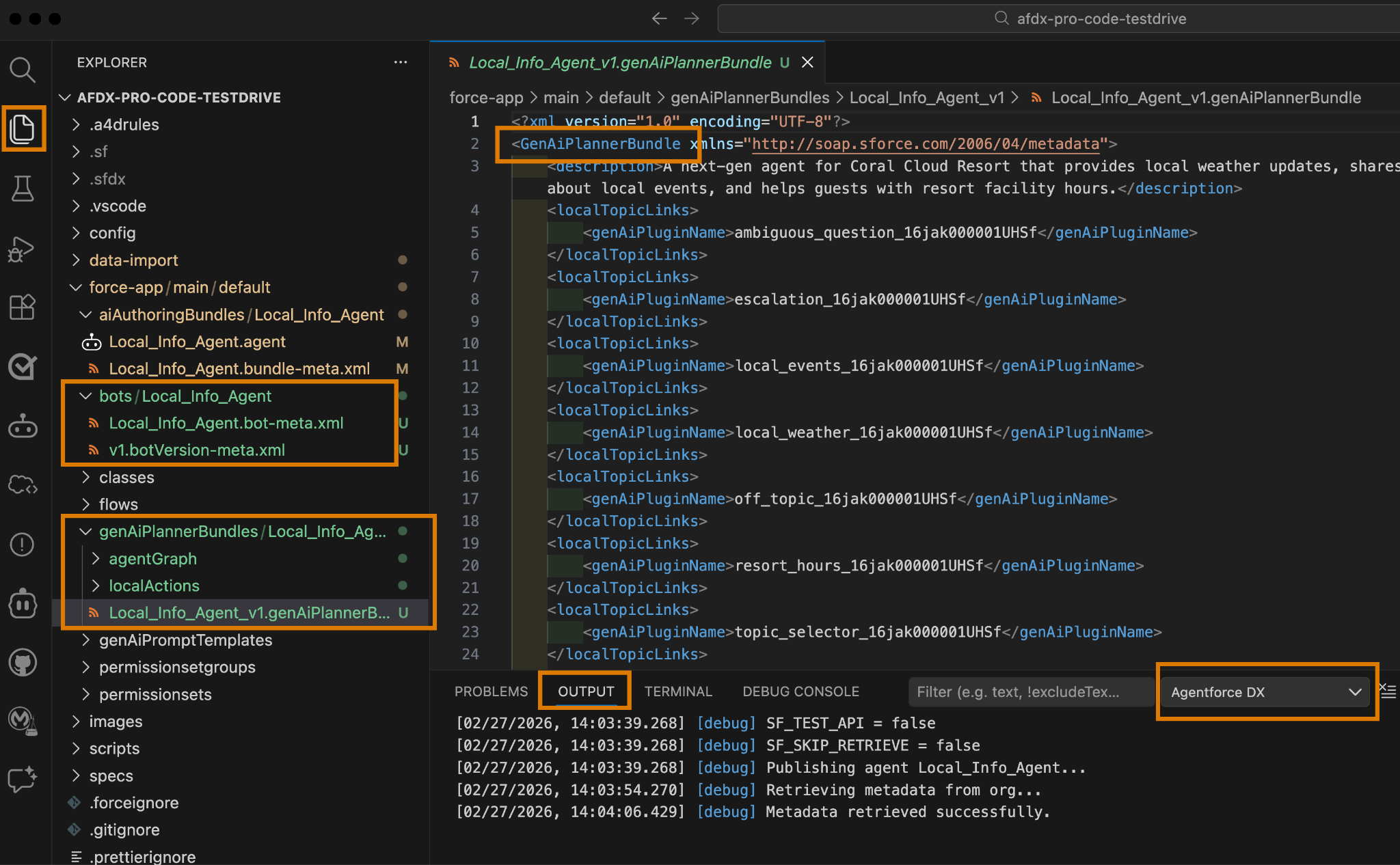
Check the Output tab for the in-progress publishing steps as they happen. Be sure you use the dropdown to filter for Agentforce DX information.
- Use Explorer to view the metadata that was retrieved into the force-app/main/default package directory of your DX project. This example shows the GenAiPlannerBundle metadata component XML file open in the editor.

- Go back to Agentforce Builder in your org and refresh the page. You should now have a committed version of the Local Info Agent: Version 1 (Committed).
Publishing an authoring bundle generates new versions of agent metadata, including BotVersion and GenAiPlannerBundle. You can identify these as v1 in the preceding image.
Activate Your Agent
Make the Local Info agent available for Coral Clouds Resort guests to use. From VS Code you can activate an agent using its BotVersion metadata file.
- In VS Code, use Explorer to navigate to the force-app/main/default/bots/Local_Info_Agent directory.
- Open the context menu (right-click) from the Local_Info_Agent.bot-meta.xml file and choose AFDX: Activate Agent.

- Click Version 1 in the dropdown at the top of VS Code.
- Go to Agentforce Builder in your org and refresh the page for Local Info Agent. You should now have an active agent version, such as Version 1 (Active).
Congratulations! You’ve successfully used Agentforce DX to code an agent’s Agent Script file, preview the agent, and publish it to your org. With these pro-code tools in your toolkit, you’re now ready to create your own agents. Before you publish a production agent, remember to refine its voice to ensure it's appropriate for your specific use case.