Manage and Act on Knowledge Article Feedback
Learning Objectives
After completing this unit, you’ll be able to:
- View and manage feedback on your knowledge articles.
- Assign feedback to the appropriate person or team.
- Track the progress of feedback resolution.
View Feedback Responses in One Place
Since Maria, the Salesforce admin, successfully enabled Knowledge components across the board for internal and external users, feedback has been pouring in from people like Carlos, the support team lead, and Sarah, one of Ursa Major’s newest customers. The Knowledge Article Feedback page acts as a central hub for reviewing all this feedback.
Let’s see how Carlos uses it to review and manage feedback across every knowledge article his team oversees.
- From the App Launcher
 , find and select Knowledge Article Feedback.
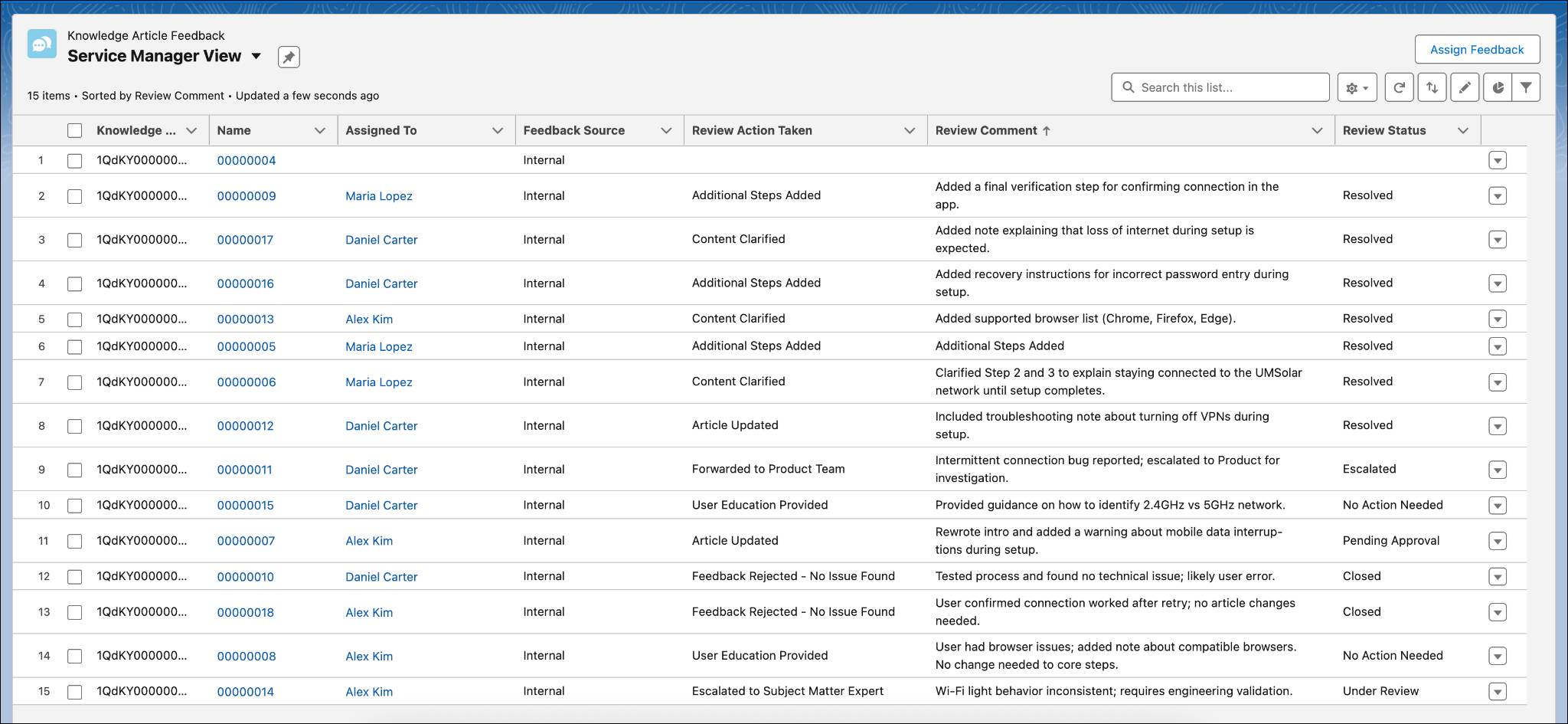
Now, instead of jumping between records or pages, he gets a single, consolidated view of everything in one place. He notices that new feedback has been logged and decides to take a look.

- Click
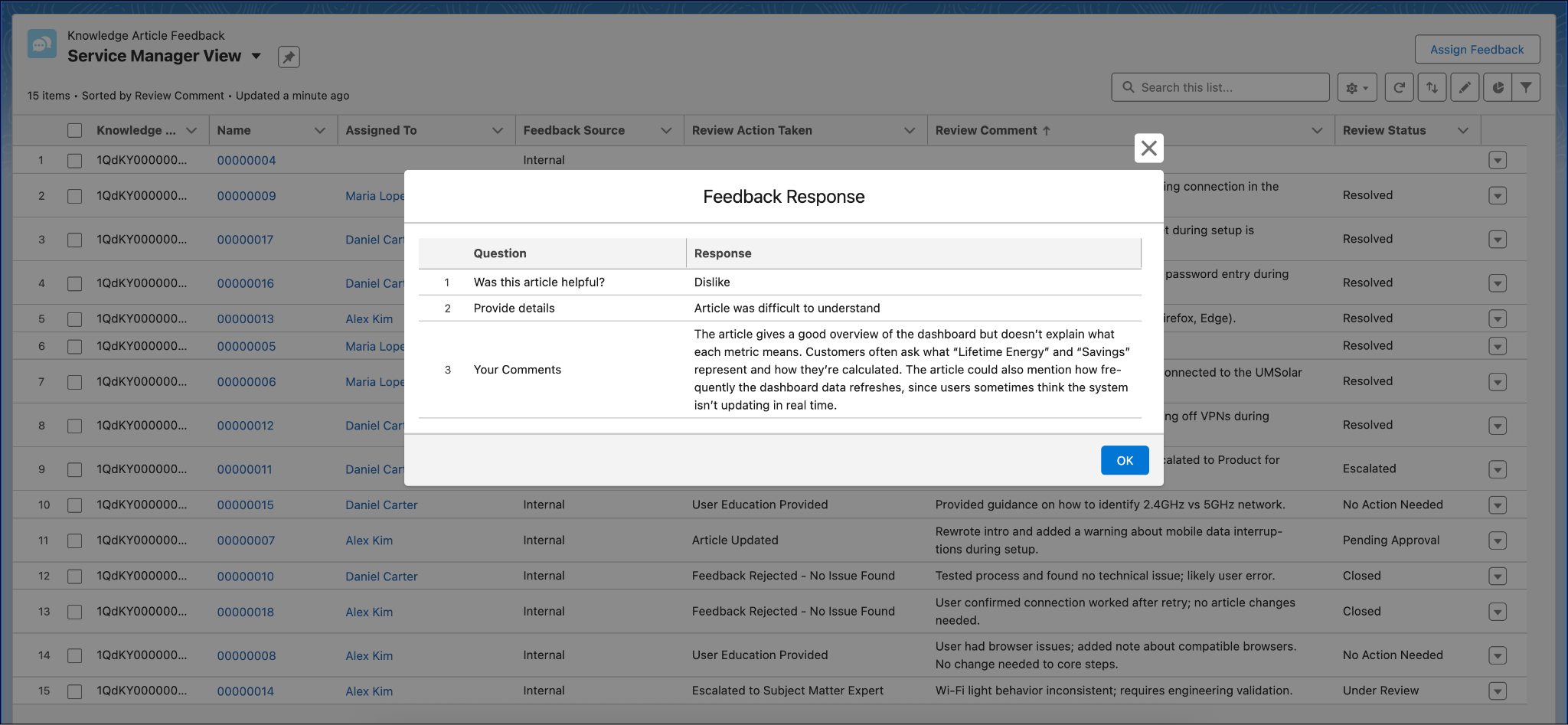
 next to the feedback and select View Response. This opens the Feedback Response popup window, which shows basic details about the feedback. Alternatively, click the feedback link to open it in a new window for more information.
Assign Feedback to the Right People
The new feedback suggests that the corresponding article is difficult to understand and needs to be reviewed by the article owner. Carlos assigns the feedback to the owner so they can review it and move it toward resolution.
- Click the feedback link to open the feedback record in the new page.
- Click Edit.
- In the Assigned To field, select User, and use the search field to find the article owner. Alternatively, you can select a queue if the feedback is managed by a team.
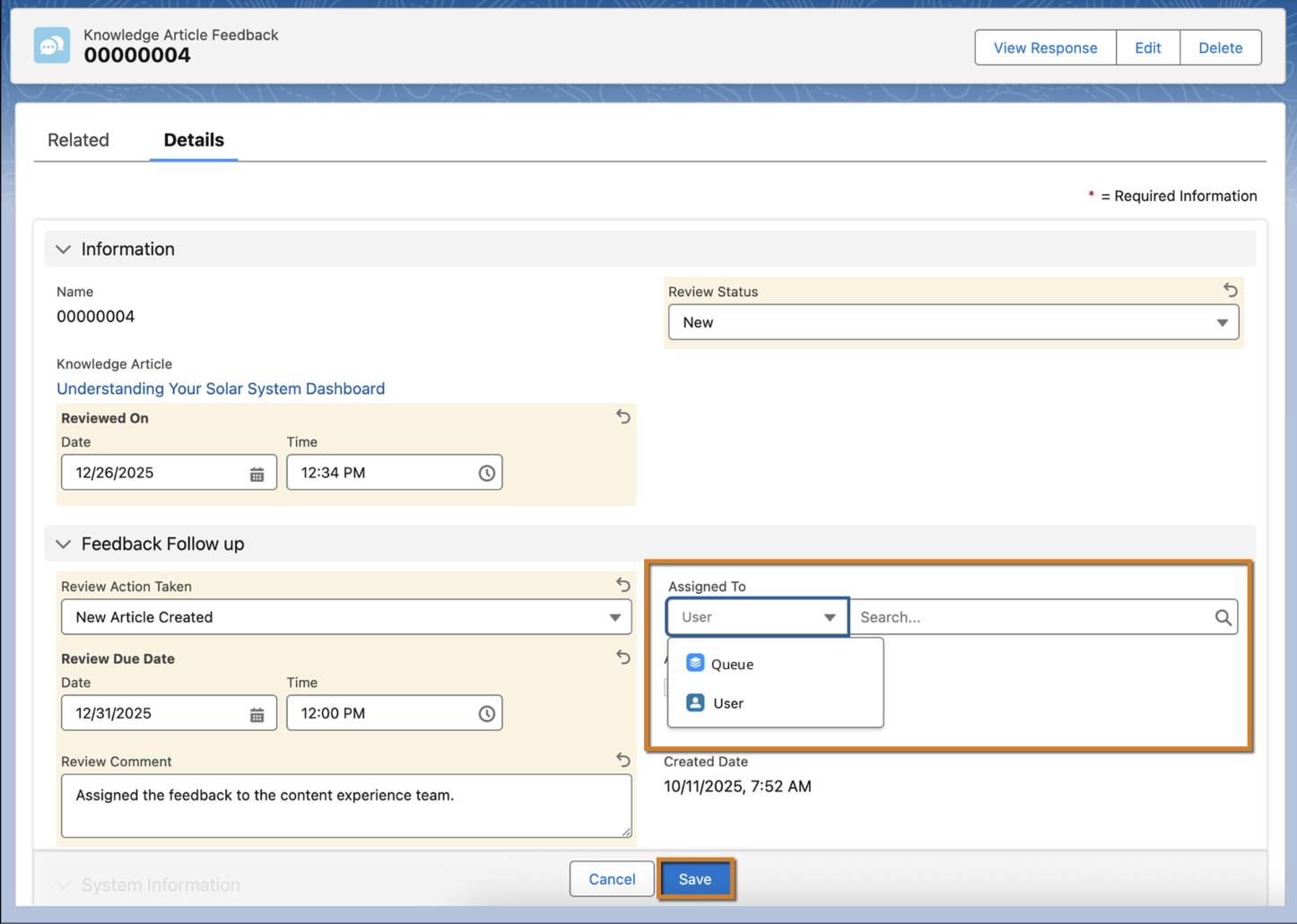
- Update any other required fields, then click Save. With Salesforce Flow, you can also automate this assignment process, ensuring that feedback reaches the right team quickly and accurately.
Track Feedback Resolution
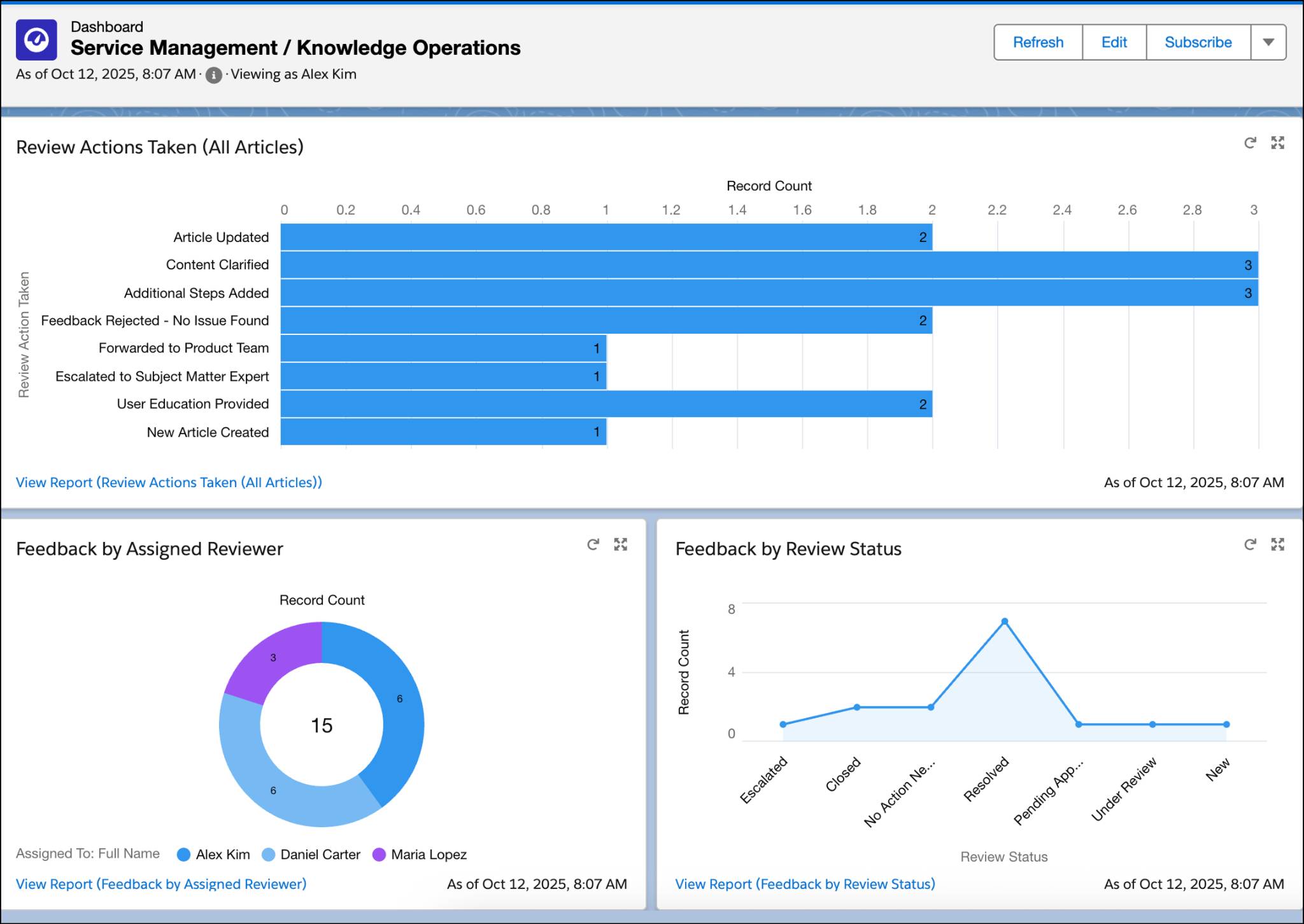
Carlos monitors feedback from the moment it’s submitted until it’s fully resolved. Since Knowledge Article Feedback is a standard object, it’s easy for him to set up a dashboard to track what actions have been taken, who’s working on what, the types of feedback his team is receiving, and other key metrics to help him stay organized and on top of everything.
Wrap Up
As Ursa Major Solar continues to grow, so does its commitment to empowering customers and teams through knowledge. With Knowledge Feedback, every voice, whether from a support team lead, a support rep, or a customer, becomes part of a continuous improvement cycle. Articles evolve with each insight, transforming from static information into living resources that reflect real user needs. The result? More relevant and valuable resource content, faster resolutions, and customers who feel truly supported every step of the way.
For Carlos and Maria, Knowledge Feedback isn’t just a feature. It’s a bridge between people and progress. By turning feedback into action, they help Ursa Major Solar build a stronger connection with its customers and a culture of collaboration across its teams. Each improvement, no matter how small, brings the company closer to delivering the kind of service experience that shines as brightly as the solar energy it provides.