Enable and Set Up Feedback for Knowledge Articles
Learning Objectives
After completing this unit, you’ll be able to:
- Configure Knowledge Feedback in your Salesforce org.
- Add feedback components to Knowledge article pages.
- Enable Knowledge Feedback for customers on Experience Cloud sites.
Sign Up for This Free Developer Edition Org with Knowledge Feedback
To complete this module, you need a special Developer Edition org that contains a Knowledge Feedback license and our sample data. Sign up for this free Developer Edition and connect it to Trailhead now so you can complete the challenges in this module.
Note that this Developer Edition is designed to work with the challenges in this badge, and may not work for other badges. Always check that you’re using the Trailhead Playground or special Developer Edition org that we recommend.
- Sign up for this free special developer edition org with a Knowledge Feedback license.
- Fill out the form:
- For Email, enter an active email address.
- For Username, enter a username that looks like an email address and is unique, but it doesn't need to be a valid email account (for example, yourname@example.com).
- For Email, enter an active email address.
- After you fill out the form, click Sign me up. A confirmation message appears.
- When you receive the activation email (this might take a few minutes), open it and click Verify Account.
- Complete your registration by setting your password and challenge question. Tip: Save your username, password, and login URL in a secure place—such as a password manager—for easy access later.
- You are logged in to your Developer Edition.
Now connect your new Developer Edition org to Trailhead.
- Make sure you're logged in to your Trailhead account.
- In the Challenge section at the bottom of this page, click the org name and then click Connect Org.
- On the login screen, enter the username and password for the Developer Edition you just set up.
- On the Allow Access? screen, click Allow.
- On the Want to connect this org for hands-on challenges? screen, click Yes! Save it. You are redirected back to the challenge page and ready to use your new Developer Edition to earn this badge.
Enable Knowledge Feedback in Lightning Experience
Remember Carlos, our Ursa Major Solar’s support team lead, and Sarah, its customer? Before they can share their feedback, the company’s Salesforce admin, Maria Jimenez, needs to enable Feedback for Knowledge Articles on the company’s help articles.
Follow along with Maria as she sets up Knowledge Feedback.

- Click
 and select Setup.
- To enable knowledge feedback, you first need to turn on the survey feature. In the Quick Find box, search for and select Survey Settings.
- Toggle Surveys to enable and wait for a few seconds until it gets turned on.

- In the Quick Find box, search for and select Enhanced Knowledge Settings.
- In the Article Feedback Settings section, turn on Feedback for Knowledge Articles.
- Click Turn On.

When you enable Feedback for Knowledge Articles, Salesforce takes care of part of the setup for you. It automatically creates two things: a default Knowledge Article Feedback survey form and a Knowledge Article Feedback object. The survey form helps you collect feedback on your knowledge articles and can be customized to fit your business needs, though it doesn’t support matrix or attachment questions. The object stores feedback records submitted by users.
Add Feedback Components to Article Pages for Internal Users
Once the feature is enabled, it’s time for Maria to add feedback components to article pages for internal users like Carlos, other service reps, and employees who work with Knowledge Articles inside the Salesforce org. Follow along with Maria as she sets up these components.
- From the App Launcher
 , find and select Knowledge.
- Click the drop-down next to Recently Viewed and select Published Articles.
- Open any Knowledge article you want to add feedback components to. For this example, select How to Connect Your Solar System to Wi-Fi.
- Click
 and choose Edit Page to open the Lightning App Builder.

- In the Lightning App Builder, open the Components tab.
- In the component search box, locate these components:
- Article Feedback Submission, which lets users submit feedback directly on the article page.
- Article Feedback Responses, which displays feedback submitted by customers.
- Article Feedback Submission, which lets users submit feedback directly on the article page.
- Drag each component onto the article page layout where you want it to appear.

- Click Save.
- If prompted, activate the Lightning Knowledge Record page.
- Click
 to go back to the article page. Refresh and wait for a few seconds for the components to load.
Now Carlos can easily share his feedback right on the article page to make the steps clearer and more accurate.

Enable Knowledge Feedback in Experience Cloud for External Users
External customers like Sarah, along with partners, access articles through Ursa Major’s Experience Cloud support site. It’s important to enable feedback on these sites as well to make sure valuable input is collected from every source. We won’t be checking for this but encourage you to follow along with Maria as she adds the same feedback components to Ursa Major Solar’s Experience Cloud site.
- Click
 and select Setup.
- In the Quick Find box, enter
Digital Experiences, then Click All Sites.
- Click Builder next to your Experience Cloud site page.

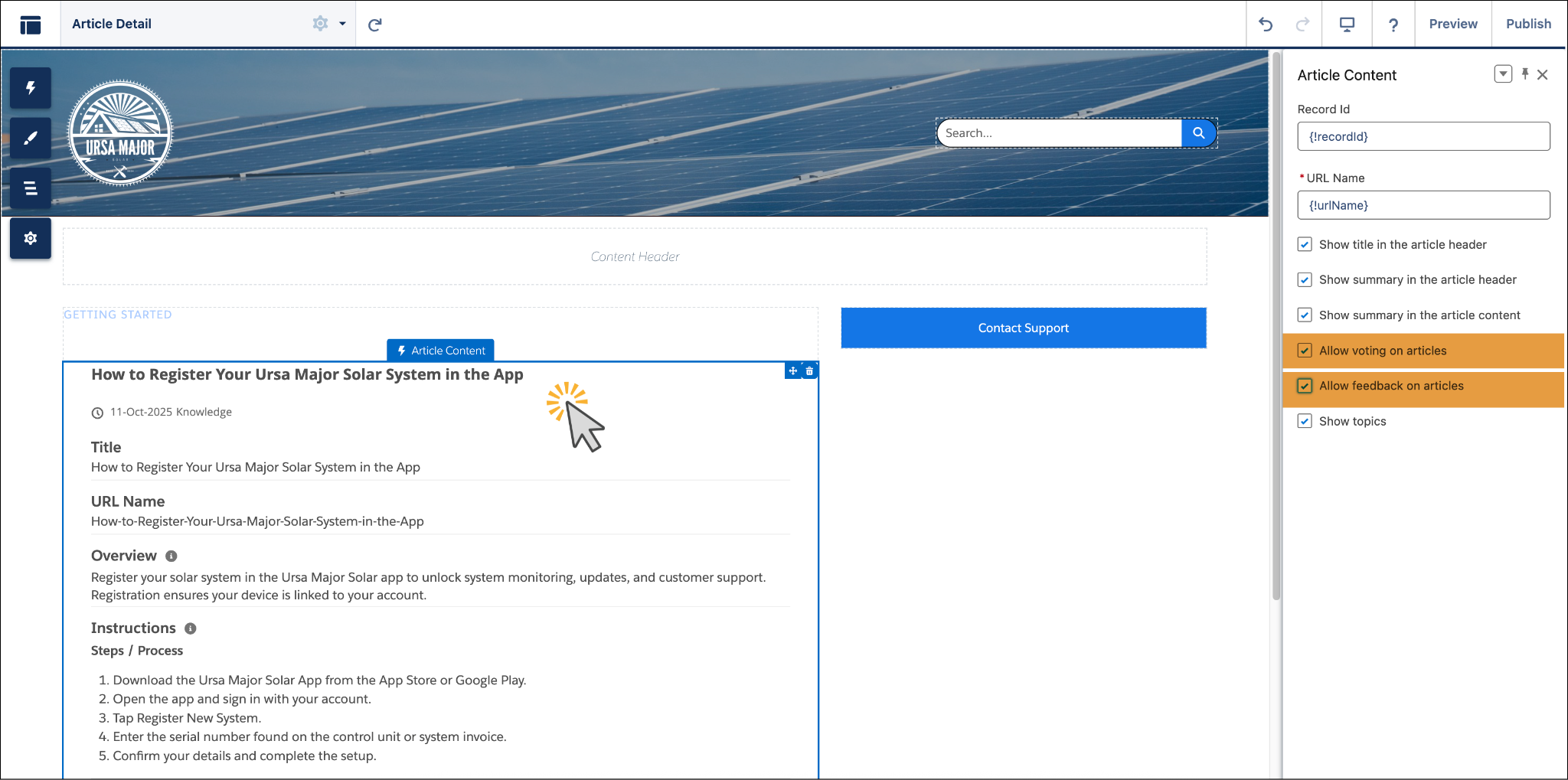
- Click Page Properties and then click Article Detail.

- In the article page, click the Article Content component.
- In the Article Content section, select Allow voting on articles and Allow feedback on articles.
Sarah can now rate the article and share her feedback directly on the article page in Ursa Major Solar’s Experience Cloud site.
Sarah will indicate that the knowledge article didn’t help her connect her solar system to Wi-Fi. The customer service team that Maria supports can then review her feedback and take the necessary action to correct the article and update the information accordingly.
Enable Feedback for Guest Users
Maria, the admin setting up the site, wants to make sure that customers who aren’t logged in can also share their feedback. To do this, she sets up guest access for the site so that feedback from users without login credentials can be collected as well.
- In the Experience Site Builder page, click
 .
.
- Go to the General tab.
- In the Public Access section, select Guest users can see and interact with the site without logging in.

- In the Guest User Profile section, click the guest user profile name to open the user profile setting.
- Click Edit.
- Scroll down to the Standard Object Permissions section and select the following permissions:
- Knowledge Article Feedback: Read and Create
- Surveys: Read
- Survey Invitations: Read
- Survey Responses: Read and Create
- Knowledge Article Feedback: Read and Create
- In the Knowledge Base Permissions section, select Read permission for Knowledge.

- Click Save.
- In the Experience Site Builder page, click Publish to publish the changes.
And that’s it! Maria has added Knowledge Feedback components to both the article pages and the Experience Cloud site. Now, Ursa Major’s internal users, customers, and partners can share their thoughts and help improve the company’s knowledge base, making it more helpful and relevant every day. You’re already one step closer to building a more reliable and relevant resource for your business.
But collecting feedback is only half the journey. In the next unit, you learn how Carlos, the support team lead at Ursa Major Solar, reviews that feedback, assigns it to the right teams, and turns insights into real improvements.
To pass the challenge and move on to the next unit, click Check Challenge to Earn Points.