Define Dependencies and Fulfillment Scenarios
Learning Objectives
After completing this unit, you’ll be able to:
- Define complex dependency linking steps across orchestration lanes.
- Create product fulfillment scenarios.
Connect Fulfillment Steps
Dependencies are the glue that holds your orchestration together. In Dynamic Revenue Orchestrator (DRO), you define both within-lane and cross-lane dependencies to make sure that each fulfillment stream executes in the correct order, with proper coordination between steps and teams.
So far in this module, Julian has set up technical products, step groups, and steps. Now, it’s time to link the steps within and across the orchestration lanes. Follow along in your Developer Edition org.
Dependencies Within Lanes
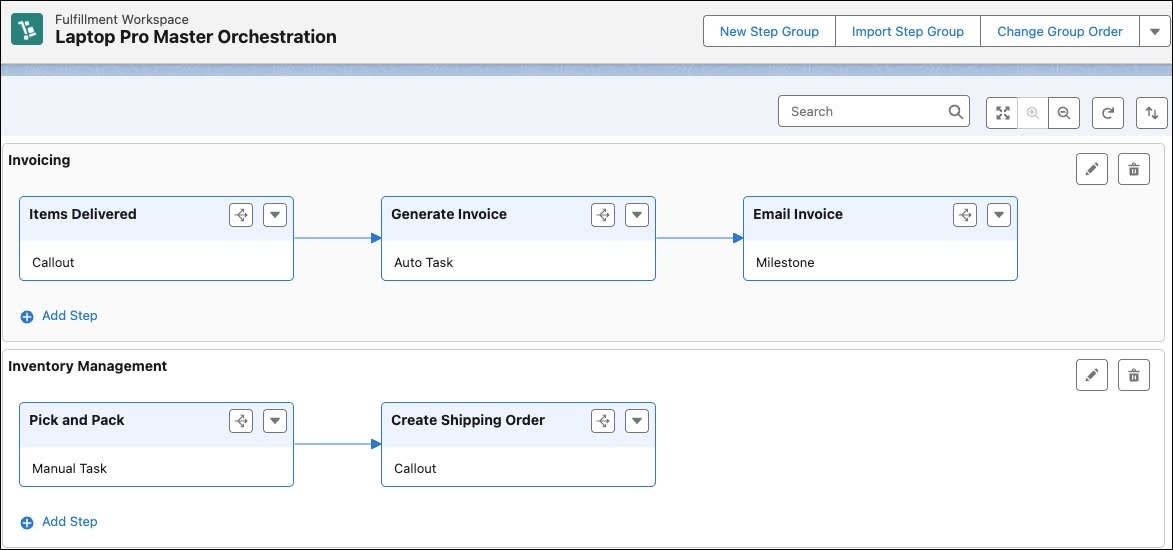
Define dependencies within lanes to establish the precise sequence in which individual steps are executed. For example, in the Invoicing lane, Julian defines dependencies so that the Generate Invoice step logically follows Items Delivered, and Email Invoice follows Generate Invoice.

Similarly, in the Inventory Management lane, Create Shipping Order depends on Pick and Pack.

Create these dependencies.
- From the App Launcher, find and select Fulfillment Workspaces.
- Go to the Laptop Pro Master Orchestration workspace.
- In the Invoicing lane, on Items Delivered fulfillment step definition, click
 .
.
- As Generate Invoice is dependent on Items Delivered, click + on Generate Invoice.
- In the New Fulfillment Step Dependency Definition window, enter
ItemDel_GenInvin the Name field.
- Save your work.
As the step group is imported from your work in the Simple Order Orchestration with Agentforce Revenue Management module, Generate Invoice is already linked to Email Invoice.
- In the Inventory Management lane, on Pick and Pack fulfillment step definition, click
 .
.
- As Create Shipping Order is dependent on Pick and Pack, click + on Create Shipping Order.
- In the New Fulfillment Step Dependency Definition window, enter
PickPck_ShpOdrin the Name field.
- Save your work.
Here’s how the Invoicing and Inventory Management lanes look now, with all steps connected.
Now, it’s time to create dependencies across lanes.
Dependencies Between Lanes
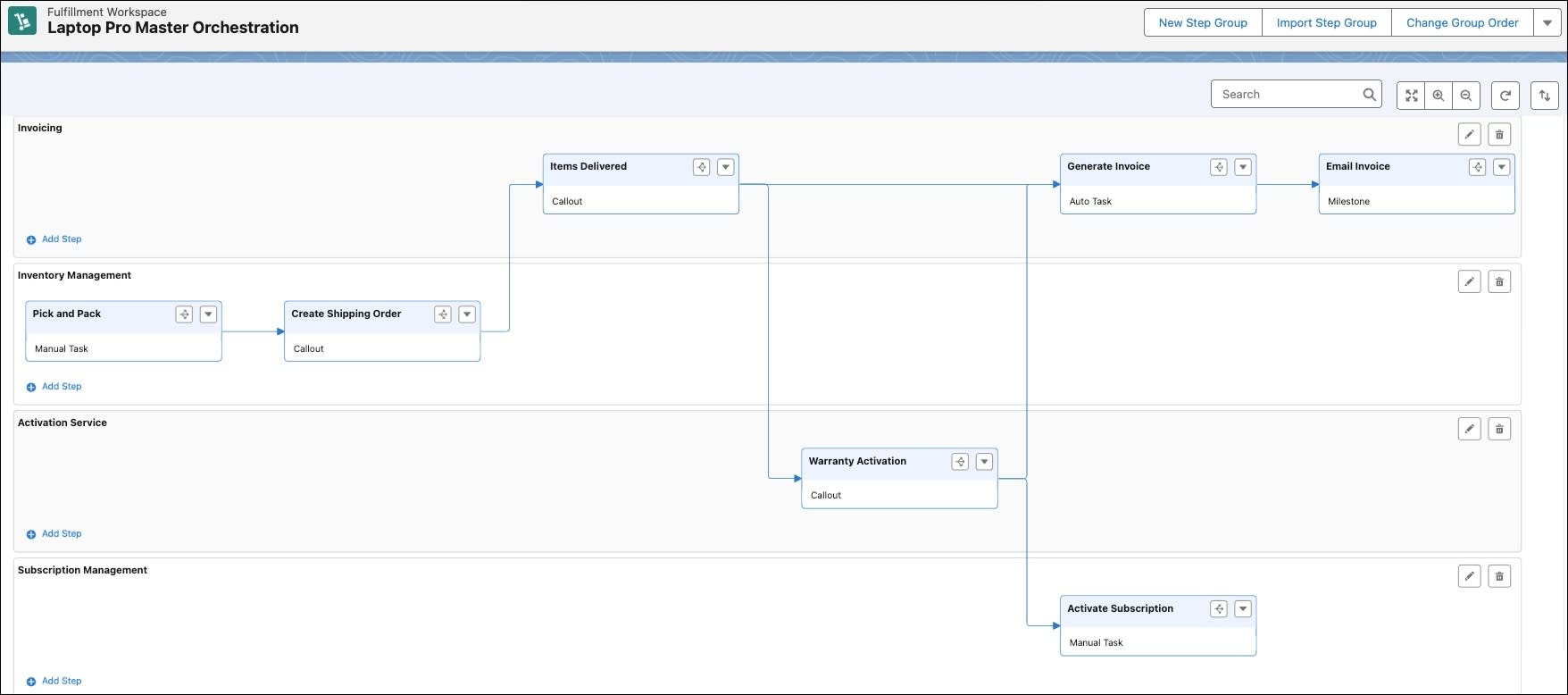
Cross-lane dependencies help you coordinate across functional areas. For example, Warranty Activation from the Activation Service lane completes before Generate Invoice in the Invoicing lane and Activate Subscription in the Subscription Management lane. This makes sure that invoicing and subscription steps begin only after the warranty setup is done.

Set up the dependencies within the Laptop Pro Master Orchestration workspace.
Inventory Management Lane
- On the Create Shipping Order step definition, click
 .
.
- As Items Delivered depends on Create Shipping Order, click + on Items Delivered in the Invoicing lane.
- In the New Fulfillment Step Dependency Definition window, enter
ShpOdr_ItemDelin the Name field.
- Save your work.
Similarly, set the dependencies for other lanes.
Invoicing Lane
Set the fulfillment step Warranty Activation to depend on Items Delivered. Name the fulfillment step dependency definition as ItemDel_WarAct.
Activation Service Lane
Set the fulfillment step Generate Invoice to depend on Warranty Activation. Name the fulfillment step dependency definition as WarAct_GenInv.
Subscription Management Lane
Set the fulfillment step Activate Subscription to depend on Warranty Activation. Name the fulfillment step dependency definition as WarAct_ActSub.
Check if your fulfillment workspace looks like this. If you can’t see all of these steps at once, zoom out of the workspace.
With the dependencies in place, Julian is now ready to link the plan to the Laptop Pro Bundle product to trigger the orchestration.
Create a Product Fulfillment Scenario
Product Fulfillment Scenarios direct DRO to qualify a group of fulfillment step definitions when a specific product appears on an order. You can group these steps in a swimlane on the workspace and tie them to either commercial or technical products.
Now link the decomposed technical products to their respective step groups.
- In the Laptop Pro Master Orchestration workspace, click anywhere in the Invoicing fulfillment step group.
- In the side panel that opens, go to the Related tab and in the Scenarios section, click New.
- In the Create Product Fulfillment Scenario window, add these details.
- Name:
Scenario Laptop Pro Invoicing - Action: Add
- Product: Laptop Pro Bundle
- Name:
- Save your work.
Back on the Laptop Pro Master Orchestration workspace, the new scenario now appears in the Scenarios section.
Repeat steps 1-4 to add these scenarios to other lanes, and see the explanation for each product fulfillment scenario.
Lane |
Name |
Action |
Product |
Why |
|---|---|---|---|---|
Inventory Management |
Scenario Inventory Laptop Pro |
Add |
Inventory Management |
Triggers when Laptop, Printer, or Mouse decomposes into Inventory Management |
Activation Service |
Scenario Activation Service |
Add |
Activation Service |
Triggers when Laptop or Antivirus decomposes into Activation Service |
Subscription Management |
Scenario Subscription Management |
Add |
Subscription Management |
Triggers when Warranty decomposes into Subscription Management, especially if tied to a condition Annual Subscription |
Now, when a user orders the Laptop Pro Bundle, the Laptop Pro Master Orchestration plan is ready to trigger automatically.
Next Steps
In this unit, you built a complete complex product orchestration plan, and linked cross-lane dependencies. In the next unit, you create and submit an order to see the decomposition and orchestration in action.
To pass the challenge and move on to the next unit, click Check Challenge to Earn Points.
Resources
- Salesforce Help: Design Your Order Decomposition
- Salesforce Help: Design Your Order Orchestration
- Trailhead: Efficient Sales with Agentforce Revenue Management (see unit: Discover and Configure Products)