Learn About Sorting Rules
Learning Objectives
After completing this unit, you’ll be able to:
- Describe the benefits of using sorting rules.
- List the three types of sorting rules you can configure.
- Describe four types of attributes that you can use when building sorting rules.
- Explain the difference between search placement and search rank.

Control Search Results with Sorting Rules
Agentforce Commerce for B2C (formally known as B2C Commerce) sorting rules are tools that give you control over the order in which products show in search results and category pages. Strategic use of sorting rules helps you improve search results, show the most relevant products first, and increase conversions.
Here are a few key business goals that you can accomplish by using sorting rules.
-
Help shoppers find products. Show product sequences, and optimal product assortments based on what a shopper views while browsing.
-
Feature best-selling, new, or most popular products. Use active data and category-based rules.
-
Vary product sequencing for repeat customers. Mix up product sequencing so repeat customers don’t see the same products every time they return to the storefront. You can pull active merchandising data into the equation to personalize the sorting.
-
Increase conversion rates. If you configure your sorting rules right, they increase the add-to-basket rate and ultimately your conversion rate.
Create a Sorting Strategy with Sorting Rule Types
Agentforce Commerce for B2C has three types of sorting rules that you use to build and run your sorting rule strategy
- Keyword search results
- Explicit category placement
- Storefront options
Keyword Search Results
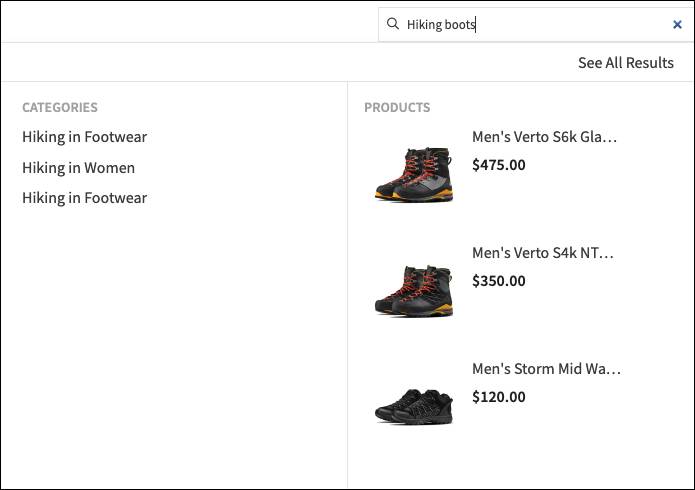
When a shopper enters text into the search field, Agentforce Commerce for B2C uses sorting rules to sort the results. A typical sorting rule has several attributes, applied in layers from top to bottom. You can specify the direction (ascending or descending) for each layer. The attribute in the first layer ranks all products. Then the second layer breaks any ties. This continues for all attributes until there are no ties left to break. Agentforce Commerce for B2C applies the same rule for all searches, with customized results based on customized rules.
Explicit Category Placement
Agentforce Commerce for B2C uses the sorting rule assigned to the navigational catalog's root category for basic category sorting. All subcategories of this catalog inherit the root sorting rule. You can modify sorting at the subcategory with a category sorting rule. The category position attribute places specific products in a particular order for a specific category (if you include the category position in the sorting rule).
Storefront Sorting Options
Storefront sorting options offer shoppers a way to filter how search results are ordered and presented after they run a keyword or category search. These options typically appear in a "Sort By" dropdown list at the top of the search results.
For example, shoppers can select to change the order of search results by price Low to High.
Use Sorting Rules in Campaigns and with Predictive Sort
You can use sorting rules on the storefront in storefront search, category placement, or storefront sorting options. You can also use sorting rules for:
- Campaigns
- A/B testing
- Predictive sort
When you create a sorting rule, you can use it on one site or globally across all the sites in your organization. Global sorting rules only use global dynamic attributes. The actual sorting scores remain site-specific based on site data. You can change the rule context from an individual site to global (and vice versa) in Business Manager or use import/export functionality. To learn more, see How Sorting Rules Work.
Campaigns and A/B Tests
You can use sorting rules alone, in a campaign, or in an A/B Test. You can set a default sorting rule for a category in a site catalog, outside the context of a campaign or A/B test.
Agentforce Commerce Einstein
Agentforce Commerce Einstein gives you the option to personalize the sorting experience for each shopper based on catalog and product data, order history, and live customer clickstreams. To learn more, see Smarter Search with Agentforce Commerce Cloud Einstein.
Define Search Result with Settings and Attributes
As you set up sorting rules, you want to be able to define search results. For example, you can sort search results based on profit margin, showing the top revenue generators first. To configure the setup, you use Business Manager settings and data attributes.
This table includes suggestions on how you can use search settings and attributes to achieve your storefront search goals.
|
Configuration
|
Goal
|
Attributes
|
|---|---|---|
Category or product settings |
Gain the most control over product ordering. |
|
Text relevance settings |
Sort based on how closely products match a storefront search. This only works in a search-specific sorting rule. |
|
Product attributes |
Sort based on merchant-defined product data attributes. |
|
Active data attributes |
Sort based on data collected or calculated by Agentforce Commerce for B2C. |
|
Configure Business Manager Sorting Rule Settings
The Business Manager sorting rule settings give you another set of options for your search placement strategy.
Search Placement
Search Placement is a way to group products with a numeric code. For example, when a shopper searches for running shoes, you can have certain types of products show up listed first, second, and third. In order to do this, you assign a search placement code to each product type so they display in that order. Agentforce Commerce for B2C ranks search placement codes from the highest numeric value to the lowest. The default is eight tiers, and you can customize for more.
Use this setting to accomplish the following.
- To group items within a category
- When using category position is too explicit, but you still want merchandising and control of the sort order
- To group certain products together or promote/demote certain products
- With search (keyword search) and navigation (categories)
Search Rank
Search rank adds another layer of granularity. Use it to set certain products high, medium, or low within a search placement code group. For example, you want specific shoes within the ShoeX brand to appear at the top of the list, so you rank them high. Use this setting as follows:
- On its own or with search placement
- For search result pages and View All categories
Category Position
The category position setting applies an explicit order to each product on a category page. This setting gives you ultimate control of a product’s sort order on that page. In addition to configuring the category position in Business Manager, the setting requires that you also include it in a sorting rule.
Having total control means that you can easily maintain brand guidelines and push the products you want to sell. However, Agentforce Commerce for B2C ignores this setting for the search results order and for active data. The products you promote are your best guess and not necessarily what the shopper wants.
If the sort by category position is the default rule for the root category, you can add a second layer to the default sorting rule to break ties. To work properly, make sure that category position is the first attribute in the sorting rule.
Text Relevance
Text relevance is how closely products in search results match what the shopper enters in the search field. When the shopper enters a search term, Agentforce Commerce for B2C computes a score for each product based on how many times it finds the term in the searchable attribute, the boost factor, and other weighting factors. The boost factor is a value from 0.01 to 100.00. We recommend that you keep it to 5.00 or less.
- 1 is the default, and does not change the order of the search results.
- 2 is twice as important as 1.
- 0.5 is half as important as 1.
The boost factor only works if text relevance is part of a sorting rule. Use it only for attributes such as product or category name. For example, when a shopper on a site that sells athletic shoes searches for basketball, you want results from the basketball shoes category to show first and products containing the word basketball in the title or description to be listed second. For the basketball shoes category, you set the category name attribute to a boost factor of 2, and the product title and descriptions attributes to a boost factor of 1.
You can use text relevancy as an attribute or as an:
-
Attribute: Include text relevancy as a single attribute or as part of a dynamic attribute.
-
Option for a dynamic attribute: Use as a calculated metric. For example, some attributes support selecting text relevancy as a layer within a sorting rule.
Sorting Rule Attributes
Attributes are at the heart of sorting rules. You use them to specify what you want shoppers to see first, and in what order. Here are the types of attributes you can use.
-
Product: Use any single-value (non-set) attribute of the product system object in a sorting rule (except Password, Image, Text, HTML, or Email type of attribute). Attributes don't have to be flagged as online or searchable to be used in sorting rules.
-
Active data: Implement the active merchandising feature to capture data for search sorting. This includes data collected from orders on a production system and information collected from storefront pages.
-
Availability model: Implement the availability feature, the active merchandising feature, or both to capture data for search sorting.
-
Dynamic: Sort using custom combinations of attributes that you create.
Sum it Up
In this unit, you learned about the impact sorting rules have on the shopper experience. You also learned where you can use them, and the settings and attributes you can use to configure them. Next, you learn how sorting rules work.
References
-
Salesforce Help: Sorting Rules
-
Salesforce Help: Campaigns and Promotions
-
Salesforce Help: A/B Testing
-
Trailhead: Smarter Search with Commerce Cloud Einstein