Get to Know B2C Commerce Cartridges
Learning Objectives
After completing this unit, you’ll be able to:
- Explain the application of the two types of B2C Commerce cartridges.
- Explain why implementing a Storefront Reference Architecture (SFRA) storefront requires at least one custom cartridge.
- Describe where you can find the code version number.
- Explain the purpose of the cartridge path.
Salesforce Certified B2C Commerce Cloud Developers create and maintain storefront apps. These apps are a combination of client and server code that drive online retail. They’re built on a reference architecture such as the Storefront Reference Architecture (SFRA), which provides a framework for site design based on a software as a service (SaaS) and client-server model.
Before you write your first line of storefront code, you need to understand the fundamental building blocks. The primary building block is the cartridge.
A Word About Headless Storefronts
This unit discusses cartridge development for the traditional reference app SFRA. Other units discuss headless development and the Salesforce headless storefront solution. Storefront Next uses cartridges for API hooks, custom APIs, and many of the same things SFRA uses them for. Most of the concepts in this unit are applicable to headless storefront development. To learn more about Storefront Next, see Build Modern and Scalable Storefronts with Storefront Next.
Explore B2C Commerce Cartridges
A cartridge is a mechanism used to package and deploy code and data. It’s organized in folders and subfolders for consistent structure and easy navigation. A storefront uses at least one cartridge, though most production storefronts use several.
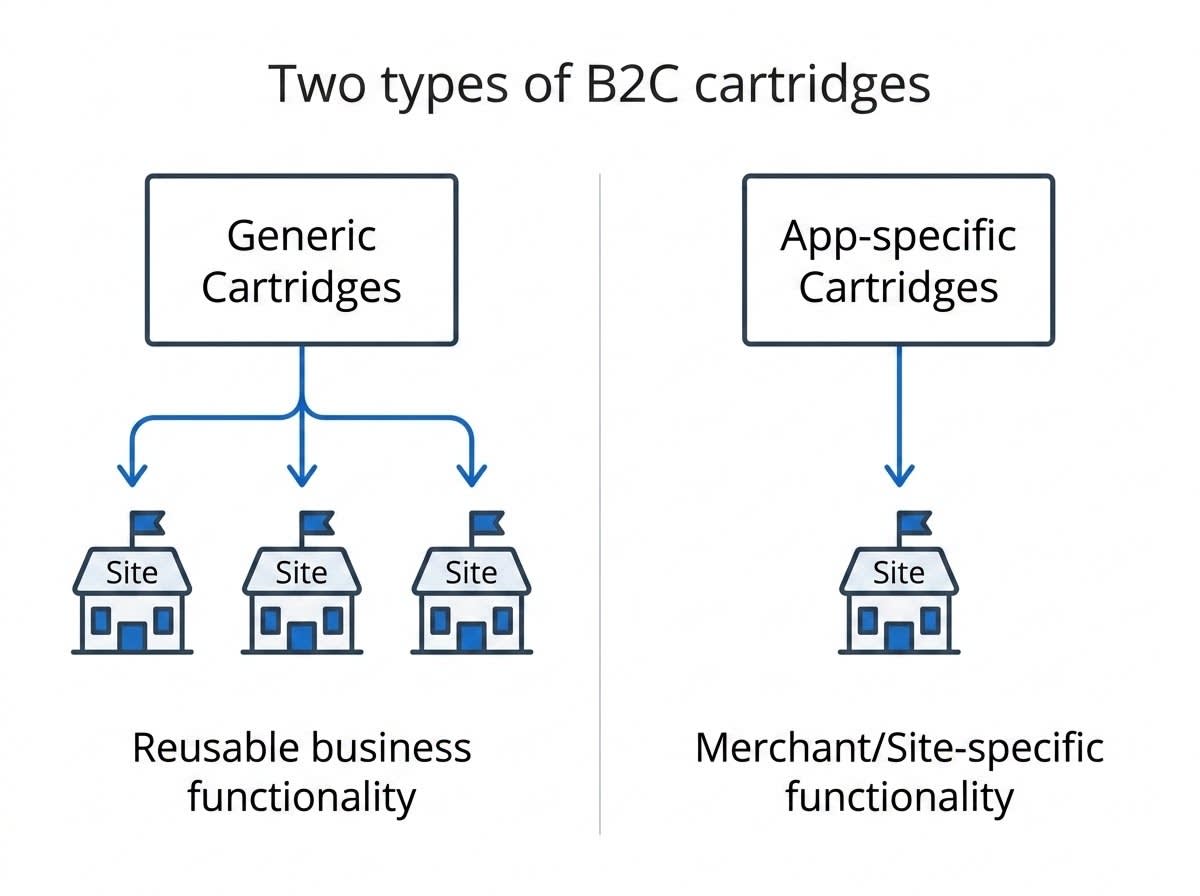
There are two types of cartridges.
-
Generic cartridges contain reusable business functionality that you deploy across many sites.
-
App-specific cartridges contain merchant-specific and site-specific functionality.
Cartridges hold the working parts of your app, including:
- Controllers
- Form definitions
- Scripts
- Static content (text, images, CSS files, and client-side JavaScript files)
- Templates
- Web Server Description Language (WSDL) files
- Page Designer experiences
- Custom RST APIs
- API hook extensions
Here are the steps for working with cartridges from development to deployment.
- Configure the development environment.
- Download reference architecture cartridges.
- Review and structure cartridge files on the local drive.
- Define and test a cartridge-upload process.
- Customize, extend, or override cartridges.
- Upload changes to the server.
- Register cartridges in Business Manager.
- Run the storefront app to test the changes.
Override or extend the base cartridges rather than editing them directly. This practice helps you avoid a laborious merge process every time Salesforce publishes an update.
Configure the Development Environment
Before you work with cartridges, get your development environment ready.
- Take the Develop for Salesforce B2C Commerce trail, which guides you through the complete setup.
- Set up an integrated development environment (IDE) and a connection to an Salesforce B2C Commerce On-Demand Sandbox instance. Most developers work in Visual Studio Code.
- Use the Agentic B2C Developer Toolkit includes a Visual Studio Code extension: B2C DX. With this extension you can watch, upload, download, and manage code versions all from the IDE.

Use the B2C CLI
The B2C CLI is the command-line toolset for B2C Commerce development including: cartridge scaffolding, code deployment, and sandbox management. The B2C CLI uses the same dw.json configuration that sgmf-scripts uses but also supports many other configuration methods. It’s designed for individual developers and continuous integration and continuous deployment (CI/CD) systems.
Install the B2C CLI
Install it globally to make it available in every project.
npm install -g @salesforce/b2c-cli
Other package managers work too.
pnpm add -g @salesforce/b2c-cliyarn global add @salesforce/b2c-clibrew install salesforcecommercecloud/tools/b2c-cli
Verify the install.
b2c --version
Run B2C --helpto see the full command list.
Scaffold a Cartridge
One command generates a cartridge with the correct folder structure.
b2c scaffold cartridge --name app_custom_mybrand
B2C scaffold cartridge is shorthand for B2C scaffold generate cartridge.
Useful Flags
-
--dry-run: Preview the files without writing them.
-
--force: Skip prompts and overwrite existing files.
Other Available Scaffolds
controllerhookservicecustom-apijob-steppage-designer-component
Run the B2C scaffold list to see all available scaffolds.
The scaffold command produces:
├── cartridges
│   └── app_custom_mybrand
│       └── cartridge
│           ...
├── dw.json
└── package.json
Compile CSS and JavaScript
The B2C CLI doesn’t compile client-side assets. To compile, use your existing build pipeline (webpack, Sass, and others).
For SFRA projects, run these scripts before deploying.
npm run compile:js && npm run compile:scss && npm run compile:fonts
Deploy Code to Your Sandbox
Push all cartridges in a repository together.
b2c code deploy
The CLI auto-discovers cartridges from the current directory (or a path you pass) and uploads them to the active code version on the instance configured in dw.json.
Target Specific Cartridges
b2c code deploy ./cartridges
b2c code deploy -c app_custom_mybrand
b2c code deploy -c app_storefront_base -c plugin_applepay
b2c code deploy -x test_cartridge          # exclude a cartridge
Activate or Reload After Deployment
b2c code deploy --activate
b2c code deploy --reload
Watch for Changes During Development
During active development, b2c code watch detects file changes and uploads them automatically.
b2c code watch
Work with sgmf-scripts
sgmf-scripts is the Node Package Manager (npm) command-line toolset for SFRA development. To make it available for every project, install it globally.
npm install -g sgmf-scripts
Run sgmf-scripts --help to see the full command list. Here are the steps.
-
Create a cartridge: One command generates a cartridge with the correct folder structure.
sgmf-scripts --createCartridge app_custom_mybrand
That produces:
├── cartridges
│   └── app_custom_mybrand
│       └── cartridge
│           ...
├── dw.json
├── node_modules
└── package.json
-
Compile CSS and JavaScript: Before you upload a cartridge with client-side assets, compile them first.
npm run compile:js && npm run compile:scss && npm run compile:fonts
The build tool reads the paths property in package.json to locate Sass and JavaScript across cartridges, then compiles everything in one pass. Fonts typically require compilation only one time.
- Upload the code to your sandbox: Push all cartridges in a repository together.
npm run uploadCartridge
Target a single cartridge.
npm run uploadCartridge app_custom_mybrand
During active development, watch detects file changes and uploads them automatically.
npm run watch
The Cartridge Stack
B2C Commerce loads cartridges in a specific order, starting with basic functionality and building toward increasingly customized layers. Developers call this order the cartridge stack.
At the bottom, the base cartridge loads first. It provides the storefront’s foundation. Salesforce maintains the base cartridge. Plug-in cartridges—such as Apple Pay code—load next. The custom cartridges load last. Custom cartridges contain your brand-specific functionality and code.
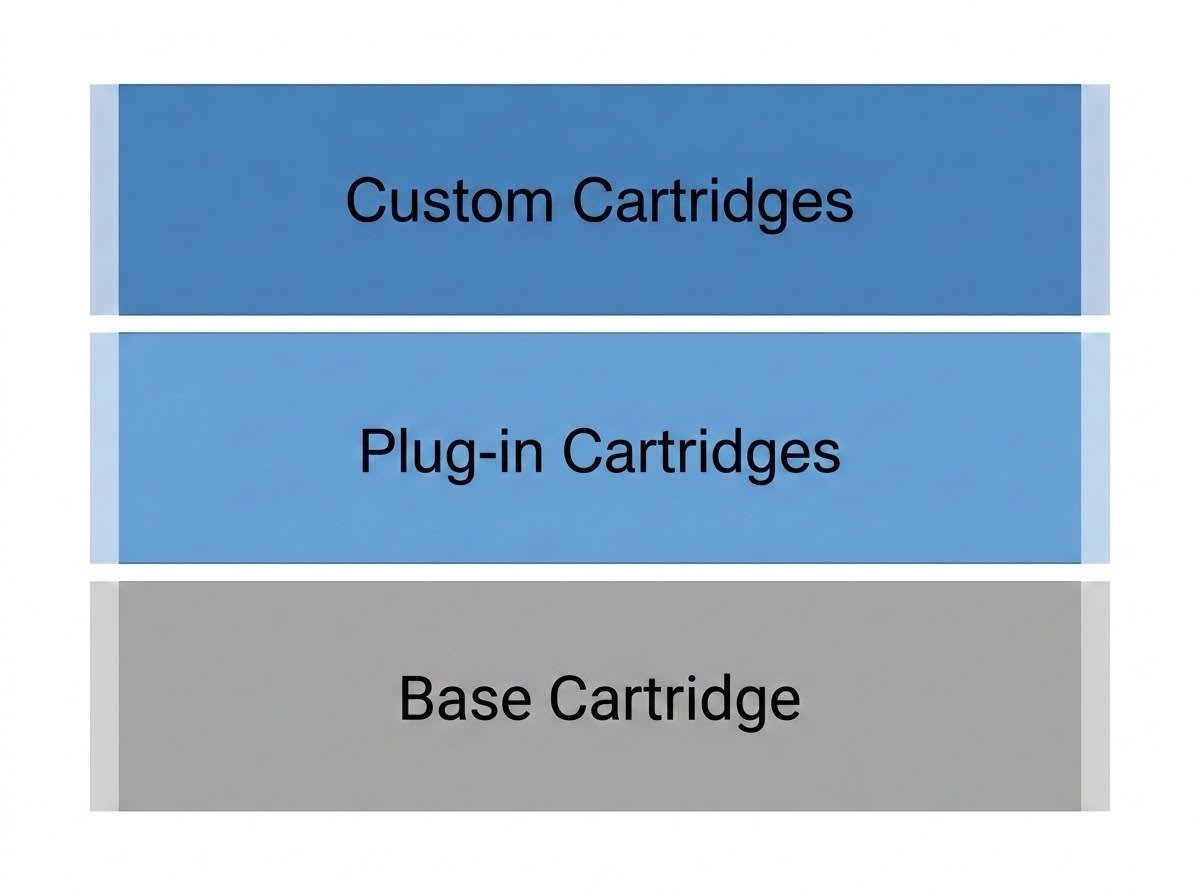
To implement a storefront, requires at least one custom cartridge. Without a custom cartridge, your site has no individual branding. A generic storefront rarely generates enough shopper interest to drive conversions. In a multibrand setup, each site gets its own custom cartridge to reflect a specific language, look, or feature set.
When you create a dedicated cartridge per brand or locale, you reuse most of the cartridge stack across all storefronts. That approach makes rolling out changes—whether global or site-specific—straightforward and predictable. LINK integration cartridges handle regional payment methods on a per-site basis without affecting other sites in the stack.
The layered design also pays off at release time. Because your custom code lives in its own cartridge and doesn’t touch the base, you pick up security patches, bug fixes, and new platform features without a painful manual merge.
Configure a Cartridge Path
The cartridge stack describes the layers. The cartridge path determines the order in which B2C Commerce searches those layers for a specific element—a controller, template, or script file. Cartridges earlier on the path (to the left) override the functionality of cartridges later on the path (to the right).
For example, suppose that you want to customize the cart process to reduce checkout steps. You create a cartridge, app_custom_cart, and within it, a file at cartridge/controllers/Cart.js. You extend your version of Cart.js to meet your requirements without copying the original code. Then you place your new cartridge to the left of the base cartridge in the cartridge path. When B2C Commerce runs the storefront, it runs the custom version first.
Here’s what that cartridge path looks like in Business Manager.
app_custom_mybrand:plugin_applepay:plugin_comparison:app_storefront_base
B2C Commerce searches from left to right and uses the first matching file it finds. You build each cartridge independently and upload it to add it to the stack. You change and upload cartridges independently, as long as you develop against the same code version.
Configure the cartridge path per site in Business Manager. In a multibrand deployment, each site gets its own path. With its own path, you can give one storefront a different feature set or branding from another while the sites use the same underlying base.
Check Your Code Version
Here’s how to check your code version.
Note: To follow these steps, you need site admin permissions in your sandbox. If you’re not a site admin, ask your admin which credentials to use.
- In Business Manager, select App Launcher.
- Then, select Administration | Site Development | Code Deployment.
- Select the code version that you want. Only one code version is active at a time.
B2C Commerce uses this version to run the cartridge code on your storefront. You upload many cartridges to a code version, but the cartridge path configured for each site determines which cartridge actually runs.
Next Up
You explored how cartridges are a key part of the B2C Commerce development environment. You learned about the types of cartridges, how they stack, and the order in which they load.
Next, you take a closer look at the SFRA cartridges to understand their structure.