Access Slack Usage Data
Learning Objectives
After completing this unit, you’ll be able to:
- Identify common analytics tools in Slack.
- Recall what data and analytics are available in Slack through workspace and org-level dashboards.
Locate Slack Usage Data
You can find Slack analytics data in three locations.
-
Workspace analytics dashboard: This dashboard is available on the Free plan (basic metrics only), Pro, Business+, and Enterprise+ plans.
-
Org analytics dashboard: This dashboard is available in Enterprise+.
-
Message activity analytics: This feature is available in Business+ and Enterprise+.
Dig into each option to learn how to use them to find data about Slack usage.
Use the Workspace Analytics Dashboard
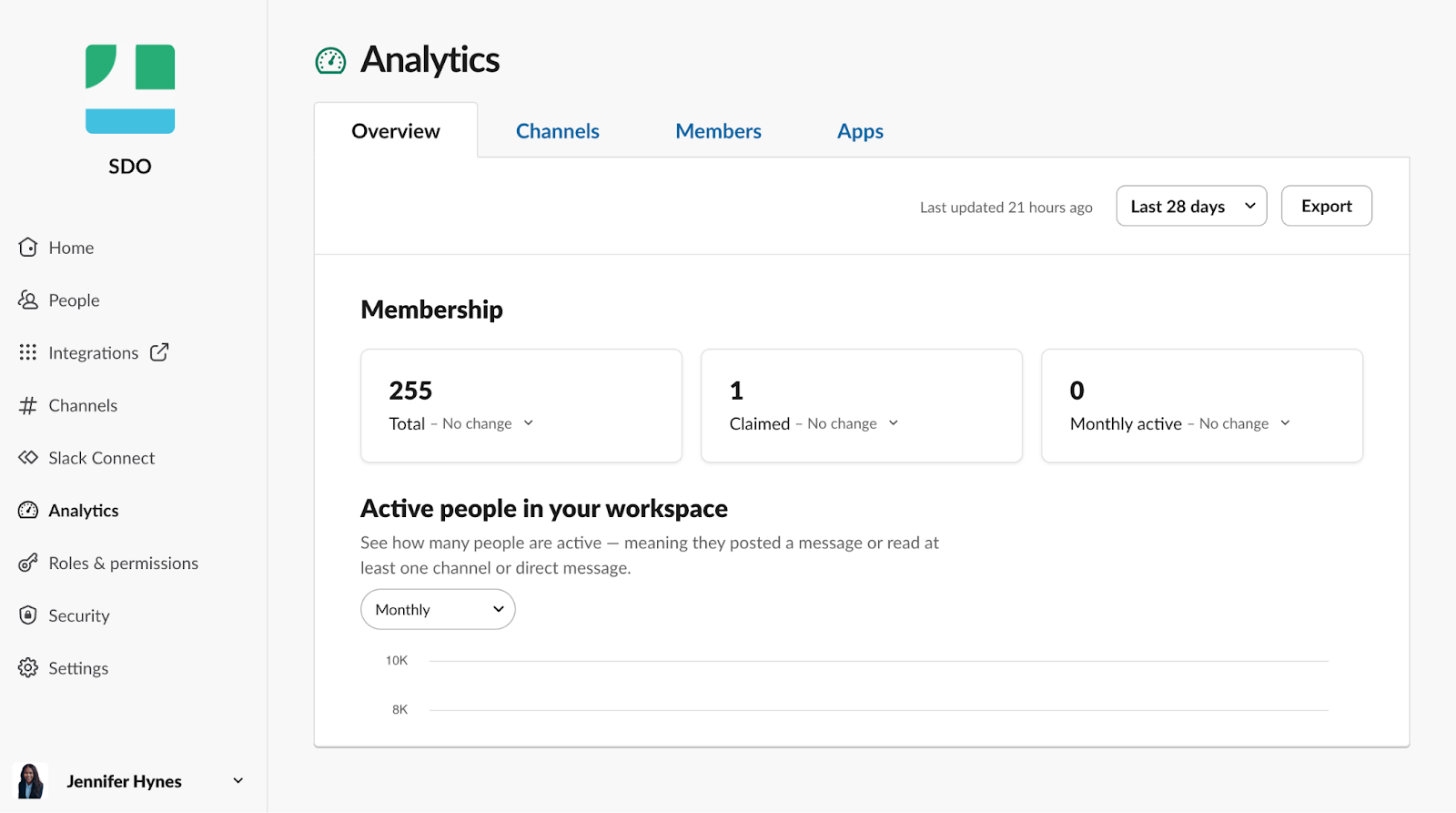
The workspace analytics dashboard allows you to do the following.
- Understand Slack usage like active usage, numbers of messages and files sent, and where members are reading and having conversations.
- View channel and member statistics sorted by different fields such as date last active.
- Sort, adjust date range, and export your data as a CSV.
By default, all members can view workspace analytics. Workspace and org owners can restrict access or disable member metrics in paid plans only. With Enterprise+, org owners can set a policy to limit analytics access to owners and admins across all workspaces.
Review the following sections of the workspace dashboard to learn more about how your workspace is being used.
Overview
The Overview tab covers the basics of Slack—channels, messages, and files—helping you discover usage trends on a broad scale.
This tab provides key workspace metrics, including the following.
-
Total members: The number of active members, excluding deactivated members and guests
-
Weekly active members: The number of members that engaged with the workspace in the past 7 days
-
Message distribution: A breakdown of messages sent in public channels, private channels, and direct messages
-
Files uploaded: The total number of files uploaded to the workspace
These metrics offer insights into workspace activity and usage patterns.
Channels
The Public Channels section offers in-depth insights into your organization’s public channels. You can filter by various fields to identify top channels by membership, recent activity, and more. Organize channels by metrics such as name, total members, or messages sent to gain a deeper understanding of your workspace’s activity.
This tab provides key metrics, including the following.
-
Channel membership: The total number of members, including full members and guests
-
Messages posted: A percentage change in the number of people posting in the channel over the past 30 days
-
Last active: The date of the last message sent in the channel
These metrics help you understand channel activity and engagement.
Members
The Members tab provides additional visibility to the people within your workspace, giving you a deeper sense of how active they are and the number of messages they’ve sent.
This tab provides metrics for tracking member activity, including the following.
-
Claimed date: The date that the member signed in to your Slack workspace or org for the first time
-
Days active: The number of days the member read or sent a message in at least one channel or direct message
-
Last active: The date the member last read or sent a message in at least one channel or direct message
-
Messages posted: The number of messages posted by the member in direct messages and channels
Use the Org Analytics Dashboard
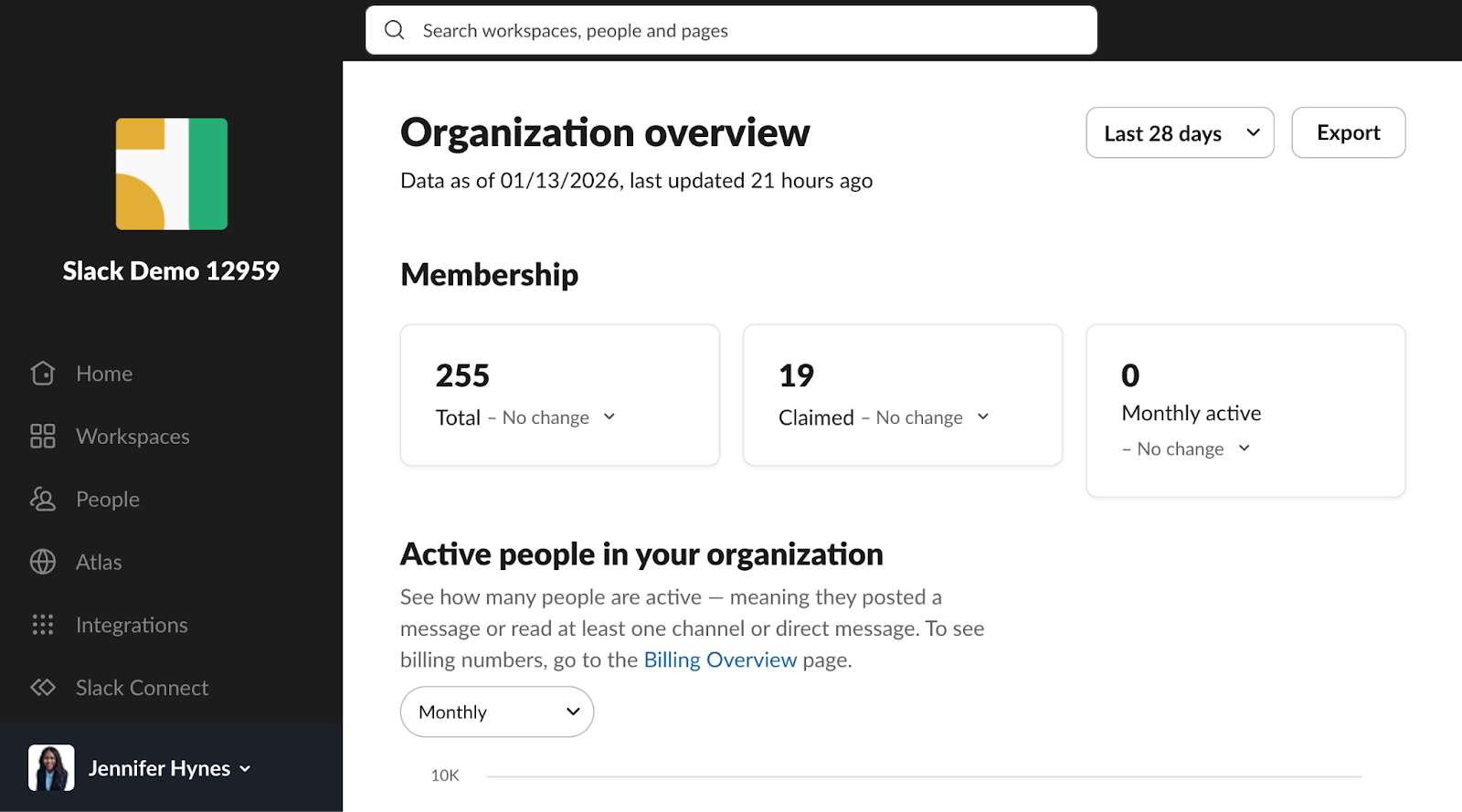
With Enterprise+, org owners and admins can review analytics for their entire organization. The Overview page provides general org activity. The Workspaces, Channels, and Members pages offer more detailed insights.
The following sections of the workspace dashboard contain the information you need to understand exactly how your Enterprise+ org is being used.
Organization
The Organization section provides the basics of your Slack org—members, workspaces, org-wide channels, messages and files—helping you discover trends around usage.
This section offers key metrics for your entire organization, including the following.
-
Weekly active members: A count of unique users who have engaged with the platform in the last seven days.
-
Messages and files: Insights into how information is shared across your organization through messages and file uploads.
-
Conversations: A breakdown of where messages are sent and read, comparing public channels, private channels, and direct messages.
These metrics provide a comprehensive view of your organization's activity and collaboration patterns.
Workspaces
The Workspaces section provides detailed analytics across your organization. You can sort workspaces by metrics such as name, total members, or messages sent to identify top workspaces by activity and engagement.
This section offers the following metrics.
-
Total workspaces: A list of workspace names, URLs, and icons in your organization
-
Change in active members: A comparison of member activity between the current and previous 30-day periods across workspaces, providing insights into engagement trends
-
Apps: The number of apps installed on each workspace
Org-Wide Channels
The Org-Wide Channels section provides detailed analytics on performance data for the conversation spaces that reach every member of your company. Sort these metrics to identify channels which channels have a broad reach, high engagement, or the most recent activity.
This section offers the following metrics.
-
Channel names: A list of org-wide channels by name, helping you identify potential naming conflicts across your grid
-
Date created: The ability to sort channels from oldest to most recent
-
Messages posted: The ability to find your most active channels
Members
The Members section provides additional visibility into the people who make up your org, giving you a deeper sense of how active they are.
This section offers the following metrics.
-
Account types: The names and number of members in a certain role, such as admins, owners, and members
-
Membership in workspaces: For each organization member, a list of the number and names of workspaces they're in
-
Messages posted: The total number of messages posted across all workspaces, channels, and direct messages

Use Message Activity Analytics
By moving announcements and daily operations to Slack channels, teams can stay aligned and work more efficiently. Message activity analytics, available in Business+ and Enterprise+, provides insights into message reach, impact, and engagement. To access this data, open the More actions shortcut menu for a message and select View message activity.
For messages in public channels with 50 members or more, admins and owners can review the following.
- Reach and engagement over time
- The device breakdown of where users typically first view the post
- Top replies by the number of reactions
System for Cross-Domain Identity Management (SCIM)-enabled organizations can also review a breakdown of viewers by department.
Use Public Channel Analytics API
The Channel Analytics API, available on Business+ and Enterprise+, provides automated access to daily public channel engagement data. This makes it easy to compare engagement metrics with other tools, integrate Slack data into your business processes, and analyze channel performance over time.
Common users of this API include org admins and owners measuring adoption of Slack and supporting IT teams responsible for building internal dashboards.
Some of the benefits of using this API include automating routine reporting tasks and integrating Slack channel engagement data into your business reporting tools. You can also use the API to better understand how channels—and the various teams, projects, and communities they represent—are trending over time.