Add Support for Channels That Are Shared Externally
Learning Objectives
After completing this unit, you’ll be able to:
- Determine when your app needs to support channels that are shared externally.
- Describe how your application can support channels that are shared externally.
Slack Connect
Slack Connect channels link internal users with people from other companies and organizations, so that everyone can collaborate seamlessly within Slack. These shared channels bridge teams that need to work together, eliminating the need for endless email threads or separate Slack workspaces. Users can chat, share files, and use apps just as easily as they do with their immediate colleagues.
A Few Considerations
Channels that connect external organizations can work just like any other channel for users–most of the time. Take a minute to review these special considerations, so that your app will work predictably.
-
Messages and files: All workspaces involved in a connected channel can read and send messages, share files, and access the history of shared channels.
-
Channel settings: A channel shared between organizations may have different settings. Scenarios include:
- Channel names vary across workspaces; always use channel IDs instead of making assumptions.
- Channel privacy settings (public/private) can differ between workspaces for the same channel.
- Data retention policies for the same channel can vary between teams, impacting message history visibility.
- Channel names vary across workspaces; always use channel IDs instead of making assumptions.
With these channel differences, you must use the new Conversations API (conversations.*) instead of legacy API methods such as channels.*, groups.*, im.*, and mpim.*.
How to Support Channels Shared Externally
Be on the lookout for minor differences in channel, message, user, team, and related objects. When a channel is linked to multiple workspaces, naturally you'll encounter messages and users originating from other workspaces.
Let’s check out a few instances you may encounter.
1. Detecting When a Channel Has Members from Multiple Workspaces or Organizations
To detect when channels are shared or unshared across workspaces, subscribe to channel_shared and channel_unshared event types. Your app needs channels:read (for public) or groups:read (for private) scopes to receive all shared events. For bot-joined conversations, subscribe to bot event types with associated bot token scopes.
Shared event callback payloads include the channel ID and the ID of the team it was shared with or unshared from.
{
"type": "channel_shared",
"connected_team_id": "TLL6DGUHX",
"channel": "CLZT0MJHZ",
"event_ts": "1565722340.000000"
}
It might be helpful for your app to note the connected_team_idfield in these event callback payloads, as it will start receiving events for messages from users on that external team.
2. Talking to Strangers
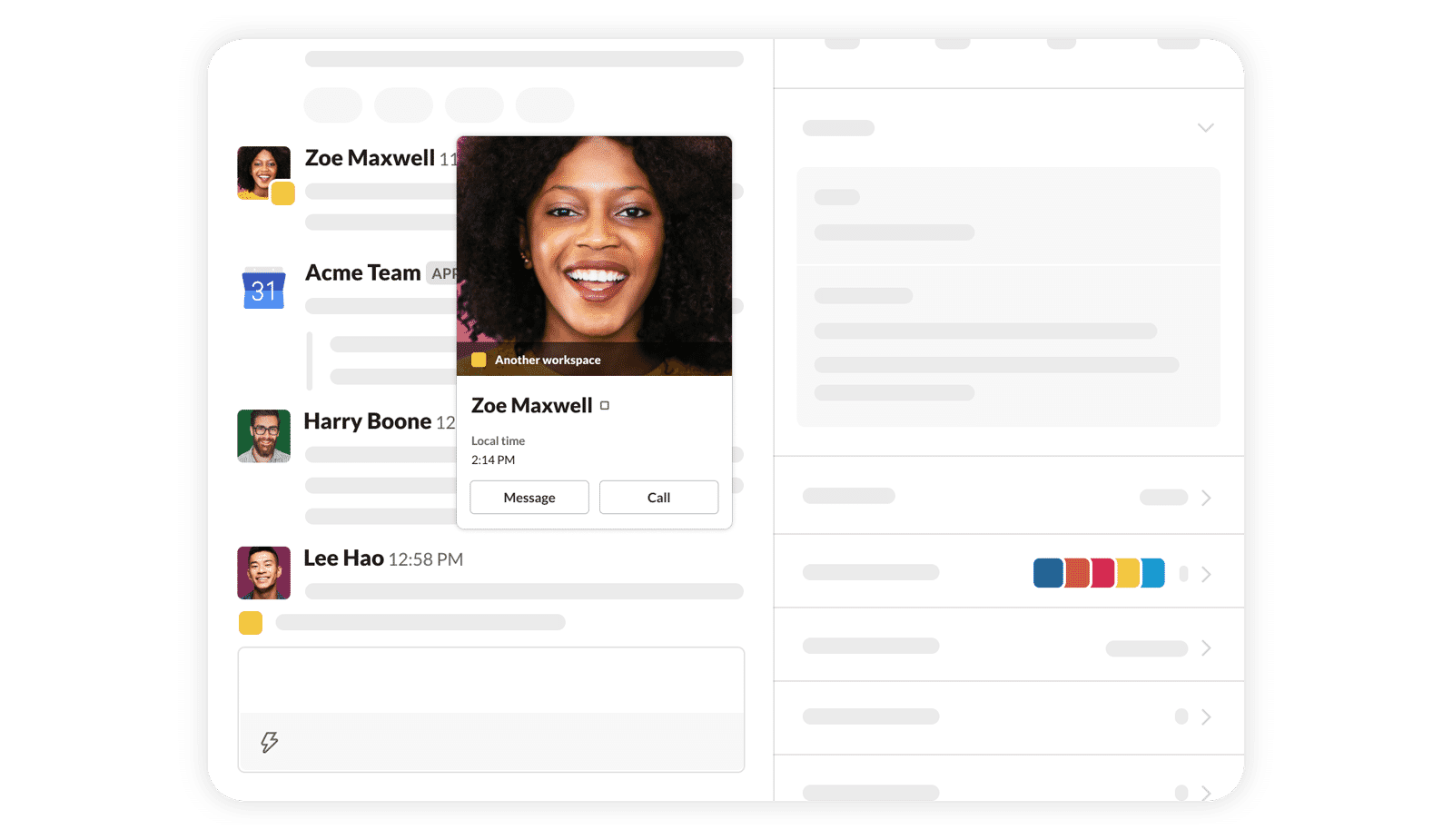
Your app will receive messages and events from external users, but their information will differ from users within your app's installed workspace.
-
External members are users from another organization’s Slack workspace who share a channel with your app or team.
-
Strangers are external members who do not share any channels with your app. Their presence might be revealed through mentions or shared content.
The user type object (for example, from users.info) identifies external members but withholds some expected information.
The is_stranger flag in the user profile indicates a "stranger" status.
For both external members and strangers, profile data won't include email addresses (even with users:read.email scope) or locale information (even with include_locale flag), due to privacy limitations.
Here's an example of a response from the users.info API response.
{
"ok": true,
"user": {
"id": "U0BNRNDKJ",
"team_id": "T07QCRP7S",
"name": "rex",
"real_name": "Devon Rex",
"profile": {
"image_24": "https:\/\/.../11662770033.jpg",
"team": "T07QCRP7S",
"display_name": "eshellstrop"
// all that other stuff
},
"is_stranger": true
}
}
Always use user IDs, not usernames, when specifying users. The username attribute isn’t a reliable unique identifier, especially for external or “stranger” users, and won't work with API methods like chat.postMessage.
A bot user can send direct messages to users across connected workspaces, provided they share a common channel.
3. Same Channel, Different Setting
When a channel gains members from another workspace or organization, the channel ID is nearly the same, but the prefix (the first character) can be different, depending on its setting. Even if the channel is set to private, the ID prefix can be converted from G to C (for example G1234567890 becomes C1234567890).
Since each team that a channel is shared with can independently decide if the channel is public or private on their end, there are some changes with the APIs too.
- The conversations.* methods can accept any type of channel (both public and private) and DMs.
- The channel type object now includes the channel type info (for example public, private, and so on).
- The conversations.info method will provide additional information on the workspaces connected to the shared channel and the team ID of the host workspace.
- The conversations.* methods accept both public and private channels when the appropriate permission scopes have been requested (optional).
- The channel type object (which is returned by methods like
conversations.info) gives you additional channel info. If the channel is shared externally, then theis_ext_shared propertyis set to true. If it's a private channel or a group DM, the is_private or is_mpim property is set to true, respectively.
Use the is_ext_shared, is_private, and is_mpim flags exclusively to determine the privacy and type of a given channel. Beware of is_shared, which also includes channels shared between multiple workspaces in the same org.
Example response from the conversations.list API response:
{
"ok": true,
"channels": [
{
"id": "C0A1NBPT3",
"name": "product-qa",
"is_channel": true,
"created": 1491332036,
"creator": "U0A379ZT2",
"is_archived": false,
"is_general": false,
"is_shared": true,
"is_org_shared": false,
"is_member": false,
"is_private": true,
"is_mpim": false,
"members": [
"U0A379ZT2",
"U0AU7DMHN"
],
...
},
{ ... },
]
}
4. Shared Channels Between Organizations That Are Converted Back to a Single-Organization Channel
When a channel between organizations or workspaces is unshared by the host workspace, each workspace can still access the channel history, which will contain all previous messages and activity. However, the channel in the disconnected workspace will be assigned a new ID, while the host workspace keeps the original channel ID.
5. Private Channels Between Organizations
Channels shared between organizations can have different privacy settings per workspace; a public channel in one workspace might be private in another. Use the Conversations API to accurately determine channel privacy.
When a private shared channel is unshared, its ID prefix (for example, C) remains unchanged, even though it stays private. Therefore, the channel prefix isn't a reliable indicator of privacy.
New Behavior to Expect
While many apps, bots, and other integrations should continue to work with shared channels that have members from multiple workspaces and organizations, your app may face unexpected quirks.
In general, apps work between workspaces transparently. However, due to the nature of connecting to multiple workspaces, there can be restrictions in some scenarios depending on the design of the app’s infrastructure.
For example, a commercial app like Salesforce that's tied to users on a specific workspace, shouldn't automatically give access to users on another workspace. The conversations.* and users.info API methods should be used to determine appropriate data access for your app.

Bot users are accessible to all workspace users and external members in shared channels. The team field indicates which team a message originated from, whileteam_id shows your app's installed workspace. If these differ, the sender is external—adjust your app's behavior accordingly when sharing sensitive information.
Slash commands and message actions only work on the installing team, but external members can see and interact with posted messages. For example, if Catnip Inc. installs a polling app with /poll, users from its shared channel partner, Woof Inc., can vote on polls but can't create them.

Review Support Strategies by Feature
API |
Support Strategies |
|---|---|
Events API |
Events from external users in shared channels are supported without duplication. The authorizations field shows one visible party—use apps.event.authorizations.list to retrieve all authorized parties. |
Web API |
External users in shared channels have limited permissions. Use users.info to retrieve details for cross-team external user IDs not found in users.list. |
Incoming webhooks |
Incoming webhook messages are visible to all shared channel members but can only send direct messages to users on the app's installed workspace. |
Slash commands |
Slash commands work only for users on the app's installed workspace. Enable escaped formats to identify users by ID, including external users: |
Message actions |
Users belonging to the workspace where the app is installed can only invoke message actions. |
Interactive messages |
Handle actions from external users and notify them when permissions restrict access. |
Unfurls |
Links from users on the app's installed workspace unfurl channel-wide unless privacy-sensitive. |
Bot users |
Bot users can direct message (DM) all local users in the workspaces they are installed in, as well as external users with a common shared channel. |
Learn more about all of these considerations and more in our API documentation about planning for and supporting channels shared between organizations.
You've gained the ability to determine when to add support for externally shared channels and describe how your application can support them, enhancing your app's functionality and user experience.