Deploy Commerce Cloud Einstein
Learning Objectives
After completing this unit, you’ll be able to:
- List the type of data that Einstein tracks.
- Explain the importance of the Einstein Data Privacy Agreement.
- List four actions the Agentforce Commerce Recommendations Validator tracks.
- List the two ways you can activate feeds during deployment.
- Explain how Einstein uses the data feeds.
Now that your planning and prerequisite setup is done, you’re ready to install and configure various Einstein features.
Where's the Data
Machine learning algorithms require substantial data sets to discover and use valuable correlations and statistical patterns. Though 2 years of data is ideal, Einstein can work with the data you currently have, even if it has not been collected for that long.
To use Einstein on your Agentforce Commerce for B2C storefront, try getting the data from these sources.
-
Catalog: She collects product information stored in the catalog by running a catalog feed against her production instance.
-
Orders: She collects order information generated on the storefront by running an order feed against her production instance.
-
Clickstream: The site automatically collects clickstream data in real time using pixel tracking. This is live data: There’s no need to do anything to collect this data.
Einstein uses machine-learning models that:
- Analyze this data.
- Identify products that are frequently purchased together for more effective product sets and bundles and promotions.
- Identify terms to add to search dictionaries for improved search results.
- Use content slots to show recommended products.
- Use a search flyout and Business Manager settings to personalize type-ahead search guidance.
- Sort search results.
Enable Activity Tracking for Storefront
Einstein uses browser-based activity tracking to respond to shoppers actions on your site in real-time. To ensure the activities are enabled in production:
- In Business Manager, click the Apps Launcher and then select Merchant Tools | Site | Site Preferences | Privacy Settings.
- Select Enabled for Tracking (Default for new storefront sessions).
- Click Apply.
Agentforce Commerce Recommendation Validator
Merchandisers can use the Recommendation Validator Chrome extension to validate and debug Einstein product recommendations and sorting rules on your storefront. You can use its dashboard to analyze baskets and view site activity, site recommendations, and email recommendations data.

Here’s how to load the extension.
- In the Chrome browser, go to the Chrome Web Store extension page.
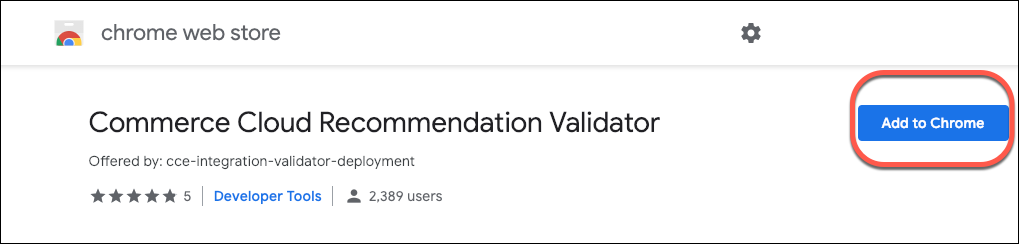
- Click Add To Chrome.
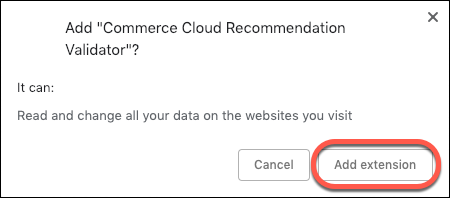
- To confirm the installation, click Add Extension.
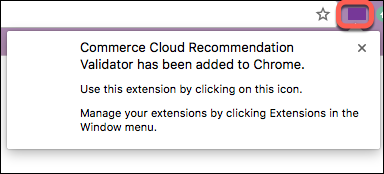
The Recommendation Validator begins running once it’s installed. When you go to a site that uses Einstein features, it instantly validates recommendation activities and sorting rules. When it recognizes an event, a numbered footnote appears within the icon that shows the number of events it caught.
Here’s how you use this tool.
- Open the storefront.
- Trigger activities by navigating through the storefront.
- Click the Validator icon (1) when footnotes appear to view the status of triggered activities. In this example, there are two footnotes.
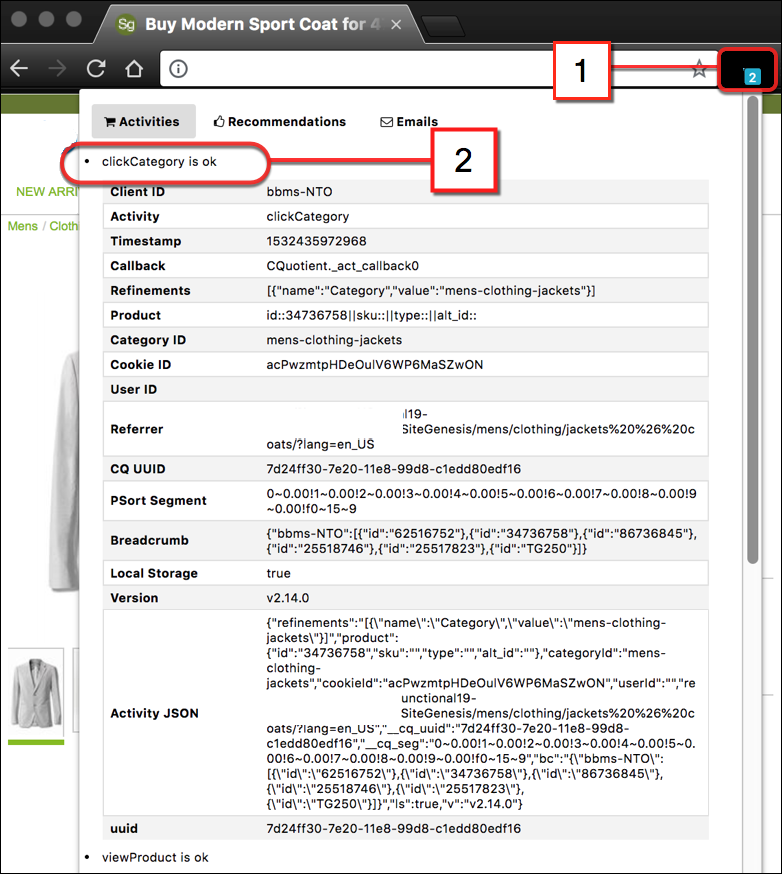
- Take a look at the recognized events (2). In this example, clickCategory is activity.
Once you enable recommendations, the tab populates with information.
Validator Events
When the Validator recognizes an event, an icon appears with the number of events it detected. Based on the activity, the Validator shows a response. Developers can review the Infocenter documentation when validating their implementation.
This table shows the action a shopper takes (for example, clicking a category), the trigger within the code, and then the results that display in the Validator.
What the shopper does (action) |
Trigger |
Results |
|---|---|---|
Click a category. |
viewCategory |
If clickstream tracking is configured correctly, you see “viewCategory is Okay” in the Validator. |
Click a product. |
viewProduct |
If clickstream tracking is configured correctly, you see “viewProduct is Okay” in the Validator. |
View recommendations content slot. |
viewReco |
If recommendations are enabled on a page and working correctly, you see “viewReco is Okay” in the Validator. To view individual recommender information, click the Recommendation tab. |
Click a recommended product. |
clickReco |
If clickstream tracking is configured correctly, you see “clickReco is Okay” in the Validator. |
Add an item to the cart. |
addToCart |
If clickstream tracking is configured correctly, you see “addToCart is Okay” in the Validator. |
Click to begin checkout. |
beginCheckout |
If clickstream tracking is configured correctly, you see “beginCheckout is Okay” in the Validator. |
Finish checkout. |
finishCheckout |
If clickstream tracking is configured correctly, you see “finishCheckout is Okay” in the Validator. |
Perform a search and the search results display. |
viewSearch |
If clickstream tracking is configured correctly, you see “viewSearch is Okay” in the Validator. |
Deploy Einstein
Deploying Einstein on your Agentforce Commerce for B2C storefront helps you create personalized shopper experiences.. The Einstein Deployment service transfers data from product catalog and order feeds to Agentforce Commerce Einstein. Predictive machine-learning models use the data feeds to generate recommendations. Einstein Deployment also feeds the data into the Configurator tool, where merchandisers can configure business rules to fine-tune how the system generates product recommendations.
An administrator controls how often catalog and order data deploys to Einstein, and runs the deployment often enough to keep the data fresh. Because deploying can impact the storefront performance, deploy based on catalog change frequency. Figuring out the best frequency can take several tries.
Here are the steps to initiate the data feed process that deploys Agentforce Commerce Einstein.
- In Business Manager, click the Apps Launcher and then select Administration | Operations | Einstein Status Dashboard.
- In the Site column, click the site you want to configure.
- Select the region that corresponds to your primary business geography. This setting determines where predictive data is physically stored and processed. For example, select The Americas.
- To get Einstein search dictionary suggestions, configure the region setting in production and staging instances.
- If needed, modify the Host setting (Example: www.northerntrailoutfitters.com, with https:// not included).
- Select one or more features you want to include.
- Out-of-Stock Products: Lets you serve recommendations on product details pages that are out of stock.
- Variation Products: If your catalog has variation groups, this allows for recommendations to be served at the variation group level (for example, at the color level).
- Multi-Locale: If your site supports multiple locales, this brings in product information across all of them.
- Out-of-Stock Products: Lets you serve recommendations on product details pages that are out of stock.
- Select or enter the date after the export orders were created.
- Enter a number for the maximum orders per run, for example, 10,000.
- Select the On switch. If the switch is inactive, the catalog and order feeds are not scheduled for the site.
- Schedule when to start the feeds and how often they run.
- Run the feeds immediately for a one-time capture, or
- Configure a recurring schedule.
- Run the feeds immediately for a one-time capture, or
- Click Save.
You have successfully configured the initial data feeds. The system takes 24 to 48 hours to process the data before the Einstein features become active.
Next Steps
In this unit, you learned about the importance of signing the Einstein Data Privacy Agreement. You also learned how your storefront’s order, product, and clickstream data can give your company valuable information about shoppers so merchandisers can improve shopper experiences with more targeted product recommendations and better search sorting. In the next unit, you explore how to review data with the Configurator tool.
Resources
- External Link: Chrome Web Store
- Salesforce Help: Smarter Search With Commerce Cloud Einstein
- Salesforce Help: Recommendation Validator
- Salesforce: B2C Commerce Einstein API
- Salesforce: Salesforce Trailblazer Community