Create Billing Policies and Treatments
Learning Objectives
After completing this unit, you’ll be able to:
- Configure billing policies.
- Set up billing treatments and treatment items to determine how to bill order items.
- Set Billing’s default billing treatment.
Define Your Invoicing Criteria
Now that Hannah, InfinitraBytes’s billing admin, has set up legal entities, she can set the invoicing criteria.
The invoicing criteria set the rules for when and how to invoice an order. You use three objects—Billing Policy, Billing Treatment, and Billing Treatment Item—to translate InfinitraBytes’s business rules into action. Together, these objects provide flexible control over how you bill each product and make sure invoices follow business models and customer agreements. These objects create the billing schedule records from which invoices are generated.
You learned about these objects in the Billing Basics in Agentforce Revenue Management module, but here’s a quick refresher.
Billing Policy is the parent object that defines which billing treatment is applied to an order product. It controls how the system produces invoice data.
Billing Treatment defines the specific rules for how an order product is billed, such as if a product is excluded from invoicing. It’s a child object of billing policies, and several treatments can be grouped within a billing policy.
Billing Treatment Item defines the granular detail about how an order product’s total cost is distributed into billing schedules. Billing treatment items are child records of billing treatments. They specify how a customer is invoiced, such as:
- In advance, on a date that falls on or before the start date of the order product. For example, you may invoice a physical product, such as an electronic device, before it is delivered.
- In arrears, to invoice a product for a billing period that has already completed. For example, you may invoice a service at the end of a period to invoice for total usage.
- In alignment with milestones. For example, you may only invoice when specific work is completed in a consulting or implementation project.
In this unit, you follow along with Hannah to create a billing policy, billing treatment, and billing treatment item, then activate them all in the correct order. First up, create the Billing Policy.
Create a Billing Policy
InfinitraBytes has a mix of billing scenarios, such as advance billing for goods, in arrears subscription billing, and milestone billing for implementation projects.
Hannah starts by creating a billing policy to group advance billing treatments. Follow along in your org.
- From the App Launcher (
 ), find and select Billing.
- In the navigation menu, select Billing Policies.
- Click New.
- Specify these details:
- Name:
Advance Billing Policy - Status: Draft
- Billing Treatment Selection: Legal Entity
- Name:
- Save your work.
When you select Legal Entity for the Billing Treatment Selection, Billing assigns treatments based on an order product’s legal entity. For example, if you’ve set up several legal entities, the billing policy directs the system to the correct billing treatment depending on the order product's related legal entity.
Here are how the other options for billing treatment selection work.
-
Default assigns the billing treatment value in the Default Billing Treatment field.
-
Manual assigns the billing treatment of the order product.
Billing policies, when first created, must be in Draft status. You can activate a billing policy once it’s linked to an active billing treatment.
Configure a Billing Treatment
So, this billing policy needs at least one related billing treatment. The billing treatment is where you set the related legal entity and if an order product is excluded from billing. Hannah creates an advance billing treatment for the USA Business legal entity.
- From the App Launcher (
 ), find and select Billing Treatments.
- Click New.
- Specify these details.
- Billing Treatment Name:
USA Advance Billing Treatment - Billing Policy: Advance Billing Policy
- Legal Entity: USA Business
- Status: Draft
- Exclude From Billing: No
- Billing Treatment Name:
- Save your work.
Let’s check out a few details about this record.
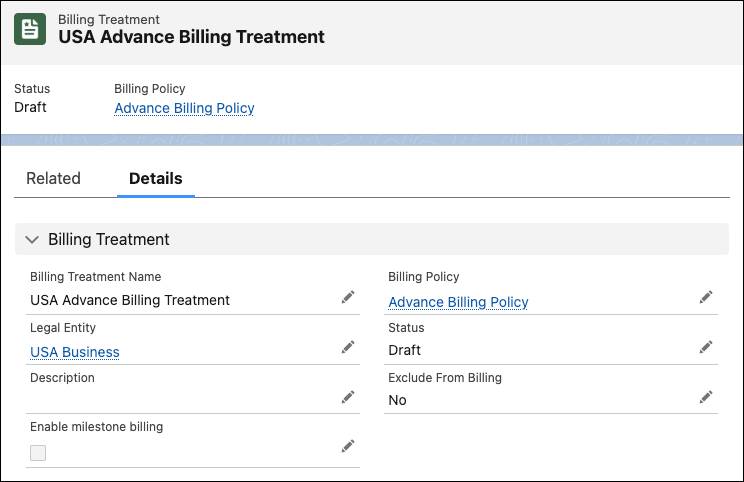
Exclude from Billing is set to No so that the order product that uses this billing treatment will be billed. If you set Exclude from Billing to Yes, a billing schedule won’t generate for the order product. This is helpful if the order product is a promotional offer, a warranty replacement, or in a similar situation.
And, like the billing policy record, this billing treatment Status is set to Draft. You can activate a billing treatment only when it has a related active billing treatment item. You define only one billing treatment item for each billing treatment.

Create a Billing Treatment Item
A billing treatment item is where you set the details of when and how a customer is billed for an order product. Hannah needs a billing treatment item that specifies advance billing for US customers for the billing treatment she just created. Follow along.
- From the App Launcher (
 ), find and select Billing Treatment Items.
- Click New.
- Specify these details.
- Name:
USA Advance Billing Treatment Item - Billing Treatment: USA Advance Billing Treatment
- Status: Active
- Zero Amount Behavior: Create Invoice
- Processing Order:
1 - Type: Remainder
- Billing Type: Advance
- Sequencing: Manual
- Controller: Billing Schedule Group
- Name:
- Save your changes.
The record billing treatment item is ready. Review some of your work here with Hannah.
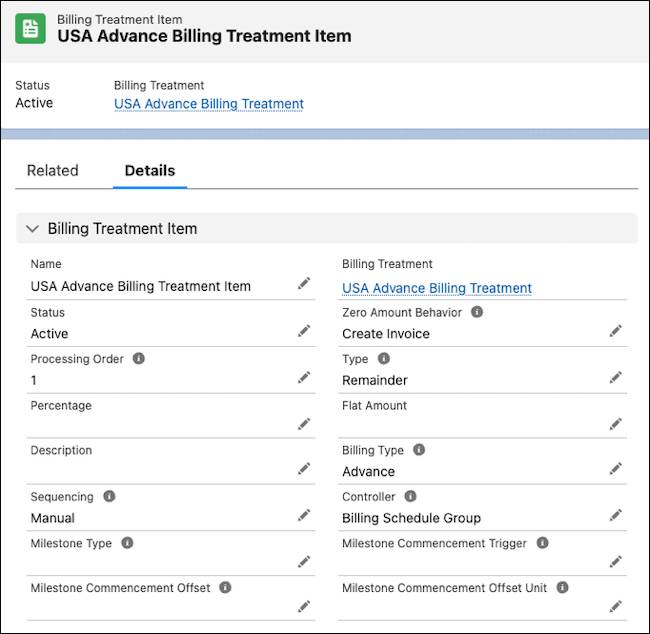
The Processing Order is 1 to create billing schedules for this treatment item first.
Advance is selected as the Billing Type field to invoice the products before they’re delivered. InfinitraBytes’s sales of physical goods—such as computers and accessories—are invoiced before delivery. You can invoice in advance for services, as well.
The Controller value is Billing Schedule Group. If a billing schedule group and billing schedule have a shared field with different values, the value in the billing schedule group is used on an invoice.
The Zero Amount Behavior, Type, Percentage, Flat Amount, and Sequencing values aren't considered when generating invoices.
And, finally, the billing treatment’s status is Active. What’s next? You work back through billing treatment and billing policy to activate them all.
Activate the Billing Treatment and Billing Policy
You can activate a billing policy only if it’s related to an active billing treatment. And you can activate a billing treatment only if it’s related to an active billing treatment item. With the active billing treatment item in place, Hannah activates the other records.
- On the USA Advance Billing Treatment Item record, click USA Advance Billing Treatment in the Billing Treatment field.
- Edit the billing treatment and update the Status to Active.
- Save your work.
- On the USA Advance Billing Treatment record, click Advance Billing Policy in the Billing Policy field.
- Edit the billing policy and specify these details.
- Status: Active
- Default Billing Treatment: USA Advance Billing Treatment
- Status: Active
- Save your work.
A default billing treatment is required to activate a billing policy.
The billing policy is active so you can create and relate other billing treatments to it.
Select a Default Billing Treatment
Speaking of required defaults, you must set a default billing treatment for Billing overall. This is done in Billing Settings.
Hannah has a treatment that is made for InfinitraBytes's most common billing situation, so she selects that as the default in Billing settings.
- In Setup, enter
Billing Settingsin the Quick Find box, then select it.
- In the Billing Defaults section, select USA Advance Billing Treatment in the Billing Treatment field.
With this setting, USA Advance Billing Treatment will be applied to order products with no designated billing policy. Also, if a product’s billing treatment isn’t specified or can’t be found by a legal entity, the system uses this default billing treatment.
What’s Next
In this unit, you learned about invoicing criteria in Billing. You created a billing policy, a billing treatment, and a billing treatment item for InfinitraBytes, and activated them in the correct order. Finally, you set the default billing treatment in Billing Settings.
Now you’re ready to move on to the next unit, and configure tax policy for your invoices.
To pass the challenge and move on to the next unit, make sure to check the challenge.