Configurare e attivare l’agente Nurturing dei lead
Obiettivi di apprendimento
Al completamento di questa unità, sarai in grado di:
- Creare un nuovo agente.
- Testare le risposte dell’agente.

Introduzione
Nell’unità precedente hai configurato il sistema in modo da supportare la creazione e la gestione dell’agente. Ora configuriamo l’agente.

Creare un nuovo agente di vendita
L’esperienza di configurazione guidata di Salesforce Go semplifica la creazione, il testing e l’attivazione dell’agente. Segui queste istruzioni per configurare l’agente Engagement (Coinvolgimento).
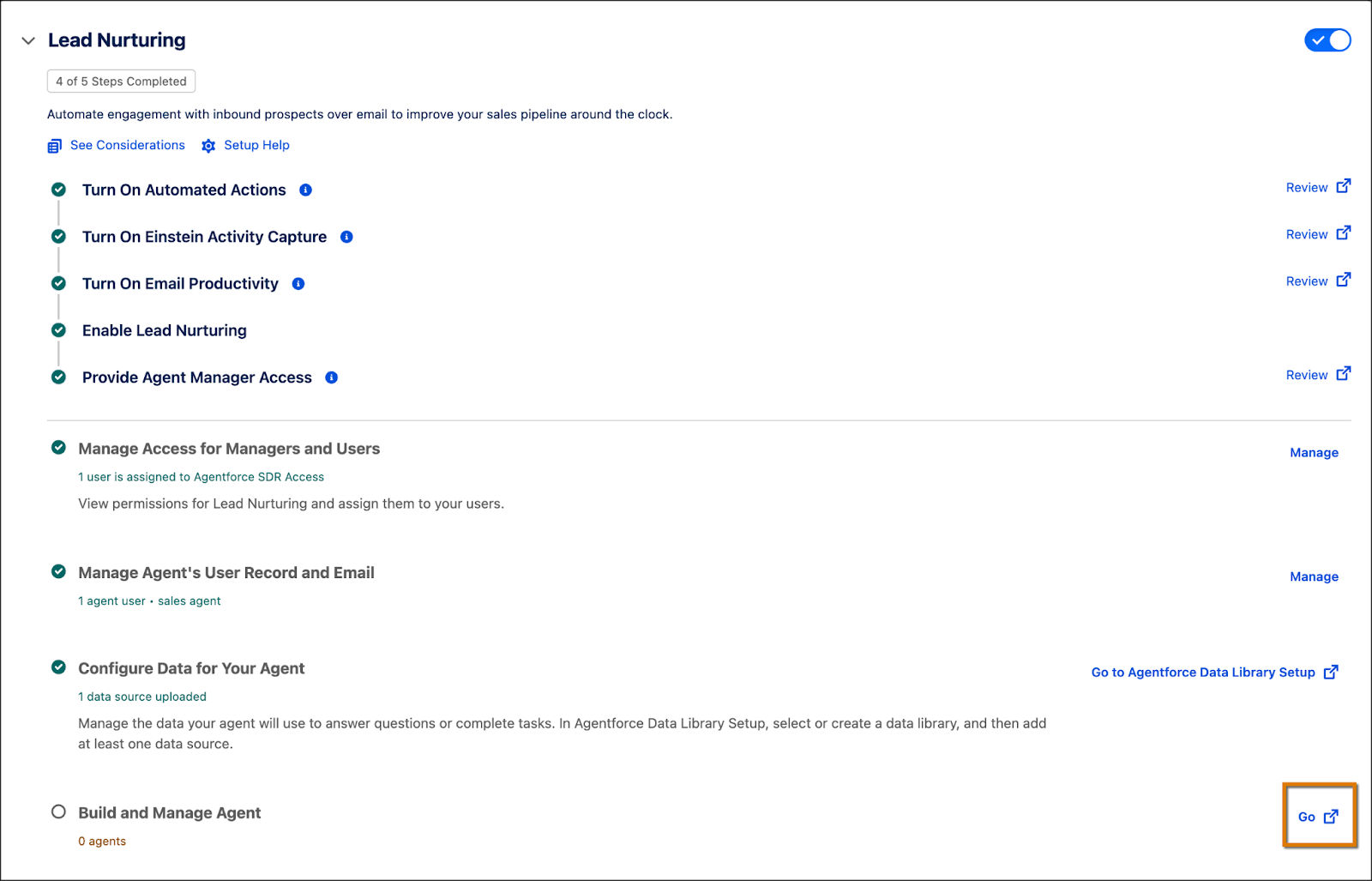
- Nell’area di impostazione Engagement Agent (Agente Coinvolgimento), in corrispondenza di Build and Manage Agent (Crea e gestisci agente), fai clic su Go (Vai)
 . Tieni presente che questo passaggio si apre nelle nuova funzione Agentforce Studio.
- Si apre l’esperienza guidata di configurazione. Fai clic su Get Started (Per iniziare).
 [alt text: Schermata Build a new Sales Agent (Genera un nuovo agente di vendita) della configurazione guidata dell’Agentforce Builder (Generatore Agentforce) in cui è evidenziato Get Started (Per iniziare).
- Fai clic sul modello Engagement (Coinvolgimento).
- Fai clic su Continue (Continua).
Per iniziare
Segui i passaggi di configurazione dei dettagli principali dell’agente.
- Nella pagina Getting Started (Per iniziare), il campo User Record (Record utente) è precompilato con l’utente agente che hai creato in precedenza. Se hai creato più utenti agente, questi saranno tutti visualizzati qui, consentendoti di scegliere quello che preferisci. Inserisci questi dettagli:
- Agent Name (Nome agente):
Lead Nurturing(Nurturing dei lead) - Company Name (Nome società):
Welo - Incolla il testo seguente nel campo Company Description (Descrizione società):
- Agent Name (Nome agente):
Welo is a premier provider of IT solutions and services, specializing in cutting-edge hardware and comprehensive services for managing data centers.

- Fai clic su Salva e continua.
Configurare le impostazioni email
L’agente invia un’email di contatto iniziale a ogni cliente potenziale e, in caso di mancata risposta, invia tempestivamente dei solleciti. In Email Settings (Impostazioni email) puoi configurare il messaggio principale aggiungendo una proposta di valore primaria, punti di forza, impostazioni di sollecito e tono del messaggio. Ecco come fare:

- In Primary Value (Proposta di valore principale), incolla il testo seguente:
Welo offers top-tier IT solutions and services, specializing in hardware and services for managing data centers. Our commitment to excellence and innovation ensures we deliver unparalleled services that empower businesses to thrive and innovate.
- In Key Achievements (Obiettivi raggiunti chiave), incolla il testo seguente:
Customer Satisfaction Rate: Welo boasts a 95% customer satisfaction rate, reflecting our commitment to delivering exceptional solutions.
Transforming Retail Operations: Partnered with a major retail chain to implement a custom CRM solution, resulting in a 30% increase in sales and a 25% improvement in customer retention.
Streamlining Healthcare Services: Collaborated with a healthcare provider to develop an integrated patient management system, reducing administrative costs by 20% and improving patient satisfaction scores by 15%.
- Lascia invariate le impostazioni del sollecito e quelle aggiuntive. Ora, tutto è pronto per testare l’email di contatto iniziale dell’agente.
- Nella sezione Preview Email (Anteprima email), fai clic sul campo Select a Lead (Seleziona un lead) e cerca
Sandra Eberhard.
- Fai clic su Try it out (Prova). Ora puoi vedere la risposta, radicata nel contesto del nome dell’account del lead e delle informazioni che hai fornito. L’anteprima ti consente di rivedere le risposte prima di procedere alla fase successiva dell’esperienza guidata.
- Fai clic su Continue (Continua).
Testare le risposte dell’agente
Ora che l’email di contatto iniziale è stata impostata e testata, è il momento di configurare le risposte dell’agente alle richieste e le domande dei clienti. In questa fase della configurazione guidata, hai la possibilità di creare una libreria dati e aggiungere fonti di dati.

- Se hai creato una libreria dati nella fase precedente durante la configurazione, puoi selezionare quella libreria dal menu a discesa qui.
- Nella sezione Preview Email (Anteprima email), fai clic sul campo Select a Lead (Seleziona un lead) e cerca
Andy Young.
- Fai clic su Try it out (Prova).
- Dopo aver letto la risposta, fai clic su Continue (Continua).
Puoi utilizzare una fonte di dati su file per caricare le policy di reso aziendali e dati sui prodotti, fornendo così all’agente gli strumenti per rispondere a domande relative a rimborsi o prodotti, tutto in un unico posto. Tieni presente che i file di contenuti aggiunti come fonti di dati possono richiedere fino a 24 per comparire nelle risposte dell’agente.
Configurare le impostazioni di qualifica per l’agente
Nella fase Qualification Settings (Impostazioni di qualifica) valuti i potenziali clienti e il loro livello di interesse, così da dare più facilmente la priorità a quelli con il maggiore potenziale e gestire al meglio i contatti e i follow-up.

- Attiva il pulsante Qualification Status (Stato qualifica).
- Inserisci il testo seguente nella casella Customer Profile (Profilo cliente):
As a leading provider of IT solutions and data center services, you’re targeting the financial services industry, where demand for secure and scalable infrastructure is especially high. You’re also focusing on prospects who have already demonstrated buying intent, such as engaging with demos or requesting pricing.
- Scorri verso il basso fino alla sezione Additional Data to Capture (Dati aggiuntivi da acquisire).
- Inserisci
Industry(Settore) nella casella di ricerca e seleziona questa voce nel menu a discesa.
- Inserisci
Rating(Valutazione) nella casella di ricerca e seleziona questa voce nel menu a discesa.
- Fai clic su Continue (Continua).
Rivedere e attivare l’agente
La fase conclusiva consiste nell’esaminare le configurazioni e testare il modo in cui l’agente gestisce il contatto iniziale, invia solleciti e risponde alle domande dei clienti. Queste operazioni possono essere eseguite nella sezione Preview Email (Anteprima email). Quando ritieni soddisfacenti i risultati, fai clic su Activate Agent (Attiva agente) per lanciare l’agente.

Conclusioni
Questo è tutto. Hai creato un agente, configurato le sue iniziative di contatto iniziale e i solleciti, lo hai connesso a una libreria dati e hai testato come gestisce domande reali dei clienti. Una volta completata la configurazione, l’agente è pronto per entrare in azione e aiutarti a coinvolgere clienti potenziali in modo più intelligente, più veloce e più efficace. Ora puoi rilassarti e lasciare che il tuo nuovo compagno di squadra digitale si metta al lavoro.