Set Your Workspace Visibility and Access
Learning Objectives
After completing this unit, you’ll be able to:
- Explain the four visibility settings for Slack workspaces and the use case for each.
- Describe the benefits of claiming domains for your Slack Enterprise+ organization.
Now that you know how to create and manage Slack workspaces in an Enterprise+ organization, the next step is to determine which visibility settings to use. These settings control how members find and join your workspaces. In this unit, examine the four types of workspace visibility settings and when to use each one. In addition, learn how domain claiming helps org owners control workspace creation.
Explore Four Types of Workspace Visibility Settings
Open: Anyone in your organization can view and join the workspace.
You might choose the Open workspace visibility setting in these scenarios.
- A welcome workspace for all members to access when they join your organization
- A global workspace for all members
- A workspace for a standard business function or department such as Sales or Engineering
All members see the option to Join and Open the workspace.
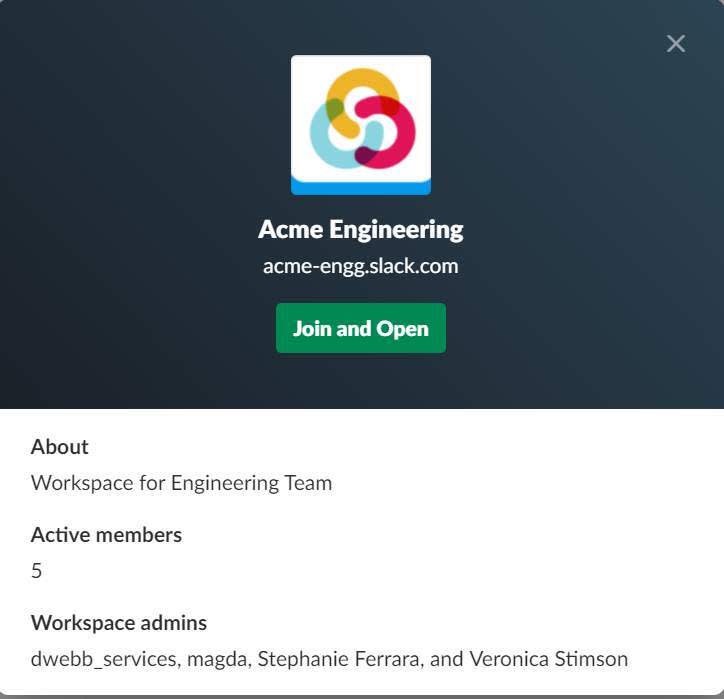
By Request: Any organization member can discover this workspace and request to join it.
You might choose the By Request workspace visibility setting in this scenario.
- A workspace for interns where anyone can request to join but membership is controlled
This visibility setting requires the most manual work because you're responsible for taking frequent action on requests to join.
Members see the option to Request to Join the workspace.

Invite Only: Basic workspace details are discoverable, but new members are added by invitation only.
Any organization member can be invited to join the workspace by a workspace owner, admin, or another member. Workspace owners or admins and org owners or admins can also add members. You might choose the Invite Only workspace visibility setting in this scenario.
- A workspace for a specific project or product where details should remain confidential
This is an excellent choice for large, complex projects that require privacy. This setting requires less admin overhead than By Request but more than Open or Hidden.
Members can see the workplace exists, but they won’t see an option to join the workspace.

Hidden: The workspace is private and not discoverable. New members are added by invitation only.
Members can't view the workspace and must be invited to join it by a workspace owner, admin, or another member. Members can also be added to the workspace by a workspace owner or admin or an org owner or admin. You might choose the Hidden workspace visibility setting in these scenarios.
- A workspace for mergers or acquisitions
- A workspace for complex, high-risk projects
Members won't see the workspace nor an option to join.
Control Workspace Creation with Domain Claiming
Some organizations may need to limit the creation of unsanctioned workspaces while ensuring that existing workspaces are easy to find and join. Fortunately, there's an effective method to accomplish both: claiming domains.
Domain claiming is a feature that gives org owners control over who can create workspaces using their company email address.
If your company owns or operates multiple web domains, we can help you claim them for your Enterprise+ organization. Claiming both domains allows everyone in your company to connect in the right place. This approach provides several benefits:
- People with email addresses in two specific domains can join your org
- Your org's connected workspaces are easy to find
- Members can’t create unsanctioned workspaces outside your org
For example, if your company operates under the northerntrailoutfitters.com and nto.com domains, claiming both domains lets employees collaborate in one workspace. This means anyone with an email address that ends with @northerntrailoutfitters.com or @nto.com can easily find the same workspaces. It also means you don’t have to worry that anyone will create unsanctioned workspaces outside your org.
Wrap It Up
As an org owner or admin, you have the tools available to help you create workspaces, get the right people in them, and keep things moving efficiently. Configure visibility settings to make workspaces easy to discover and join. Claim domains to control who can create workspaces. And automate requests and follow-ups to make the process as self-serve as you want it to be.
Resources
- Slack Help: Manage Workspace Access in an Enterprise Organization
- Slack Help: Invite New Members to Your Workspace
- Slack Help: Add Members to Workspaces in an Enterprise Organization
- Slack Help: Create a Workspace in an Enterprise Organization
- Slack Help: Claim Domains for an Enterprise Organization
- Slack Help: Approve Slack Workspaces for Your Network