Execute an Orchestration Plan
Learning Objectives
After completing this unit, you’ll be able to:
- Create and submit an order to test an orchestration plan.
- View the fulfillment progress and verify assets.
Test Your Orchestration Plan
So far, you’ve designed a robust fulfillment process by creating technical products, setting decomposition rules, building a workspace, and linking all the steps with dependencies and scenarios. Now it’s time for the final step—submit a new order to see your complex orchestration plan execute automatically.
Julian uses the Laptop Pro Bundle to confirm that the order decomposes correctly, the conditional logic works, and all required assets are created.
Create an Order
It’s time to put the orchestration plan to test by creating an order.
- From the App Launcher, search and select Quotes.
- Click New Quote.
- In the New Quote window, add these details.
- Quote Name:
Laptop Pro Bundle Test - Account for Quote: EdgeMX
- Quote Name:
- Save your work.
- In the quote page, click Browse Catalogs.
- In the Choose Price Book window, if prompted, make sure Standard Price Book is selected, and click Save.
- In the All Catalogs list, select Hardware Catalog, and click Next.
- Under Categories, click Laptops.
- From the products list, select Laptop Pro Bundle.
- Click Add and then Save Quote.
- In the quote page, click
 , and select Create Order.
- Select Create Single Order and click Finish.
Almost there! The CPQ system is generating your order. You see your order in a few moments.
Submit an Order
Next, submit the order you just created.
- Open the order you just created. Alternatively, click the Related tab in the Quote page and scroll down to the Orders section to find your new order.
- To make the order eligible for orchestration, activate it. Click
 and select Activate.
- Click Activate.
- Click
 and select Submit Order.
- Wait for the successful Submit Status message and click Finish.
This order triggers DRO to decompose the commercial bundle and initiate each technical product’s fulfillment path.
The Outcome
Now check how the order progresses through the orchestration plan.
View Fulfillment Plan
Verify the fulfillment plan.
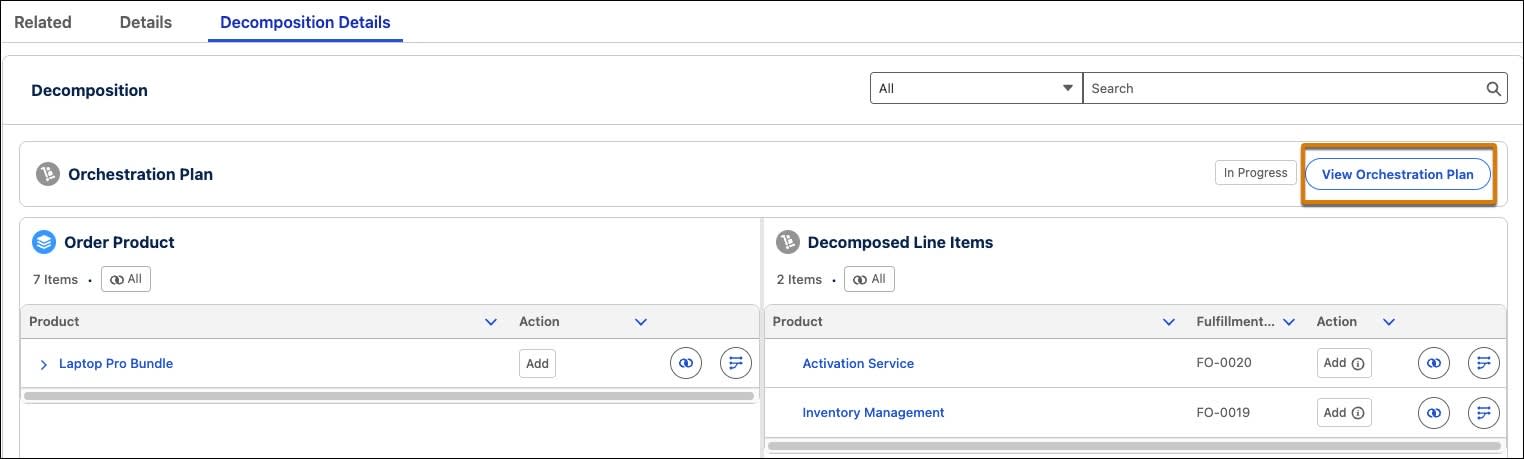
- From the order, go to the Decomposition Details tab.
- Click View Orchestration Plan.
- As the first step is manual, complete the Pick and Pack step by clicking
 , and selecting Complete. You can also complete the task from the Dynamic Fulfillment Orchestrator Home page. In the Pending Manual Fulfillment Tasks section, find the manual task for your order with the subject Pick and Pack. Change its status to Complete, and save your changes.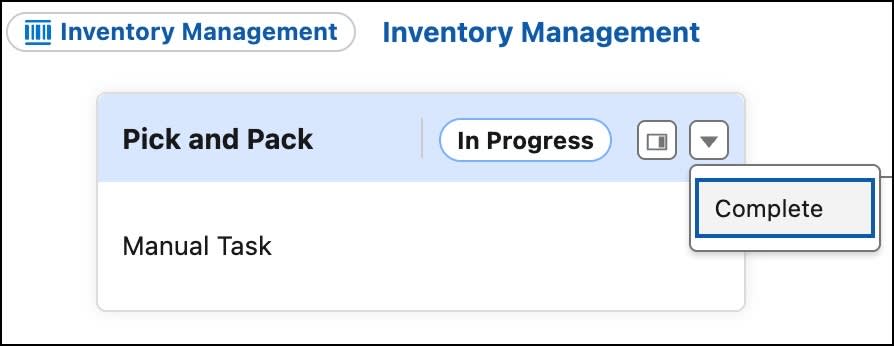
This fulfillment plan uses DRO orchestration to complete the order you submitted, with each step running against your order and its line items.
- Refresh the page until all steps show Completed.
The image here shows a completed fulfillment plan for the Laptop Pro Bundle. All visible lanes such as Inventory Management, Activation Service, and Basic Invoicing have finished successfully, with each step marked Completed. These include tasks such as shipping, service activation, and invoice generation.
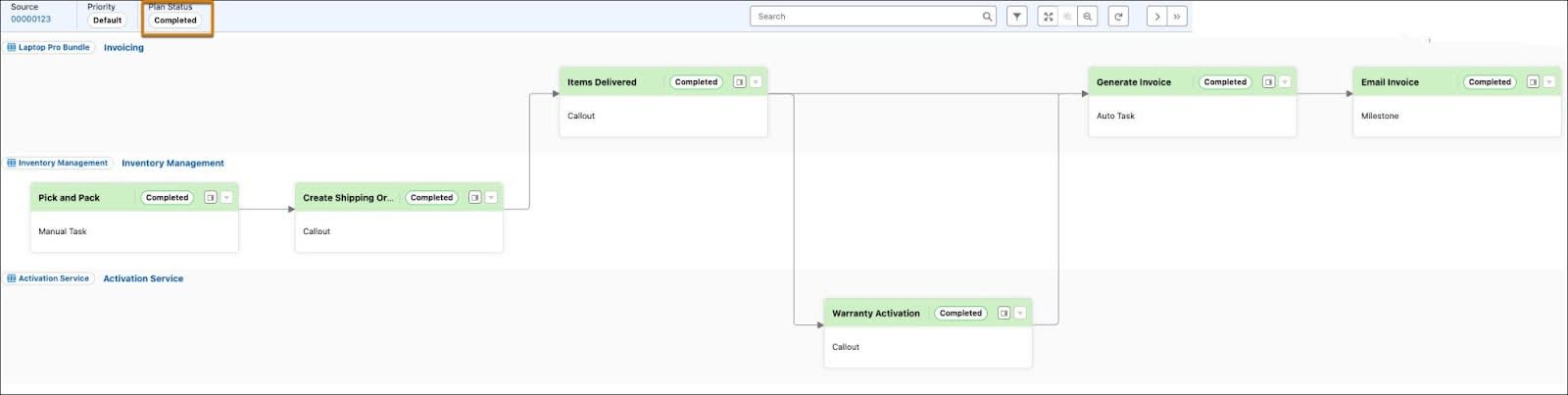
Also note that the Subscription Management lane doesn’t appear in this fulfillment plan because the condition to trigger it isn’t met. The decomposition rule for the Warranty product creates the Subscription Management technical product if the user selects the Annual Subscription option. In this case, that option wasn’t checked while adding the Laptop Pro Bundle to the quote, so the system skipped creating the Subscription Management product and its fulfillment lane doesn’t appear in the plan.
After the system submits and fulfills the order, it creates asset records that reflect the products or services the customer now owns.
Verify Assets
Now it’s time to verify these assets.
- Go back to the order.
- On the order page, click EdgeMX under Account Name.
- On the account page, go to the Assets tab to view all of the commercial assets created under Managed Assets.
These are the commercial products a customer purchases. You can see the Laptop Pro Bundles, along with its included commercial components such as Warranty, Mouse, Laptop, and Printer Bundle.
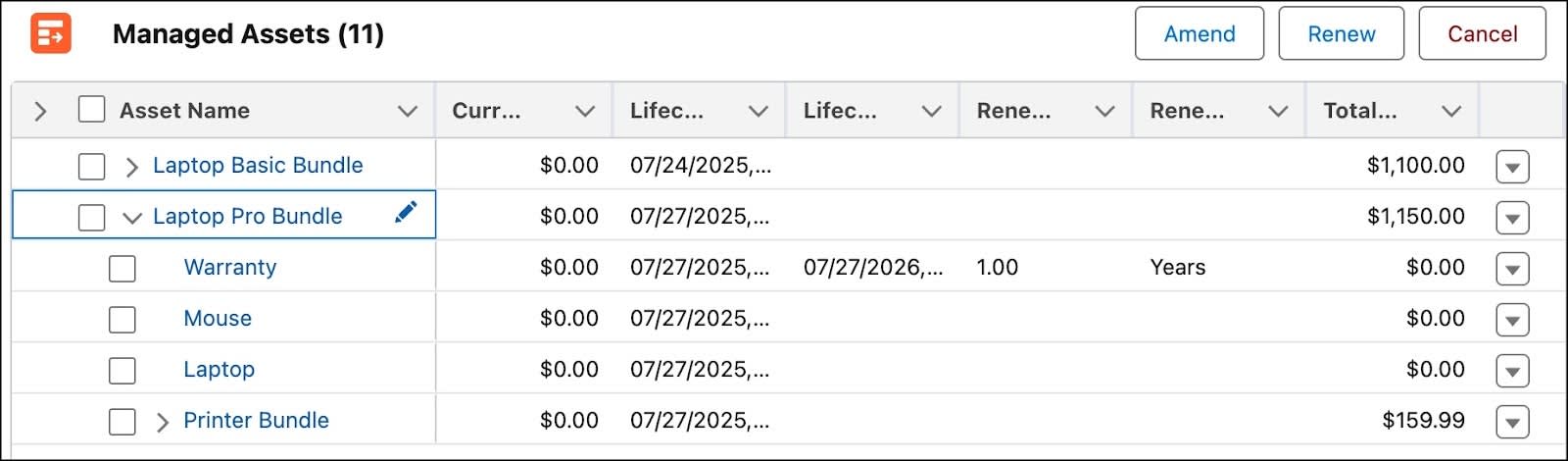
Scroll to the Fulfillment Assets section and view the technical assets that represent the decomposed fulfillment items. These are the technical components or services that are delivered through decomposition. The Laptop Pro Bundle order includes Activation Service and Inventory Management products.
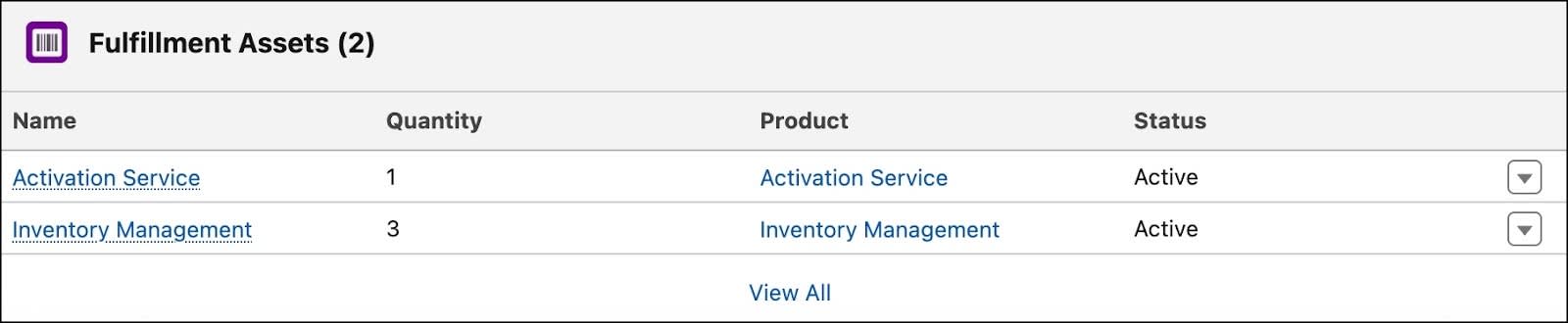
These two views collectively confirm the successful fulfillment of both commercial and technical aspects of the order.
If you want to see the Subscription Management lane in action, create another quote and select the Annual Subscription option for the Warranty product. Follow these steps to try it out, but we won’t check this work at the end of the unit.
- Create a new quote and add Laptop Pro Bundle.
- From the Laptop Pro Bundle line item action menu, click Configure. If you don’t see the action menu, try scrolling to the side.
- On the configuration page, click the Accessories tab.
- Click
 on the Warranty product, and select Annual Subscription.
Next Steps
At InfinitraBytes, Julian streamlines complex bundle fulfillment with DRO to boost efficiency.
In this module, you built a complete complex product orchestration plan, linked cross-lane dependencies, and successfully tested it with an order. You’ve seen how DRO delivers accurate, streamlined fulfillment, even for complex bundles. For now, it’s time to complete the challenge.
To pass the challenge and earn the badge, click Check Challenge to Earn Points.
Resources
- Salesforce Help: Design Your Order Decomposition
- Salesforce Help: Design Your Order Orchestration
- Trailhead: Efficient Sales with Agentforce Revenue Management (see unit: Discover and Configure Products)