Generate Invoices
Learning Objectives
After completing this unit, you’ll be able to:
- Generate an invoice preview.
- Describe how to process payments for posted invoices with payment schedules and payment schedule items.
Generate Invoice Previews
With the groundwork set for InfinitraBytes’s billing, Hannah can generate invoices. In this unit, you follow along to generate an invoice preview and then generate invoices for the order Hannah created in the last unit.
Invoice previews help you verify estimated charges and tax calculations for upcoming billing periods. You can also create an invoice preview without generating an actual invoice, then share the preview with a customer to get ahead of any billing disputes.

You can generate a preview invoice for up to two billing periods for orders, quotes, accounts, and billing schedule groups. Hannah first previews an invoice and generates a PDF of that preview. Follow along.
- Find and select your active order for Burlington Textiles Corp of America.
- From the quick actions menu, click Preview Invoices.
- Specify these details:
- Preview Date: Today
- Billing Periods: 2
- Preview Date: Today
- Click Preview and review the Invoice Information section of the window.
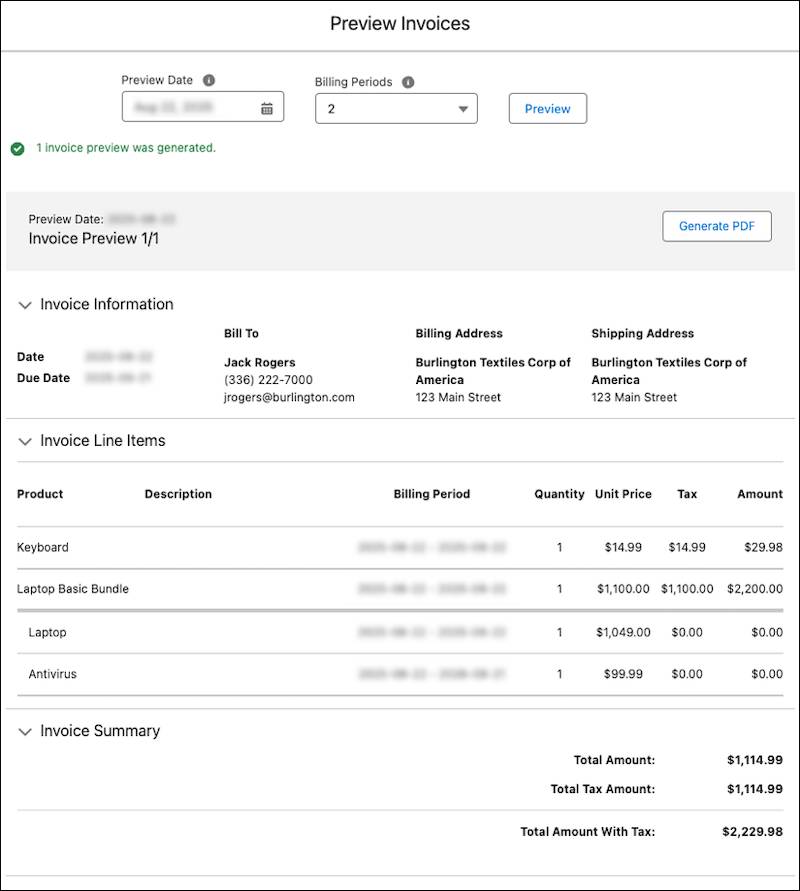
- Click Generate PDF.
- Click
 to close the Preview Invoices window.
Find the generated PDF in the Notes & Attachments related list in the Related tab on the order. You may need to refresh the page in order to see the PDF. Open and download the PDF.
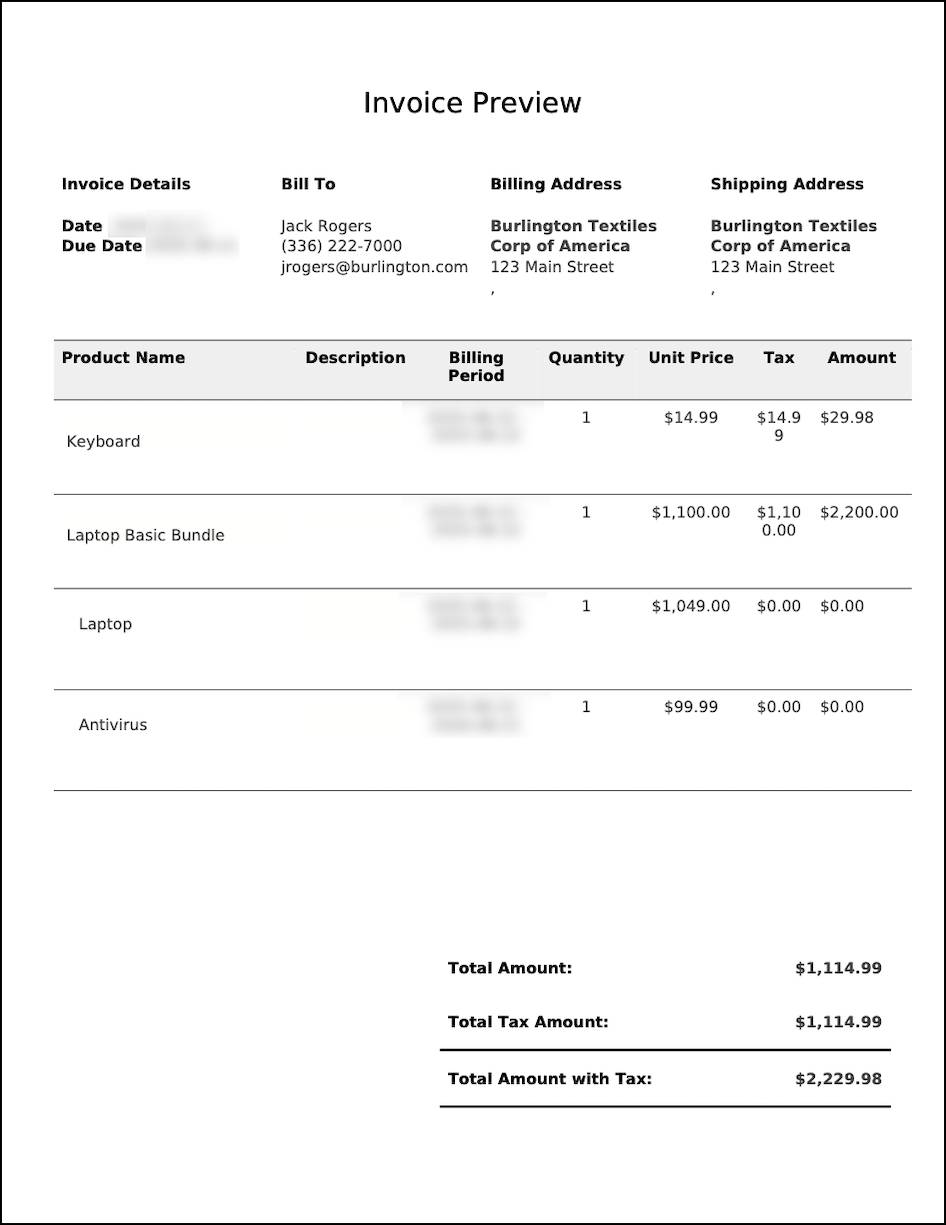
The preview contains all the details you need, but you may want to style it differently. Check out Turn On Invoice PDF Document Generation for details on changing your document templates.
Let’s move on to generating invoices.
Explore Options to Generate Invoices
There are a few ways to generate invoices. You can:
- Schedule invoice batch runs to automate invoice generation.
- Generate invoices for individual accounts and orders on-demand.
- Use the Invoice Ingestion API to create standalone invoices or to import invoices from an external system.
Each of these options have their own benefits depending on your requirements. You can learn more about these options in the Generate Invoices in Agentforce Revenue Management topic in Salesforce Help.
To keep it simple in this unit, though, create an on-demand invoice scheduler to generate invoices immediately. Let’s go!
Create Invoices with an On-Demand Invoice Scheduler
Invoice schedulers can either schedule invoice generation or create invoices on-demand when needed. Both scenarios use the Billing Batch Scheduler object, which is used to schedule invoice runs. Billing batch schedulers define which billing schedules are sent to Data Processing Engine to generate invoices and payment schedules.
Here are a few invoice scheduling scenarios for different business models, cash flow needs, and customer experiences.
- Create an invoice scheduler that runs weekly for most billing schedules if your business uses frequent billing cycles to maintain cash flow and minimize outstanding payments.
- Create a monthly invoice scheduler for most billing schedules if your business uses a subscription model and invoices customers for recurring and usage-based charges.
- Create an on-demand invoice scheduler to handle urgent client requests and one-time services—or if you require instant gratification while you show off the tool’s capabilities in Trailhead.
Well, it looks like an on-demand billing schedule is the right choice here. Hannah creates one to generate invoices for the Burlington Textiles Corp of America order she created in the previous unit.
- From the App Launcher (
 ), find and select Billing Batch Schedulers.
- Click New Invoice Scheduler.
- Specify these details:
- Scheduler Name:
USA Burlington Invoice - Select Start Run Now to generate invoices on demand. Active will be automatically selected, too.
- Select Post invoices to generate posted invoices.
- Target Date: Today
- Invoice Date: Today
- Scheduler Name:
- Click Next.
- In the Additional Information section, specify Customer as Burlington Textiles Corp of America.
- Click Schedule.
When an invoice run begins, all of the billing schedules that meet the conditions in the invoice scheduler are filtered, then invoices are generated for those filtered records. In this example, Billing filters invoices only for one account and certain dates.
If you choose to post the invoices—as you did in this example—your tax engine also calculates tax for the invoices.
The billing batch scheduler creates an invoice batch run record to track its progress. You can find invoice batch runs in the Invoice Batch Runs related list on billing batch schedulers. To monitor and troubleshoot the invoice batch run, check the invoice batch run's status subtype field. It may take time for the batch run to complete.
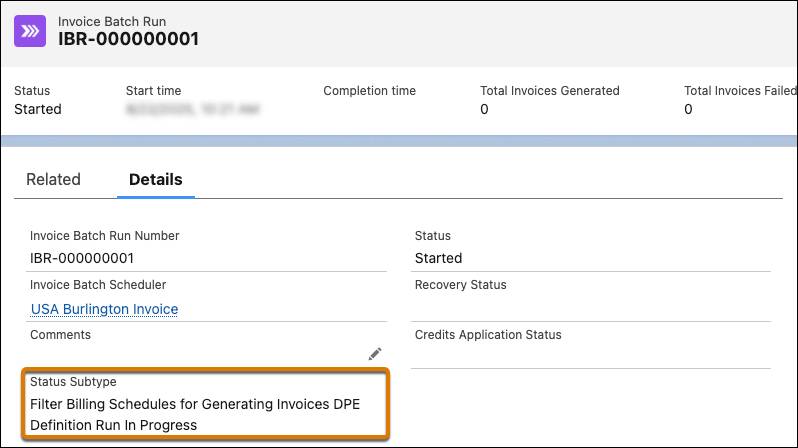
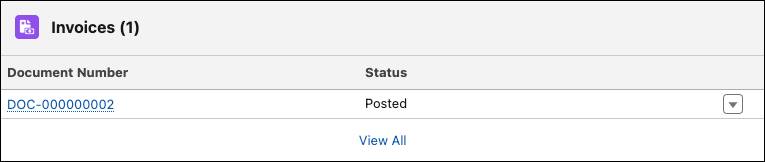
After the invoice batch run completes, review the generated invoices in the Invoices related list on the invoice batch run.
If invoice generation fails, check the Revenue Transaction Error Logs related list. The Error Message field on revenue transaction error logs track the reason for the failure.
Hannah’s invoice generated just fine, though. Open it from the Invoices related list on the invoice batch run. Go to the Related tab on the invoice record and notice that there are four invoice line records, one for each of the order products on the order.
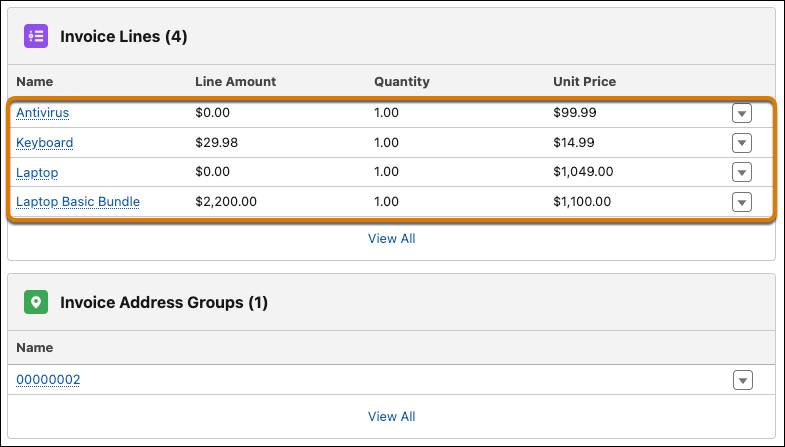
Read Generated Invoice Details for help understanding the relationship between invoice line bundles and billing schedule group bundles.
This was the simplest example of how to use the invoice scheduler. For more information and detailed examples of other scenarios, read Generate Invoices Automatically Based on Billing Schedules in Salesforce Help.
Generate and Email Invoice PDF Documents
After an invoice is created, you can generate invoice PDF files and send them to your customers. We won’t ask you to do that in this module, but here’s the general process.
To generate the PDF invoice documents, you can either:
- Generate a batch of invoice PDFs from an invoice batch run by clicking Generate Invoice Documents.
- Generate a single invoice PDF with flow, Apex, or Omniscript. The invoice can be generated from an Account or Order record page, or by using the Invoice Creation API. See Generate a Single Invoice PDF Document by Using Flow, Apex, and Omniscript in Salesforce Help for details.
Billing connects these generated PDFs to invoices in the Invoice Documents related list. From that list, click the quick actions menu of the invoice document that you want to send and click Email Invoice. You can also automatically send a batch of invoices to the Bill to Contact on posted invoices. See Send Invoices Through Email in Salesforce Help for details.
After Sending Invoices
After an invoice is sent to a customer, Billing includes features to streamline your work with credit memos, payments, refunds, and collections.
Here’s a quick overview of what Hannah and her InfinitraBytes teammates can do next.
- Save payment methods and automate payment batch runs to collect and apply payments to invoices. Also create and issue refunds when needed.
- Create credit memos for general adjustments or against specific invoice lines for precise corrections. Credit balances can automatically settle posted invoices or invoice lines.
- Manage overdue invoices proactively with collection plans for accounts with overdue balances. Billing supports sending automated emails to remind customers of overdue payments and payment promises to generate payment schedules for future payments.
- Write off uncollectible invoices to automatically create and apply credit memos for accounting adjustments. We’re hoping you don’t have to use this feature often!
Those features are all beyond what we can cover in this module, though. Be sure to check out the entire Manage Billing in Agentforce Revenue Management section in Salesforce Help for details.
Wrap Up
In this unit, you followed along with Hannah at InfinitraBytes as she generated invoices for an order. That work built on everything she did earlier in the module. She first defined legal entities, billing policies, and tax policies. Then she created a quote and order to generate billing schedules and billing schedule groups.
By following along, you know the basics of how to set up and use Billing.
There’s so much more to learn, though. After you complete the hands-on challenge in this unit, take some time to reflect on your business’s billing needs. How is your business structured? What billing strategies do you use? What are your taxation needs? How do you invoice customers?
Whatever your needs, Billing is likely up to be up to the task.
To pass the challenge and earn the badge, check the challenge.