Set Up Appointment Scheduling
Learning Objectives
After completing this unit, you’ll be able to:
- List the key tasks for setting up Appointment Scheduling.
- Configure service territories and their operating hours.
- Create service resources and assets.
- Configure skills and the scheduler.
- Set up work type groups.
Appointment Scheduling Configuration
Setting up Automotive Cloud involves configuring the underlying data to support your customers and teams. Here are the key setup tasks.
Task |
Details |
|---|---|
Configure service territories. |
Set up the locations and availability for each of your service territories, and define their operating hours and time slots. |
Create service resources and assets. |
Configure the technicians and vehicles required for the services you offer, and map them to service territories. |
Create Work Type Groups and Work Types. |
Set up common appointment scenarios. |
Set up skills. |
Create skills and map them to your technicians to ensure appropriate resourcing for your appointments. |
Configure the scheduler. |
Set up the scheduler to capture important information needed for each appointment. |
Raftavium Motors wants to make sure every customer experience is a positive one. Follow along as Robin performs each task and creates the foundational data that powers the Appointment Scheduling tool.
Configure Service Territories
A service territory represents an auto dealer’s location where your service members work. So you start your configuration by creating each service territory and specifying its operating hours.
You can organize your service territories into a hierarchy by creating parent territories that store a set of child territories. For example, create a service territory for an overall country, state, or region, and then create child territories for each individual dealership located within the parent territory.
For each service territory, enter the applicable operating hours to define the overall timeframe that the showroom or service center is open for appointments. By default, these operating hours control the general availability of service resources and assets associated with the territory, but you can customize individual availability at the service resource level, as well.
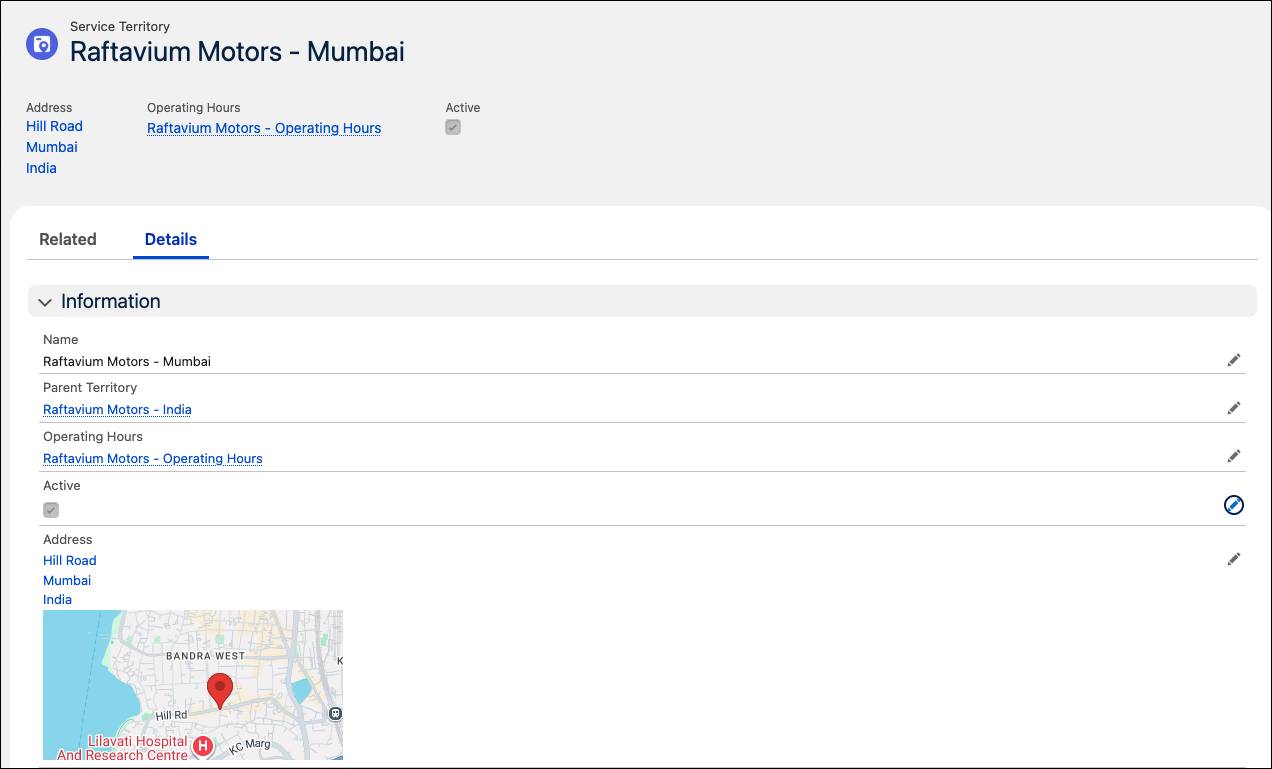
Next, create time slots for your service territories to ensure availability of resources.
Robin creates a service territory for Raftavium Motor’s newest service center in Mumbai, and sets up its time slots This service center is available for routine maintenance appointments only from 9 AM to 5 PM, Mondays through Fridays.
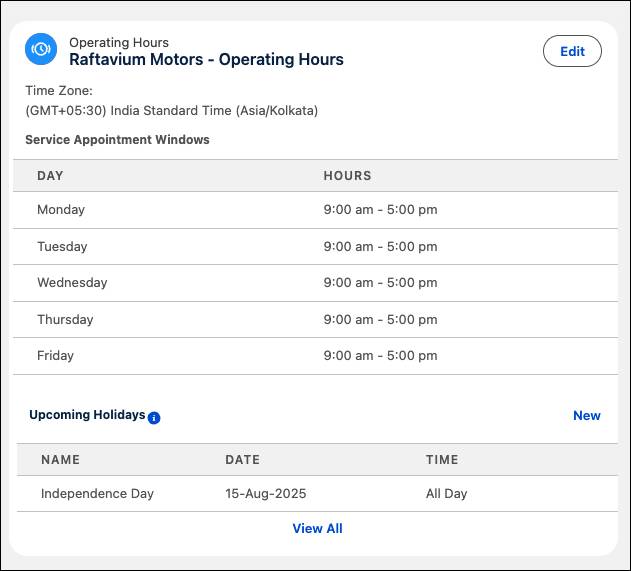
Note that you can also set holidays to prevent scheduling on days when staff are unavailable. And associate one or more work types with each territory, which you explore in a moment.
Create Service Resources and Assets
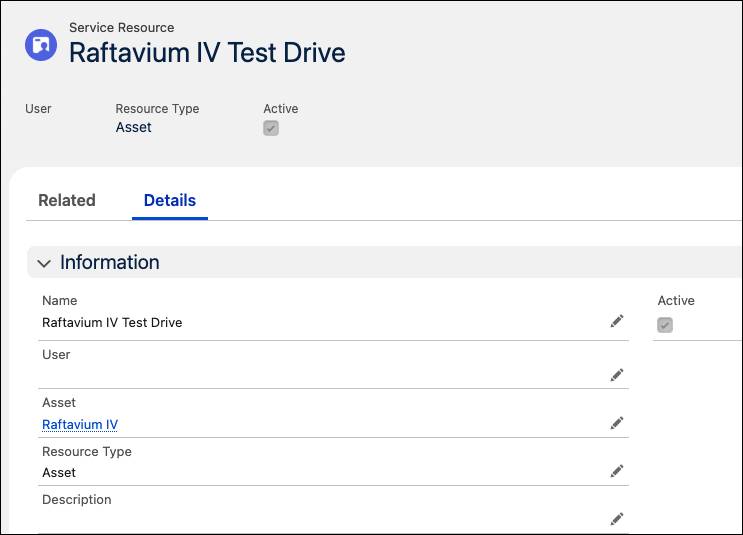
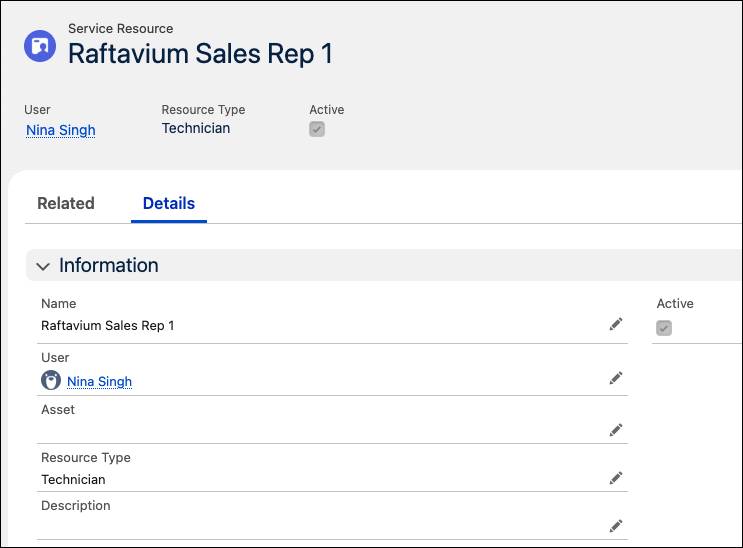
After configuring service territories, operating hours, and time slots, it’s time to create all of your service resources, which represent the physical assets and staff members that are needed during appointments. When creating a service resource, you also define its type, such as Asset or Technician.
Robin creates a service resource for the latest car model, the Raftavium IV, so that it’s available as a test drive vehicle during test drive appointments.
She then creates another service resource for a salesperson who assists customers with their test drives.
During appointment scheduling, you can mix and match service resources to create the right combination needed for a certain type of appointment. But, how do you make sure that the staff you book for appointments are qualified to handle the job? By creating skills, of course.
Create Work Type Groups and Work Types
Next, you create work type groups, which represent a general service and the overall purpose of an appointment. Your work type groups might include Test Drive, Vehicle Repair, Wheel and Tire Alignment, Parts Replacement, or others.
Robin creates a work type group called Test Drive to store the necessary tasks that staff perform during customer test drive appointments.
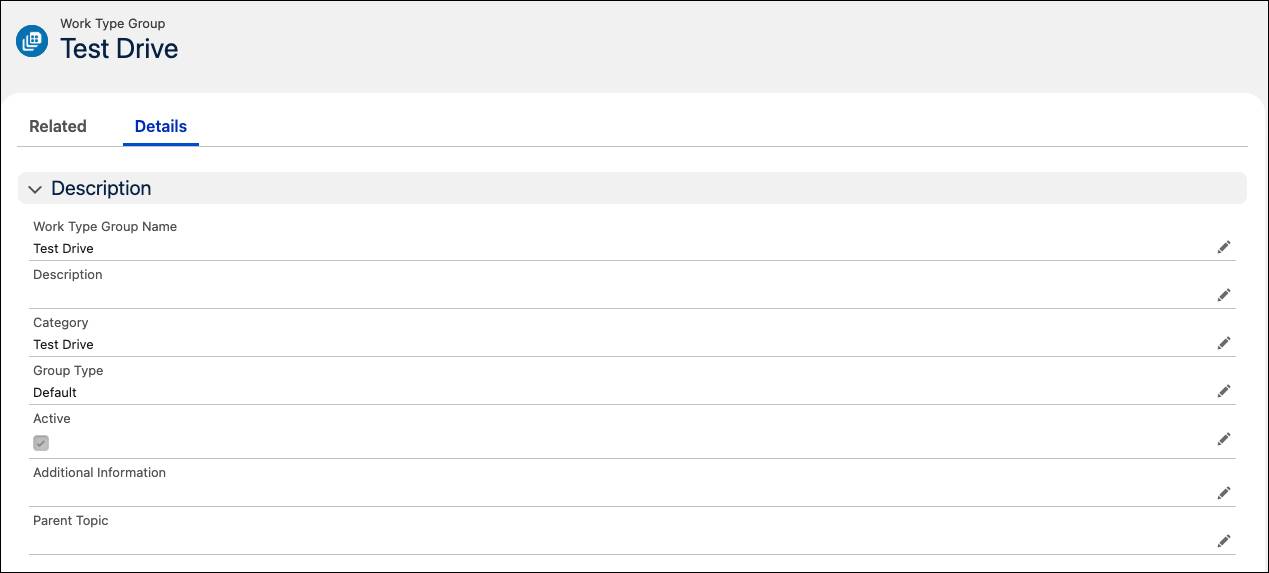
When a user schedules a test drive, the scheduling flow automatically guides the user to the relevant resources and time slots for the test drive.
For each work type group, create a set of work types. A work type represents the actual task to be performed during an appointment, and also defines the intended duration and availability timeframe for the service. Assign applicable skills to the work type to ensure that only technicians or representatives who hold the related skills are bookable for the appointment.
Robin creates a work type (not another work type group) called Test Drive. On this record, she sets the available operating hours that the work type is available and the estimated duration for completing the task.
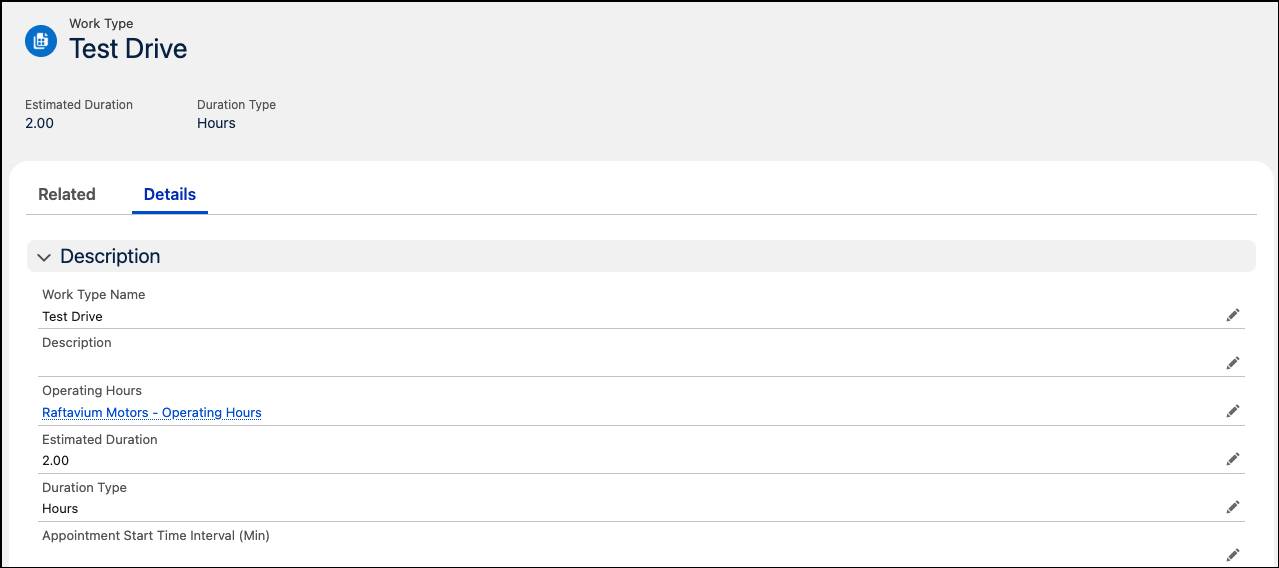
For each work type, she blocks time intervals between appointment start times for the service type. This way, staff members have time to prepare or wrap up tasks before and after the appointment.
Set Up Skills
With work type groups set up, it’s time to take a pause and consider what skills are needed for all the various services you offer. Some jobs may require simple maintenance tasks, while others involve more complicated repairs. Make a list of all the skill sets needed to do each job well.
Then, create the necessary skills and assign them to service representatives and technicians based on their area of expertise. This mapping ensures that you’re playing to the strengths of each representative or technician, setting them up for success during appointments.
Robin creates a skill called Tire Specialist and connects the skill to each technician with tire repair experience.
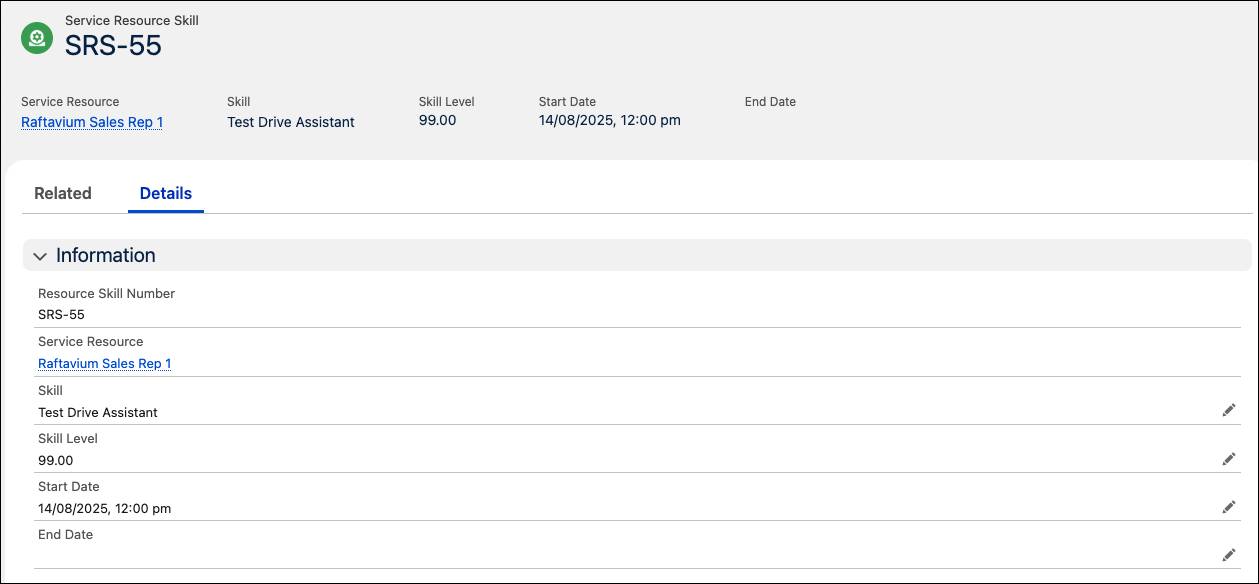
She creates another skill called Test Drive Assistant and maps it to sales representatives who oversee test drive appointments.
Configure the Scheduler
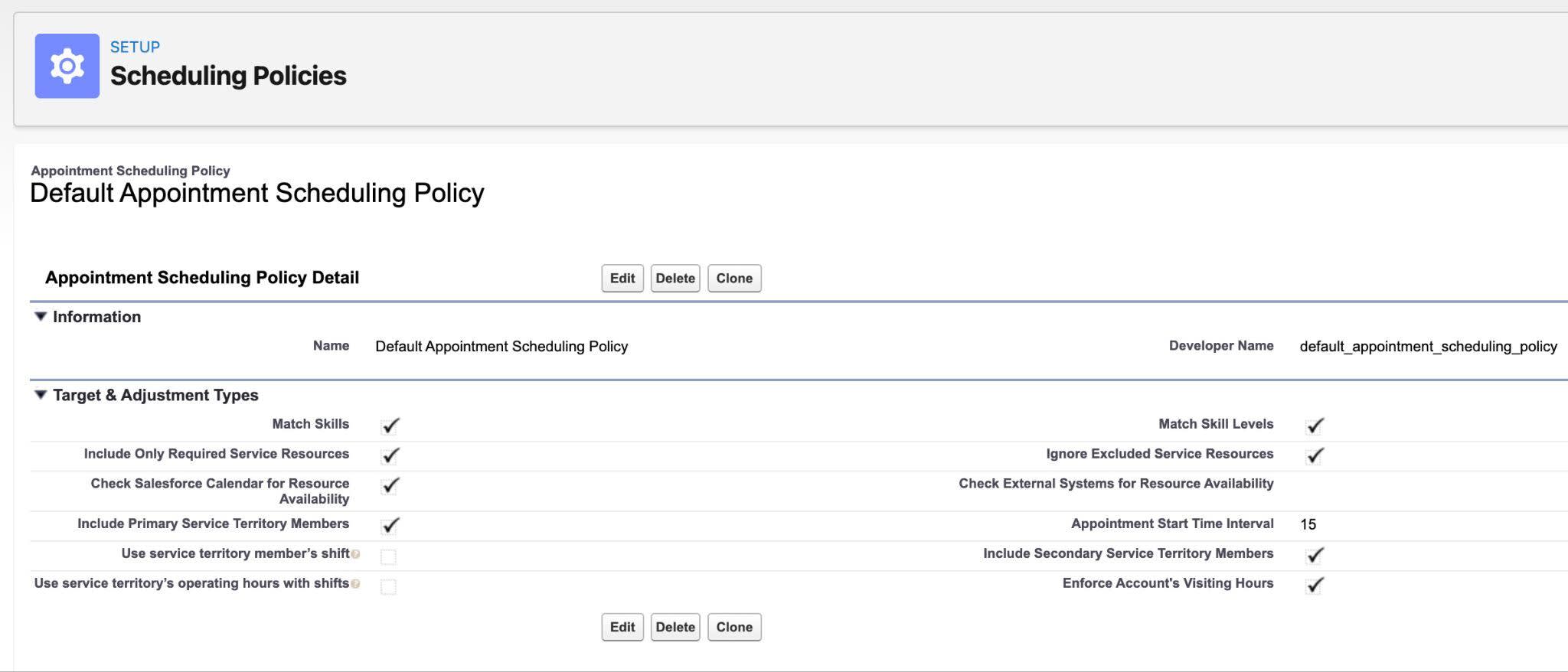
Last but not the least, you configure the scheduler. Translate your defined automotive resources and rules into functional appointment booking logic within Automotive Cloud. This process uses the underlying Salesforce Scheduler to unify location data (Service Territories), staff availability (Service Resources), service types (Work Types), and required staff expertise (Skills). By setting up Scheduling Policies and Appointment Windows, you dictate exactly when and how appointments can be booked. You prevent common issues like double-bookings and ensure that complex service requests are routed only to qualified technicians.
Robin refers to the Set Up Appointment Scheduling in Automotive Cloud Help article to complete this task.
To |
|
|---|---|
Cc |
|
Bcc |
|
Subject |
Engine-ered Together
Once you complete this configuration, your representatives and customers are ready to schedule appointments for test drives, maintenance, and repairs.
Through Robin’s efforts, every piece of data—from technician skills to work type durations—is linked and harmonized within Automotive Cloud. When customers or sales agents at Raftavium Motors use the scheduling system, they can be sure that the right resources and personnel are ready when the appointment time arrives.
In the next unit, you see how all of this data results in a streamlined appointment scheduling experience.