Deep Clone Products
After completing this unit, you’ll be able to:
- Describe the significance of deep cloning products.
- Configure deep clone settings.
- Create products using the deep clone method.
Clone a Product
More often than not, a product catalog has many products with similar attributes. For product designers, it's too cumbersome to create these products one-by-one. With Product Catalog Management, you can clone products using these two methods.
-
Clone: Use this method to clone the product record. This method doesn’t clone the child components or associated entities such as attributes.
-
Deep Clone: Use this method to create copies of a product including related information such as attributes, child components, and product selling models.

At InfinitraBytes, the team manages a wide range of laptop models with a few variations such as storage, color, and warranty. In this unit, follow Product Designer Manoj Wilson as he helps to manage the growing catalog. During festival season, he uses the deep clone method to create new product offerings that are similar to existing ones.
Explore How Deep Cloning Works
Product Catalog Management uses context definitions to map the objects to be deep cloned. The ProductDeepCloneContext context definition captures the child objects of the product and their attributes that are cloned by default. You extend this context definition to add additional attributes that the cloned object has.
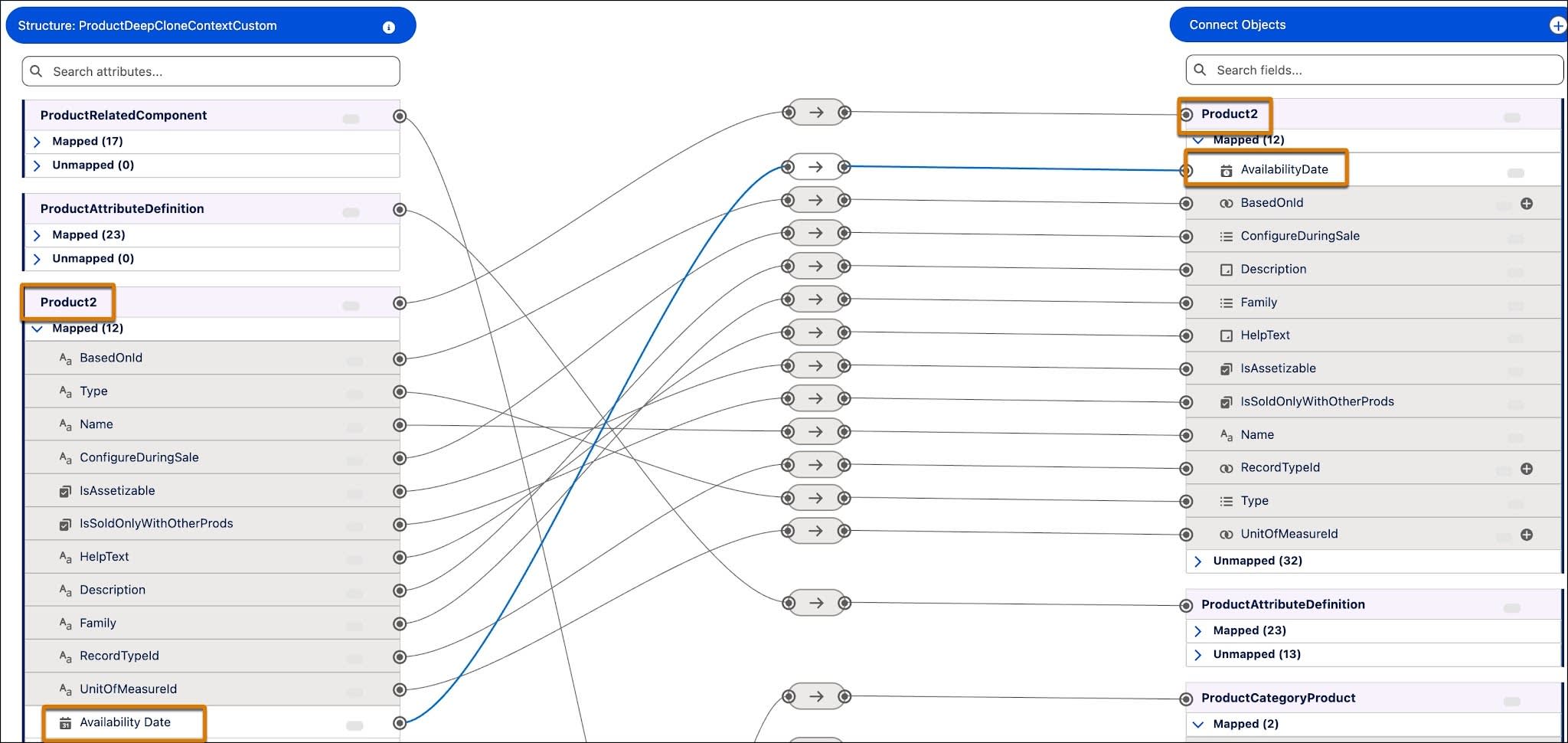
Here’s an example of cloning a product bundle that has various fields including a custom field called AvailabilityDate. First, you extend the ProductDeepCloneContext context definition and map the respective fields.

Here, the fields in the extended context definition, including the custom field AvailabilityDate, are mapped to the corresponding fields in sObject. This ensures that the cloned product contains all of the fields defined in the context definition.
Further, you can use expression sets to define rules to be applied to the cloned objects. For example, use the Calculation expression set to specify a different value for an attribute in the cloned product.
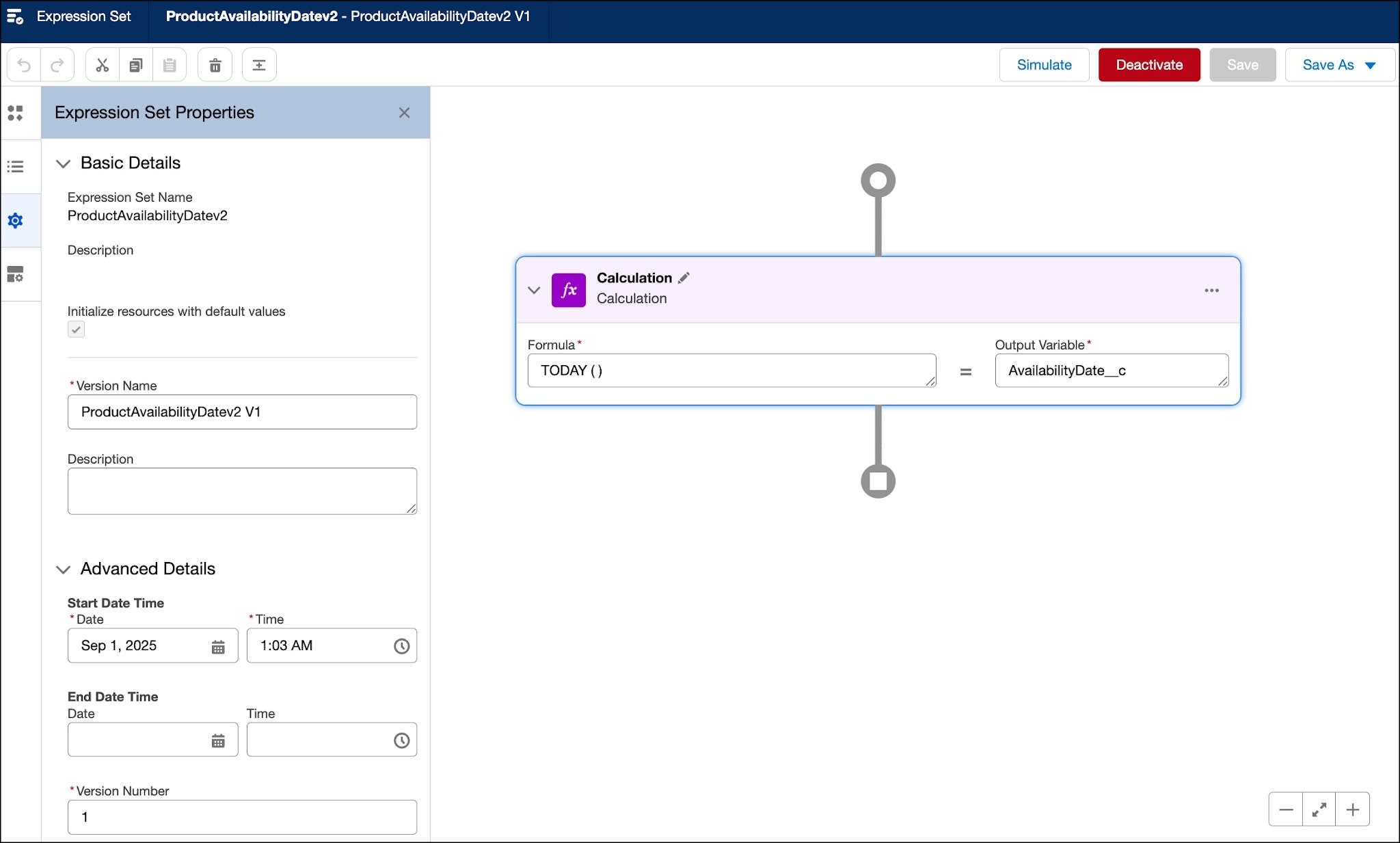
Here, the expression set is defined to set the AvailabilityDate field to the current date. This value is set for the respective attribute in the deep cloned product.
Set Up Context Definition and Expression Sets
Now, follow along as Manoj sets up the necessary context definition and the expression set required for deep cloning.
Extend the Context Definition
Start by extending the standard context definition.
- From Setup, in the Quick Find box, find and select Context Definitions.
- In the Standard Definitions tab, for ProductDeepCloneContext, click
 and select Extend.
- In the Extend Context Definition window, enter the name as
ProductDeepCloneContextCustom.
- Save your work.
You can view the new context definition in the Custom Definitions tab.
Add Custom Field in the Context Definition
Next, Manoj adds the custom field in the context definition. Follow along in your Developer Edition org.
- In the Context Definitions page, go to the Custom Definitions tab, and then select ProductDeepCloneContextCustom.
- Click Edit.
- Click Next and Next again
- In the Edit Attributes window, select the Product2 Inherited node.

- Click Add Attributes. A new blank row is added to the list. Enter these details.
- Name:
AvailabilityDate - Type: INPUT OUTPUT
- Data Type: DATE
- Display Name:
Availability Date
- Name:
- Click Next.
- Click the Product2Inherited node.
- Scroll to the AvailabilityDate__c attribute, click the + Add Tags next to it, and enter
AvailabilityDateas Tag Name.
- Click Done, and then save your changes.
You have now added a custom field in the context definition and added a context tag to it.
Map Fields in the Context Definition
Next, Manoj maps the newly added custom field to the corresponding field in the object and then activates the context definition. Follow along.
- In the ProductDeepCloneContextCustom page, go to the Map Data tab.
- For ProductDeepCloneMapping, click
 , and select Edit SObjectMapping.
- In the Edit Mapping window, select Mark as Default, and then click Map. If you are prompted to switch to the new UI for context mapping, click Proceed.
- Click Switch View, and then click Legacy Interface.
- Click Switch.
The Context Mapping page shows how the attributes in context definition on the left are mapped to the entities on the object shown on the right.
- Expand Unmapped under the Product2 node on both sides of the context mapping page.
- To create mapping, select Availability Date on context definition and then select corresponding Availability Date on the object.
- Click Save.
- Switch to the ProductDeepCloneContextCustom context definition page and click Activate to activate the definition.
Your extended context definition now includes the custom field and its mapping. Now, when you deep clone a product, the cloned product contains all the fields defined in the context definition, including the custom field.
Define an Expression Set
By default, the products in the InfinitraBytes catalog don’t have an availability date defined. Manoj wants every cloned product to have one, so he creates an expression set that automatically sets the cloned product’s availability date to the current date. Follow along.
- From the App Launcher, find and select Expression Sets.
- Click New.
- In the New Expression Set window, add these details.
- Name:
ProductAvailabilityDate - Usage Type: Default
- Context Definition: ProductDeepCloneContextCustom
- Name:
- Save your changes. The ProductDeepCloneContextCustom expression set page opens.
- In the Expression Set Versions section, select ProductAvailabilityDate V1. The expression set definition opens on a new page.
- In the Add step elements section, click
 , and then select Calculation.
- Add these details.
- Formula: TODAY ()
- Output Variable:
AvailabilityDate__c
- Formula: TODAY ()
- Click
 , and add these details.
- Start Date Time: Today. Set this time after the Start Date Time of the context definition used. You can set it to any future date as well. However, make sure that it’s active when you deep clone a product.
- Rank:
1
- Start Date Time: Today. Set this time after the Start Date Time of the context definition used. You can set it to any future date as well. However, make sure that it’s active when you deep clone a product.
- Save your changes and click Activate.
Awesome! You’ve now defined the expression set to update values of specific attributes in the cloned product.
Configure Deep Clone Settings
Next, Manoj updates the setup page to specify the context definition and expression set to use for deep cloning. Follow along.
- From Setup, in the Quick Find box, find and select Deep Clone Product Settings.
- Under the Select Context Definition section, select ProductDeepCloneContextCustom.
- Under the Select Expression Set section, click
 . If you don’t see this button, click the right corner of the dropdown.
- Select ProductAvailabilityDate.

You’re all set to deep clone products.
Deep Clone a Product
Time to deep clone a product.
- From the App Launcher, find and select Product Catalog Management.
- On the Product Catalog Management home page, click the Products tile.
- Click Recently Viewed and select All Products. All the products in your catalogs are listed.
- Select Laptop Pro Bundle.
- Go to the Structure tab to view the bundle structure. It contains two product groups: Laptop and Accessories. Under each product group, there are various products.
- Click
 , and select Deep Clone.
- Enter the product name as
Laptop Pro Bundle - Festivaland click Deep Clone.
- The Deep clone summary window shows the list of objects and the corresponding records that were created during the deep clone. Click View Cloned Product.
- In the Details tab, observe that the Availability Date is set to the current date.
- Click the Structure tab. Observe that all of the product groups and the component products that existed in the source product are available here.
Well done! You’ve successfully deep cloned a product.
Next Steps
In this unit, you learned about setting up the context definition and expression set for deep cloning products. In the next unit, explore how to customize the product discovery page for an enhanced product browsing experience.
For now, click Check Challenge to earn 500 points.