Explore Storefront Search
Learning Objectives
After completing this unit, you’ll be able to:
- Describe what happens during a Salesforce Agentforce Commerce for B2C storefront search.
- List four questions to ask when identifying the types of search you want on your storefront.
- List four things that Agentforce Commerce for B2C checks when processing a keyword search.
- Explain the importance of an up-to-date search index.
- Describe how you can improve your no search results page.

Help Shoppers Search for Products
As the merchandiser for an Agentforce Commerce for B2C storefront, you must make sure that shoppers can search for and find the exact products they want to buy–whether on the storefront or via external search engines. This is a critical responsibility because shoppers who search aren’t just browsing. They know what they want, or have some idea. These are shoppers who are closer to making a purchase.
You’ve probably had your own storefront search experiences that ended in unhelpful or, worst of all, no results. So you know firsthand how this kind of experience can lead to dissatisfied shoppers and increased bounce rates, and you want a better experience for your shoppers.
In this badge, you learn about the Agentforce Commerce for B2C search features, and how to set up product search within an Agentforce Commerce for B2C storefront.
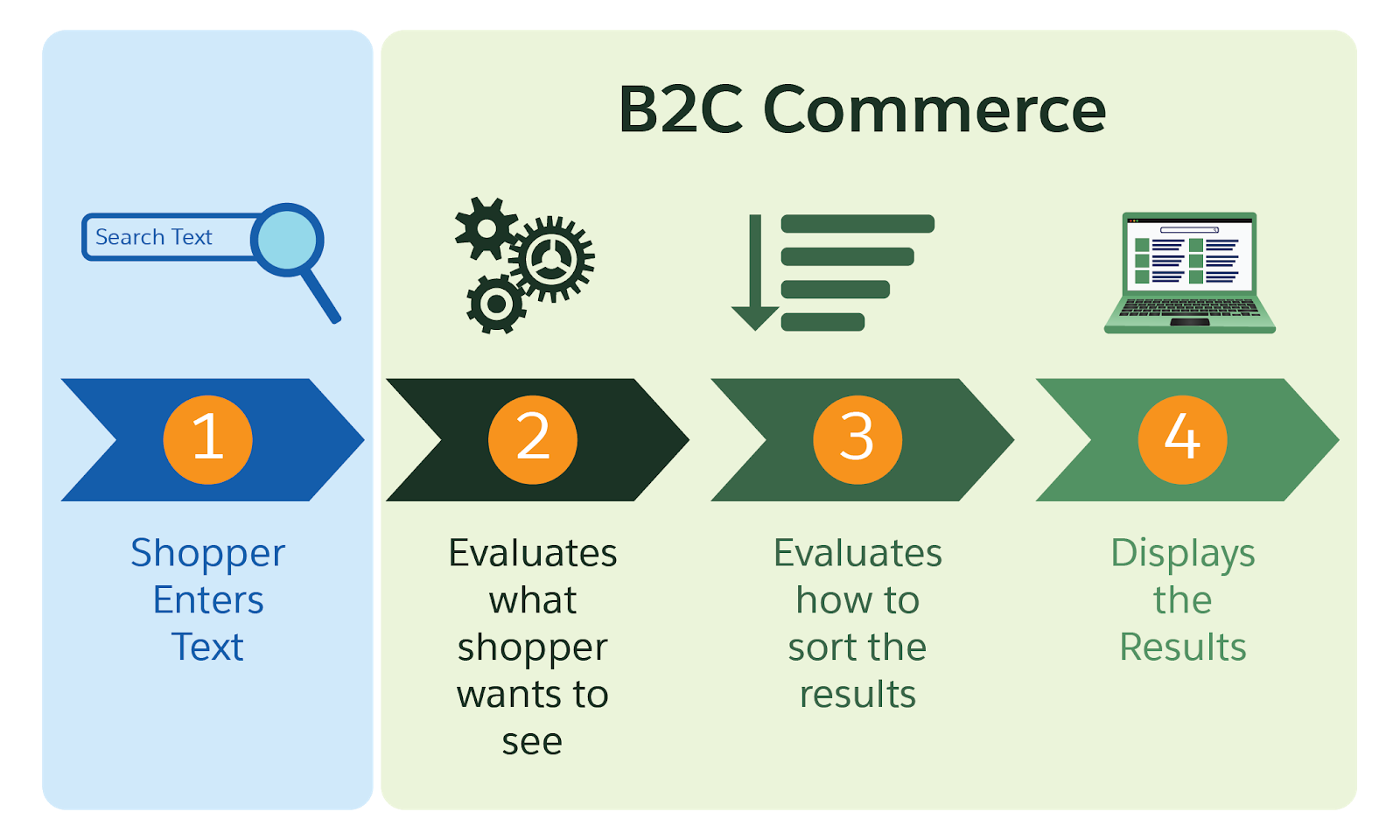
Here’s what happens during a Agentforce Commerce for B2C storefront search.
- The shopper enters text into the search field.
- Agentforce Commerce for B2C evaluates what the shopper enters against the search dictionary, redirects, and settings.
- Agentforce Commerce for B2C evaluates how to sort the results (or the shopper sorts the results).
- Agentforce Commerce for B2C displays the results.
Keyword Search
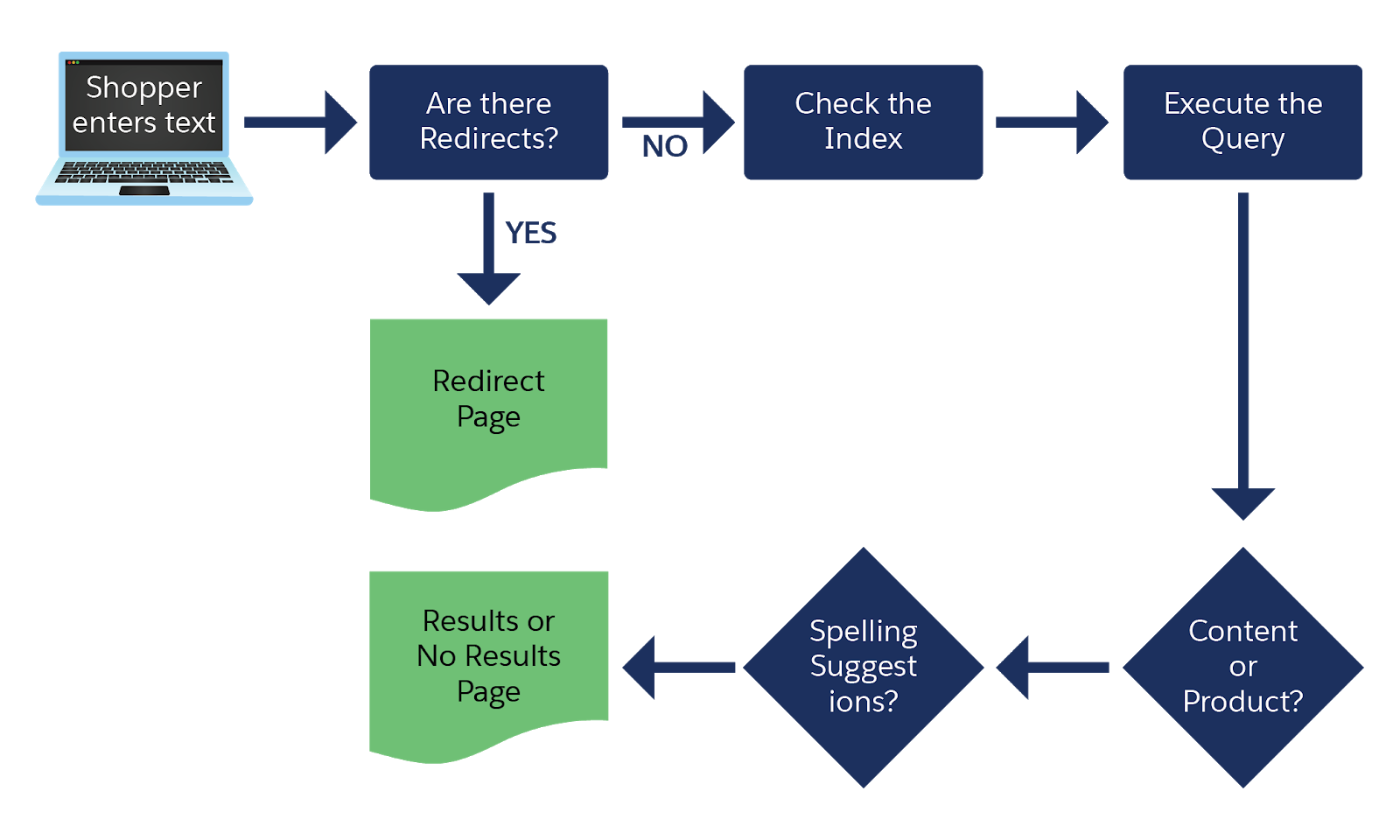
Keyword search is when a shopper enters a search term into a storefront’s search field and the results appear. The shopper expects the storefront search algorithm to find what they are looking for fast, even if they spell it wrong. Agentforce Commerce for B2C does its part by checking:
- If there are redirects, which direct the shopper to a particular page or URL
- The search index, to see if there’s a match
- If the matches relate to content or products (or both)
- The spelling, to make reasonable suggestions
- For dictionary matches with synonyms, hypernyms, or hyponyms, for example
After all these checks and comparisons, Agentforce Commerce for B2C shows the results (whether content, products, or both) or a No Results page.
Look at the Big Picture
Before you get started configuring storefront search, make sure that you know about all of the Agentforce Commerce for B2C search capabilities. You likely have questions such as:
- Which pages show search results?
- How many search results should you show per page?
- What happens when there are no search results?
- What happens when there are more or fewer search results than expected?
- When should you redirect a search to a category page to give the shopper more results?
- When should you give shoppers the ability to refine their search?
You can answer many of these questions when you configure search in Business Manager. To set up search, you configure these settings.
- Search Preferences
- Searchable Attributes
- No Results Found Page
- Excluding Specific Category Names from Indexing
- Keyword Search Refinements
- Search Redirects
These concepts and their related settings determine how Agentforce Commerce for B2C evaluates search text to provide the best results for shoppers. You explore these concepts and settings throughout this badge.
Update a Search Index
To make sure your search indexes work properly, you rebuild them after you change the storefront search configuration. Agentforce Commerce for B2C gives you three options for rebuilding your search indexes.
-
Manual: This process is typically necessary when there are updates to product data, catalog structures, or other configurations that impact search functionality. Rebuilding the search index makes sure that the search results reflect the latest data.
-
Scheduled: Scheduled indexing rebuilds an index automatically and regularly. Scheduled indexing helps you make sure that the data used for storefront searches remains current and accurate.
-
Incremental: Incremental indexing updates your production instance indexes in near real-time. For example, when you update products, content, or search configurations. Agentforce Commerce for B2C reflects the changes within 30 seconds after they’re made.
When to Rebuild the Search Index
Rebuild the search indexes for these circumstances.
-
Initial setup: If no search index exists, rebuild the index to enable search functionality.
-
Data updates: Rebuild after making significant changes to the underlying data, such as product updates, new content, or changes to synonyms.
-
Configuration changes: Rebuild if there are updates to language-specific settings, stemming, or term correction configurations.
-
Replication: Before replicating product, category, content, or search preference changes from staging to production, do a full index rebuild.
-
Scheduled maintenance: Regularly scheduled rebuilds can help you keep your indexes optimized and up-to-date.
Where to Rebuild a Search Index
Salesforce primarily recommends performing manual and scheduled indexing on your staging instance. After you rebuild the index on the staging instance, test to make sure that everything is working as expected. When you're ready, you can replicate the staging instance to the production instance. This approach makes sure that the indexing process doesn’t impact the performance of the production environment.
Incremental indexing is designed to meet the need for near real-time updates to production. For this reason, you should apply incremental indexing directly to the production instance. This process makes sure that updates to the product catalog, such as price changes, inventory updates, or new product additions, happen in real-time or near real-time on the live site.
Impact on Performance
Rebuilding search indexes can temporarily impact search performance. To minimize disruption to end users, perform this action during off-peak hours.
Check Catalog Size Versus Search Speed
Indexes speed up search performance by helping the system to locate data more efficiently. However, as your indexes grow in size, they can impact the speed of search operations. Regularly check the size of your search indexes to keep them running at optimal speed.
Here’s how to check the index size in Business Manager.
- In Business Manager, click App Launcher, and select Merchant Tools | Search | Search Index.
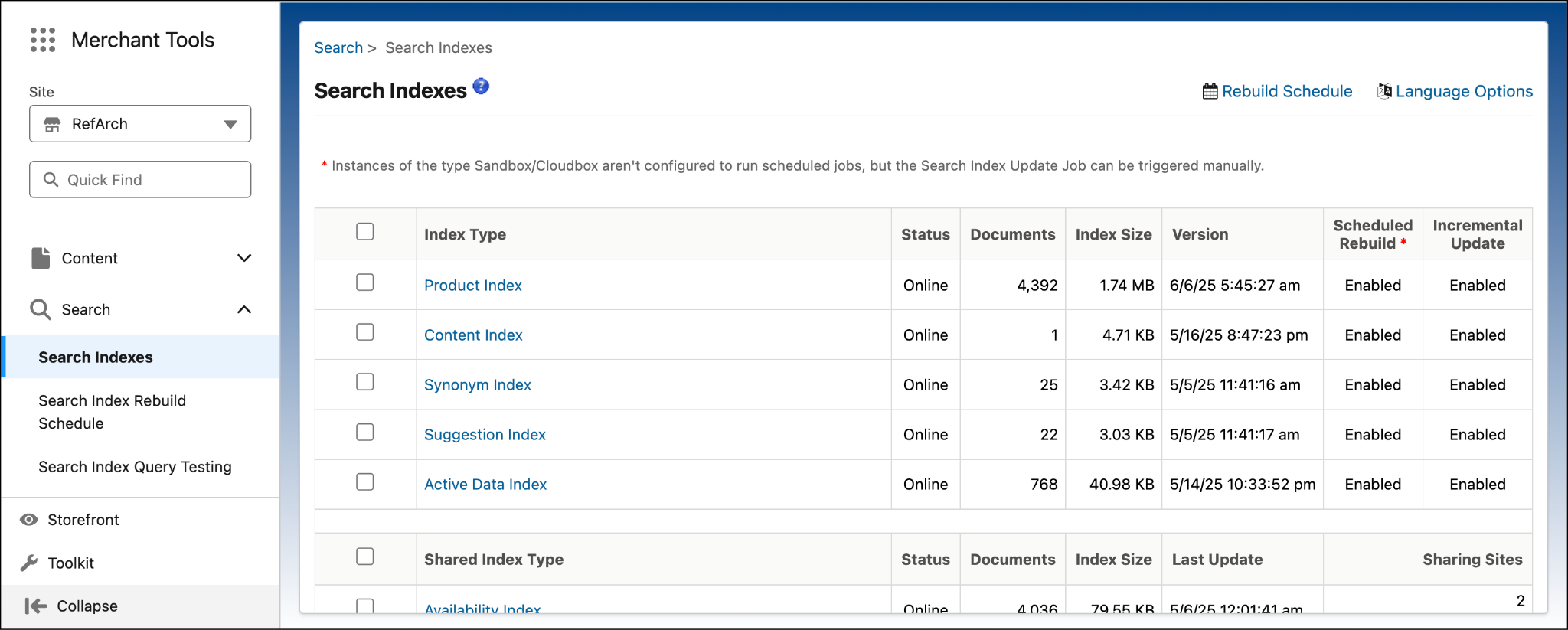
- Click the Product Index link.

- Click the Statistics tab. Take a look at the number of indexed elements and the specific indexed fields.
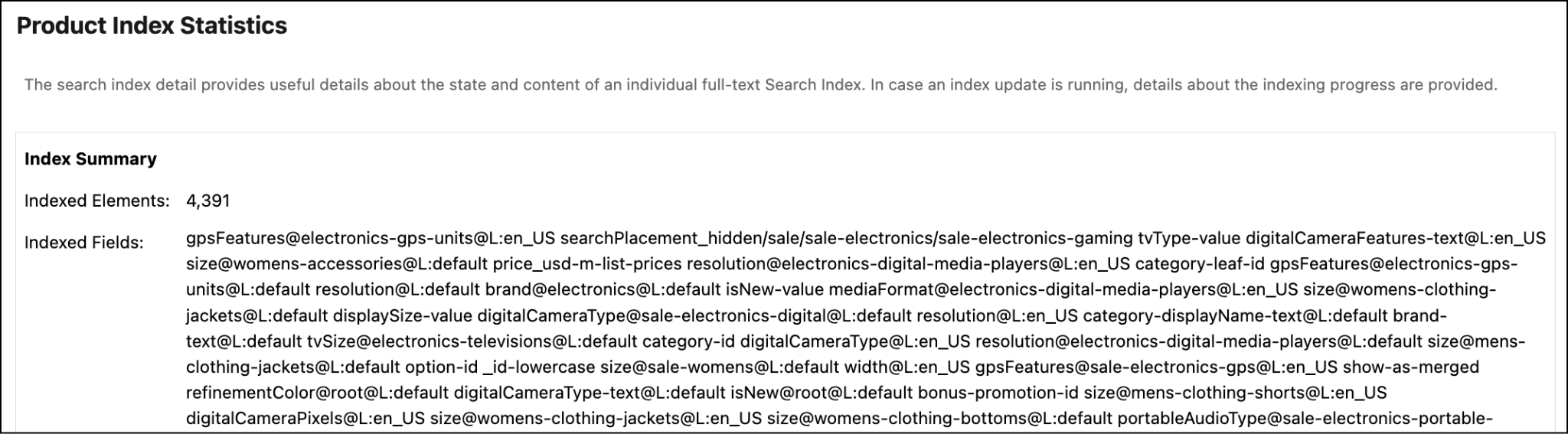
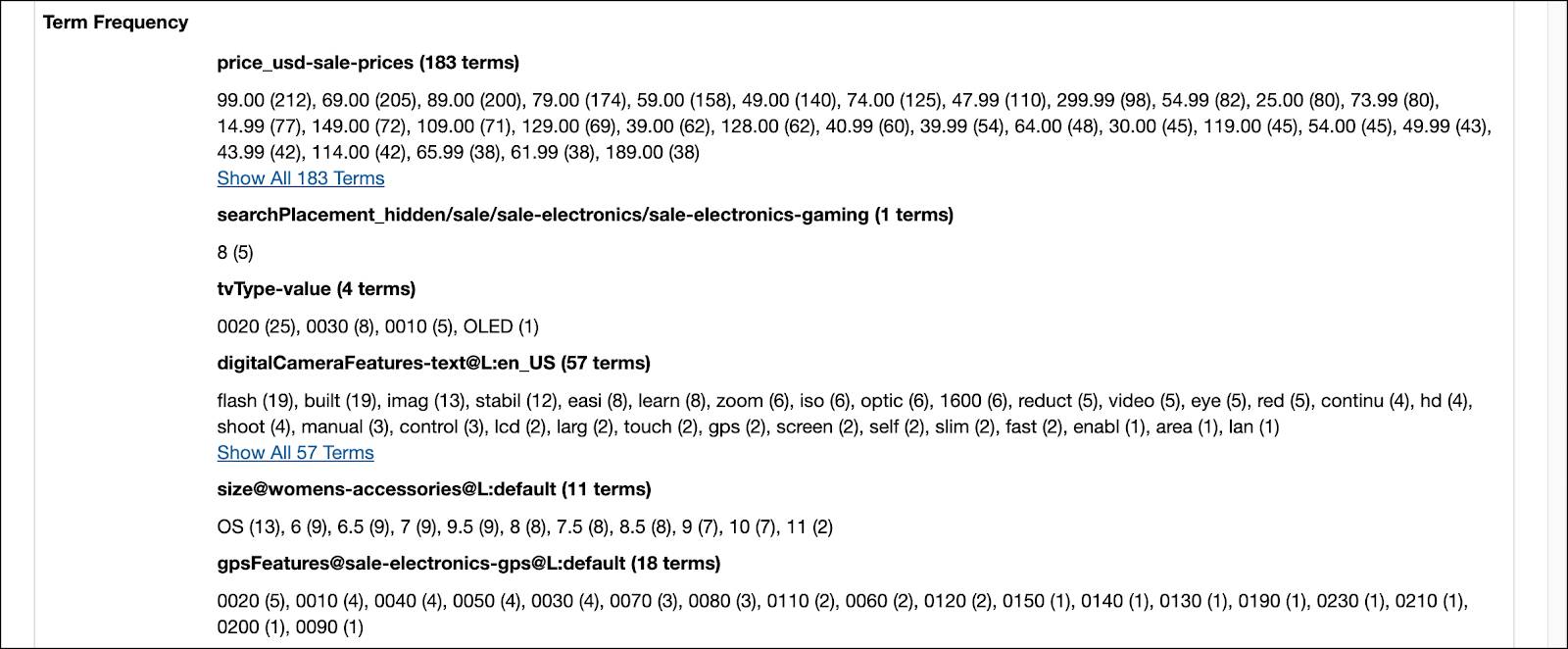
- Scroll down to see how frequently each term is used within the index. Review term frequency by term and locale (for example, de_DE, default, en_US, and en_CA).
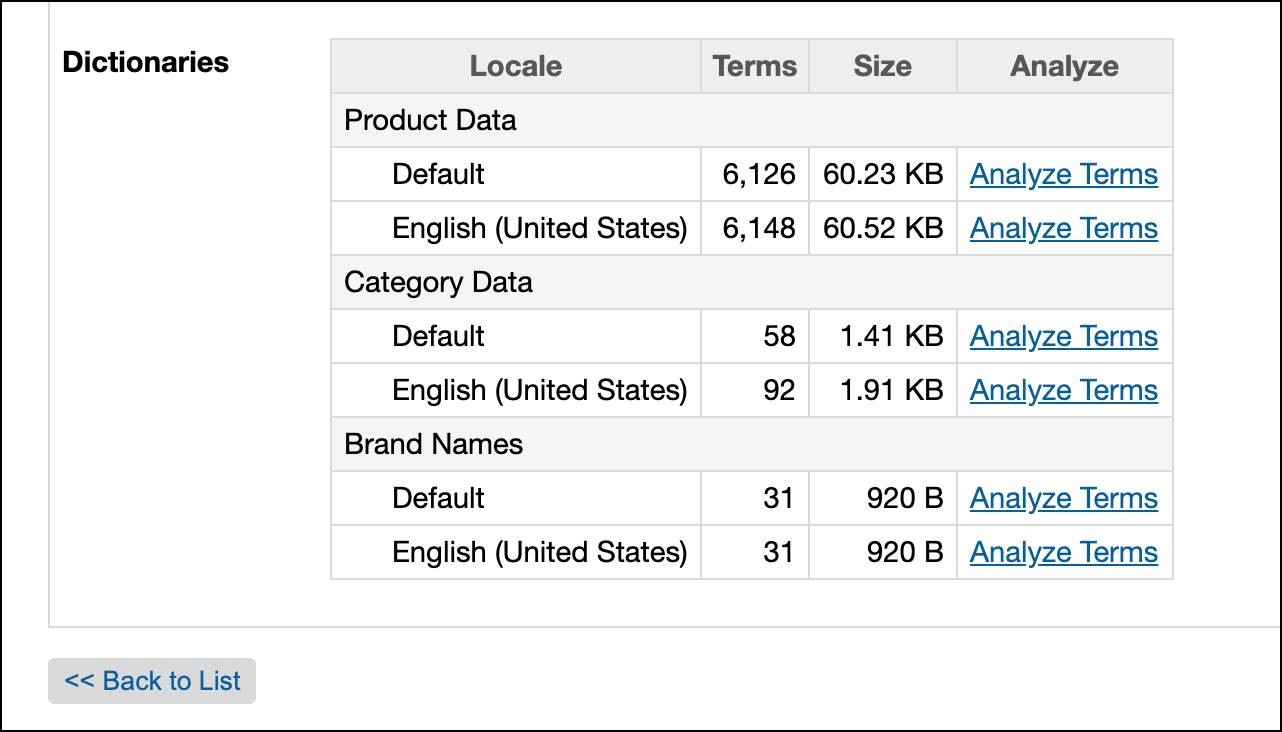
- Scroll to the bottom of the page to review dictionaries by locale. (If you are just working with English, you can always add more languages later.)
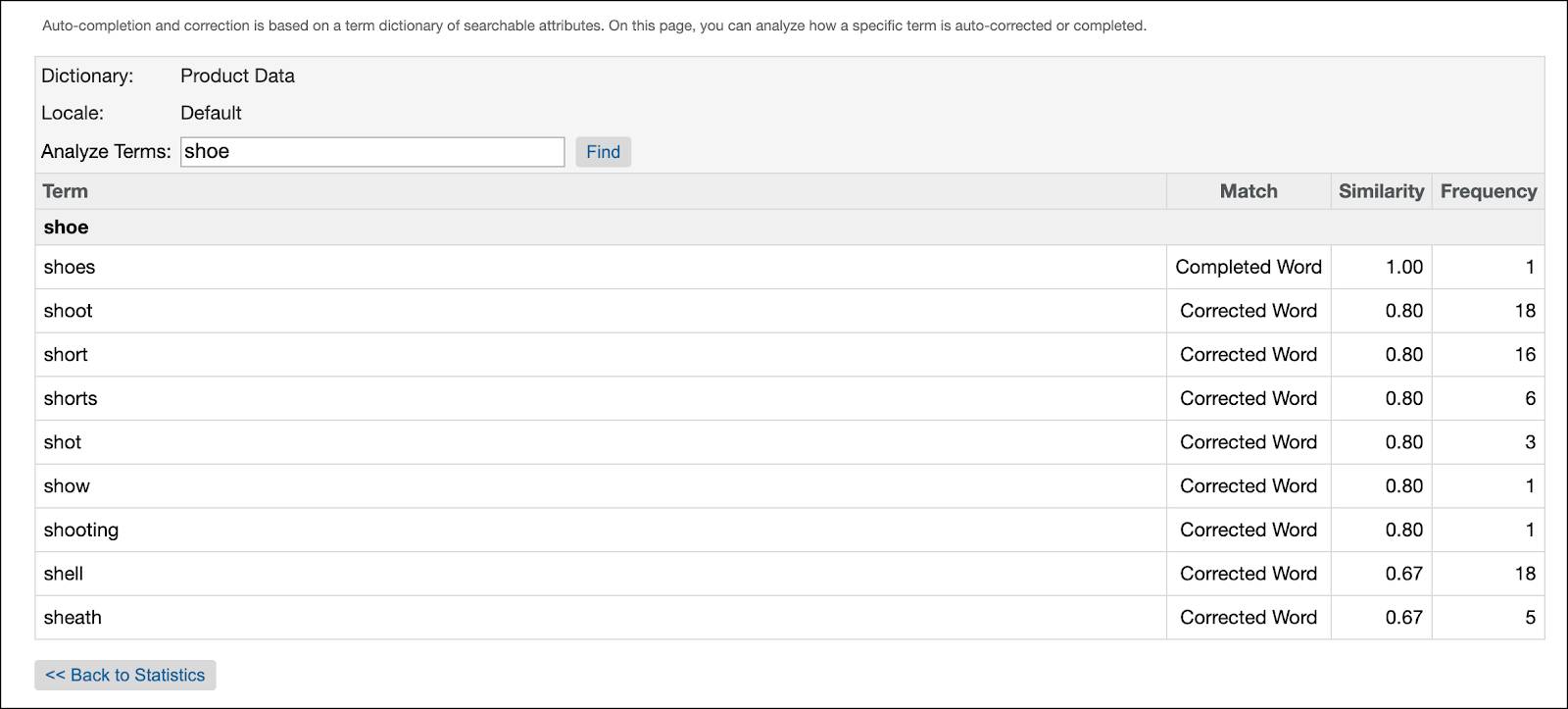
- Click Analyze Terms beside Default for product data to analyze terms by locale.
- Enter a term, for example
shoe, and click Find.
- Review the resulting terms.
Reduce Search Index Size
When the time comes to decrease the size of your search indexes, you can use these strategies to decrease index size.
- Restrict the number of searchable attributes to the minimum necessary for customer searches.
- Configure boost factors to prioritize certain attributes in search results without unnecessarily expanding the index.
- Avoid enabling auto-correction for attributes where it’s unnecessary, such as product IDs.
- Avoid enabling locales and managing data in locales that aren’t used in the storefront.
- After making changes, rebuild the product or content index to apply updates. To reflect the optimized configuration, rebuild the index.
No Search Results
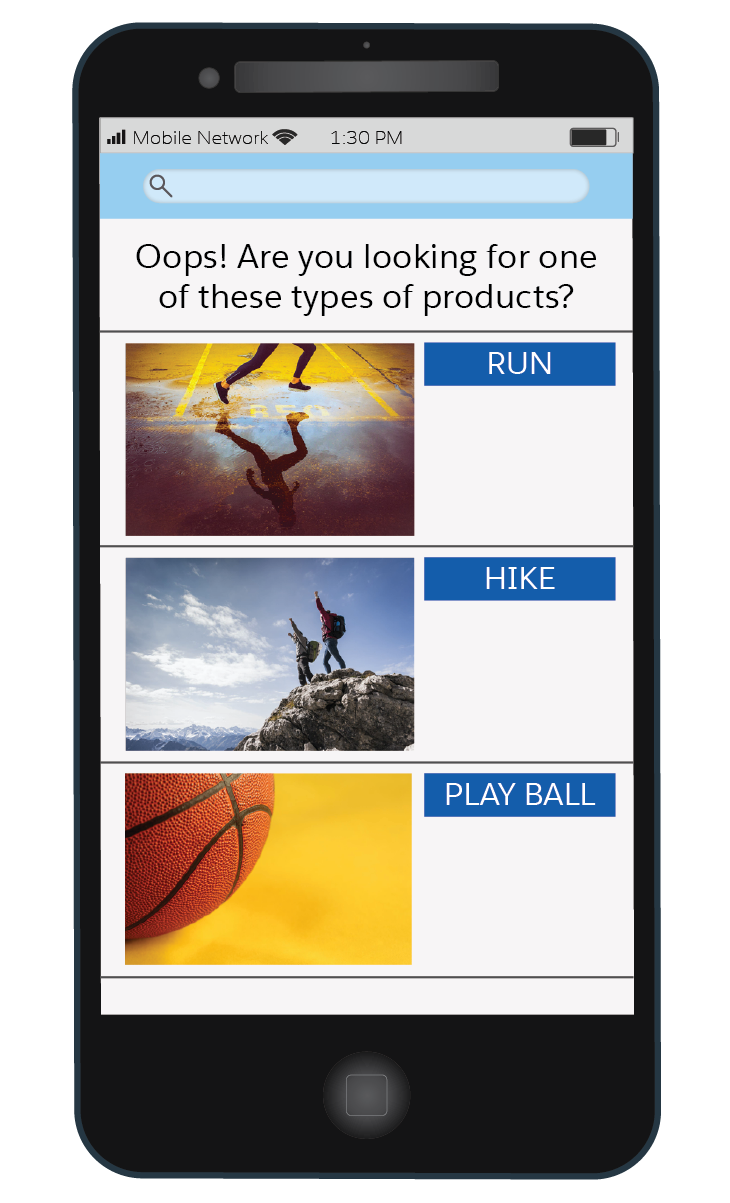
When a storefront search yields no results, Agentforce Commerce for B2C checks the shopper’s entry for misspellings. If it finds another spelling, it shows a page similar to this.
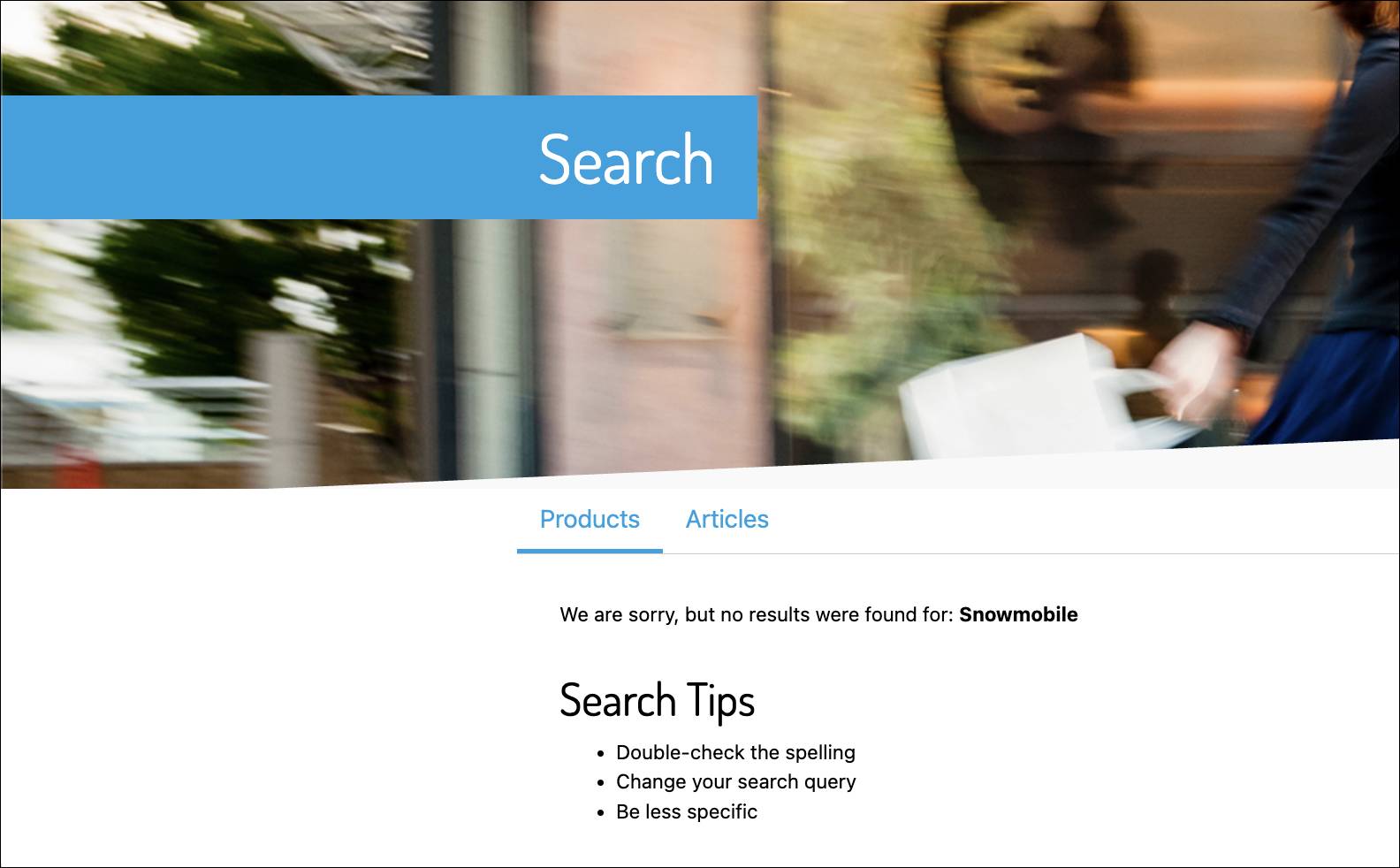
Work with your developer to add creative content to the search results, such as:
- A graphic containing a link to a gift guide at holiday time
- A creative content asset that gives suggestions on how to search the storefront
- A set of fun graphics that link to key categories
- You can also add Einstein Product Recommendations
Next Steps
In this unit, you learned what Agentforce Commerce for B2C storefront search involves, the importance of an up-to-date search index, and what to do when there are no results. Next, learn how to configure search preferences.
Resources
- Trailhead: Salesforce B2C Commerce for Merchandisers
- Trailhead: Optimize Search Engine Awareness for Your Salesforce B2C Commerce Storefront
- Salesforce Help: Search Indexes
- Salesforce Help: Set Search Preferences
- Salesforce Help: Configure Searchable Attributes
- Salesforce Help: Search Results for B2C Commerce
- Salesforce Help: Category Name Exclusions
- Salesforce Help: Configure Catalog-Level Search Refinement Definitions
- Trailhead: Smarter Search with Commerce Cloud Einstein