Configure Data Replication
Learning Objectives
After completing this unit, you’ll be able to:
- Describe the two types of data that replication handles.
- List three situations when partial data replication is useful.
- Describe the data replication process types.
- Describe the data replication activation methods.
- List three steps in a manual data replication process.
A typical data replication scenario involves copying data, metadata, and files from a Salesforce B2C Commerce staging instance to a development or production instance.
In Business Manager, you configure one or more sites within each instance. The multiple sites on an instance form an organization. You configure settings as site-specific (one site) or across all the sites (the organization).
Data replication functions at these two levels. Global replication includes configuration information and data that applies to the entire organization. Site replication includes data belonging to one or more specified sites, such as product and catalog data, XML-based content components, and image files.
After launching a new storefront and getting a new primary instance group (PIG), run a full global replication to each target instance before running any site replications. Because the storefront is live, focus on new data.
Select Replication Tasks
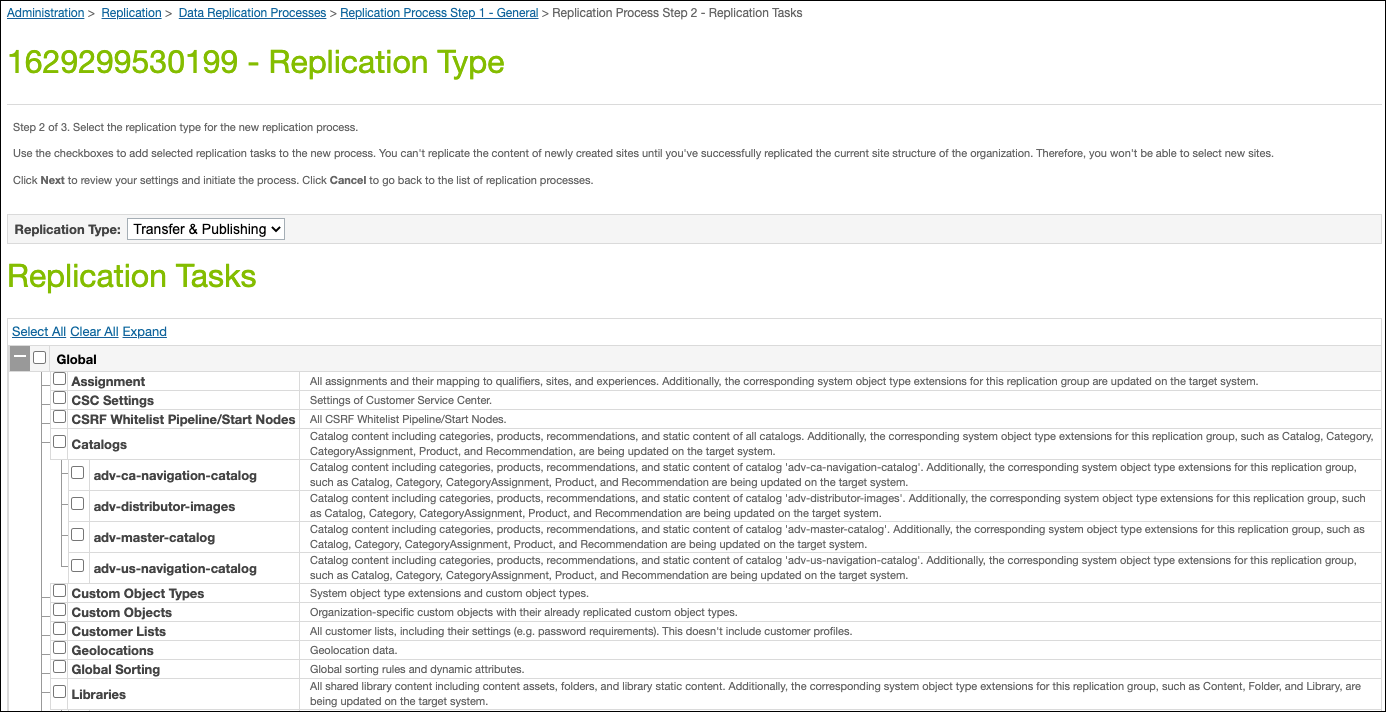
Configure the data by selecting specific replication tasks at a granular level. Combine global and site-level data in a single process. Understanding the data and its application helps you move the data to the correct location.
In Business Manager, review potential replication tasks to understand the importance of hierarchy and data granularity. For example, you replicate a single catalog, but you don’t replicate a specific product. For campaign data, however, you replicate at a lower level of granularity such as a specific storefront’s promotions and coupons. We call this partial data replication.
Partial data replication is useful in these situations.
- To roll out new promotion definitions, text, graphics, and coupons across a storefront.
- To update the storefront homepage design with seasonal messages.
- To update product price changes.
When you replicate data, the selected data replaces the corresponding data on the target instance. For example, the PIG instances (staging, development, and production) include catalogs A, B, and C.
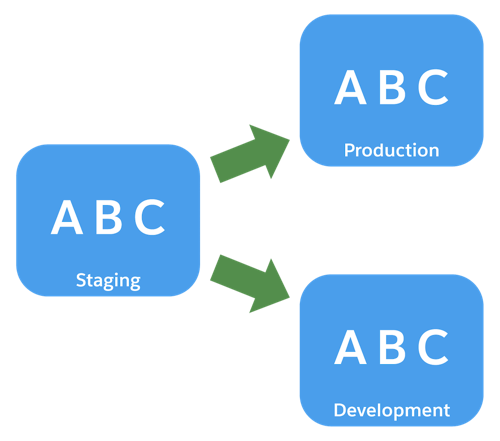
On the staging instance, you update catalog B, delete catalog C, and add catalog D. When you replicate catalogs from staging to development, catalog A is unchanged, catalog B is updated, catalog C is deleted, and catalog D is added.
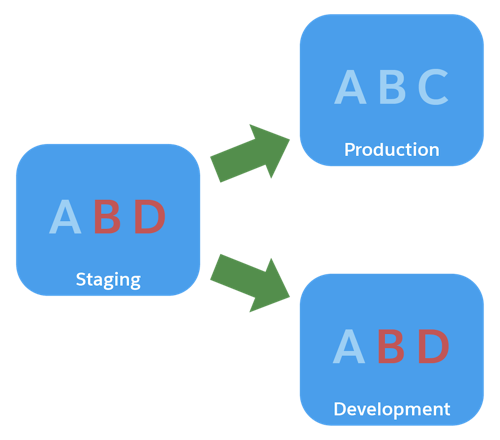

B2C Commerce overwrites only the selected data for replication on the target instance. Other data remains unaffected, such as in the previous example, where catalog A remained unchanged.
Identify Data Included in Replication
When you replicate data, carefully consider the affected files for both global and site data. Data includes content assets, products, and price books or settings, such as preferences and permissions.
Here are the global and site-specific storefront data and settings that you include in a replication.
Storefront |
Settings |
|
|---|---|---|
Global (Organization) |
|
|
Site |
|
|
You select one or more tasks in Business Manager that correspond to the data types you want to replicate. See Data Replication Tasks in B2C Commerce for a complete list of tasks.
Recognize Data Excluded from Replication
You don’t replicate these data types. Instead, create or import this data into the development and production instances.
- Active data
- Batch processes
- Catalog and content import feeds
- Custom error pages
- Customers and customer group assignments
- Files that are uploaded but not imported
- Gift certificates
- Inventory data
- Job schedules and history
- Organization profile
- Payment information
- Order information (for example, tax and shipping)
- Sitemaps
- Source code redemptions
- Users, roles, and permissions
Dynamic recommendations are another data type that you don’t replicate. Commerce Cloud Einstein dynamically generates these recommendations on the production instance.
Compare Replication Process Types
Data replication is a two-step replacement process where the data is:
- Transferred from staging to the target instance.
- Published on the target instance.
You can run both steps as a single replication process, or you can run them separately. Running them separately helps identify any sources of failure. All replication processes run on the staging instance, even publish and undo, which affect only the target instance.
There are four data replication process types.
-
Transfer: B2C Commerce transfers data on the source instance to the target instance, but doesn’t replace it. You run a publish process to update the target.
-
Transfer and Publish: B2C Commerce transfers data on the source instance to the target instance and immediately replaces the existing data.
-
Publish: This process is available only after a successful transfer process. It replaces the existing data on the target instance with the previously transferred data. The replication tasks exactly match the transfer process tasks. You don’t transfer data and then publish just some of it. If it doesn’t match, the replication fails.
-
Undo: This process is available only after a successful transfer and publish or publish process. It reverts the target instance to the data that existed before the last replication process.
Select Activation Methods
You specify how you want to run a replication process. Your choices are:
-
Manual: The process runs when you trigger it.
-
Automatic: You schedule a day and time when the process runs.
-
Recurring: You schedule a recurring time when the process runs.
-
Job Step: The process is available to run as part of a job. We talk about jobs in the Salesforce B2C Commerce Scheduled Jobs module.
Remember, Agentforce Commerce for B2C replicates data in its state at the time the process runs, and not the time when you defined the process.
Create a Data Replication Process
You create replication processes in various ways, based on the kind of data and its frequency of change. For now, let’s see how to run a quick manual process to update some new prices.
- In Business Manager, click App Launcher, and select Administration | Replication | Data Replication.
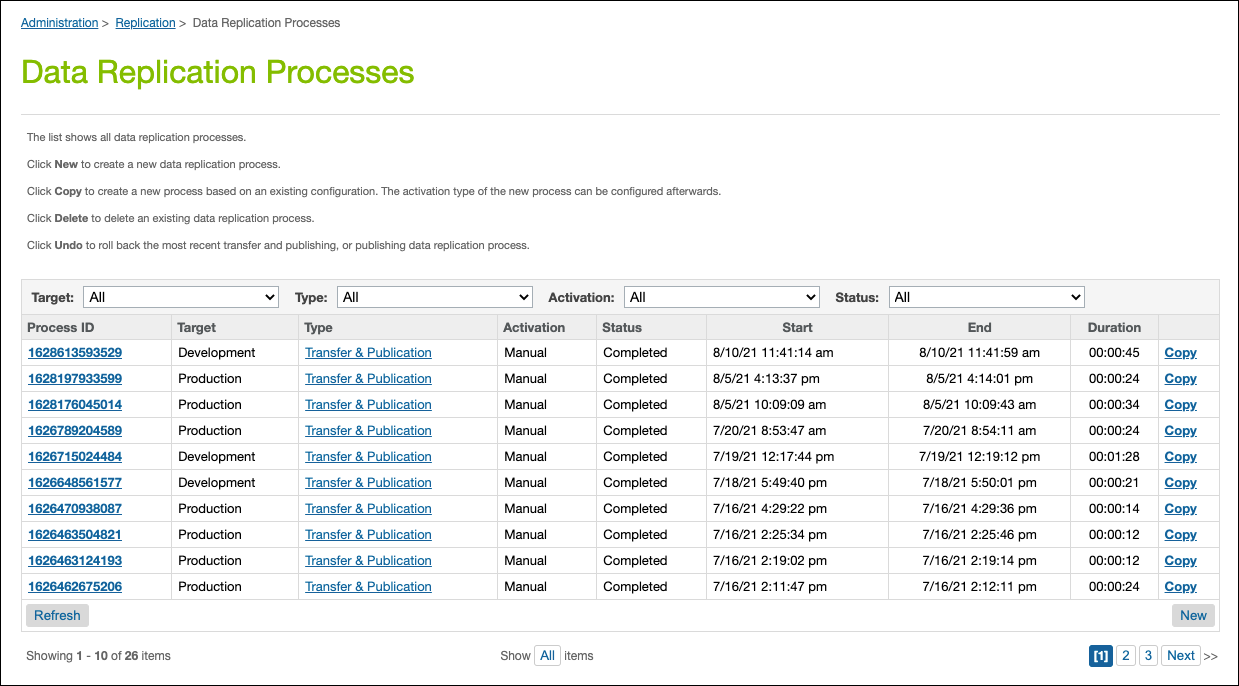
- Click New. (You must be on a staging instance to see this button.)
- B2C Commerce automatically creates a process ID, or you can enter the text you want.
- Select the Development target instance.
- Enter an optional description. The description helps you find the process later.
- From the dropdown list, select Invalidate as the page cache invalidation strategy.
-
Invalidate: (Default) The page cache gets refreshed on the target instance at the end of the replication process.
-
Invalidate Impacted Cache Partitions: The page cache partitions that have assigned replication tasks that match the replication tasks selected for the replication process, are invalidated. The rest of the storefront's page caches remain untouched.
-
Don’t Invalidate: The page cache doesn’t get refreshed. You can select this option during times of high traffic. However, if you don't refresh the cache, shoppers see outdated content on the storefront. Use this option with caution. Clearing cache temporarily degrades site performance. To make sure that shoppers see the new data on the storefront, you clear and refresh the cache.
-
Invalidate: (Default) The page cache gets refreshed on the target instance at the end of the replication process.
- From the dropdown, select Manual as the activation type (Manual, Automatic, Recurring, or Job Step).
- From the dropdown, select When Process Ends as the notification email trigger (None, When Process Ends, When Process Fails, or Periodically).
- Enter multiple target email addresses separated by commas. The email contains the start and end time of the process, target system, replication type, and replication tasks. If the process fails, the email notification includes an error code. Each process in a recurring series triggers its own notification.
- Specify what happens for these events.
-
Process ends: B2C Commerce sends an email to the addresses when the process ends, whether it succeeds or fails. If it hangs, it doesn’t send an email.
-
Process fails: If the process fails, B2C Commerce sends an email to the addresses. If the process succeeds or hangs, it doesn’t send an email.
-
Process ends: B2C Commerce sends an email to the addresses when the process ends, whether it succeeds or fails. If it hangs, it doesn’t send an email.
- Click Next.
- For replication type, select Transfer and Publish.
- Select the Price Books task. This selection is based on the data that you replicate.
- Click Next and review the details.
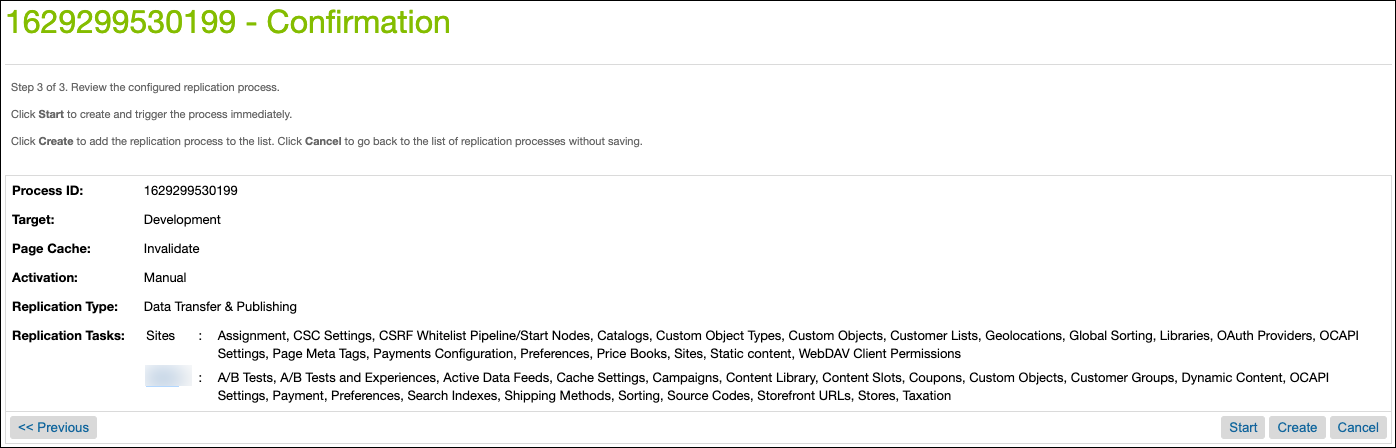
15. Click Start to run the process immediately.
Test the data on the development instance. When it looks good, replicate the same data from the staging instance to production.
Next Steps
In this unit, you learned that data replication handles global or site data, or both. You also learned about replication process tasks, process types, and activation methods. You ran a manual replication process that pushed new pricing data. In the next unit, learn how to perform a code replication.
Resources
- Trailhead: Agentforce Commerce for B2C Merchandisers
- Trailhead: Architecture of Salesforce B2C Commerce
- Trailhead: Salesforce B2C Commerce Scheduled Jobs
- Salesforce Help: Data Replication