Maintain Your Slack Administrator Certification for Spring ’25
Learning Objectives
After completing this unit, you’ll be able to:
- Use Agentforce in Slack.
- Use third-party AI agents and assistants in Slack.
- Bring customer data into Slack with Salesforce channels.
- Add Slack AI capabilities to your workspace.
- Track projects and tasks with lists.
Maintain Your Certification
If you hold the Slack Administrator certification, keep in mind that you need to complete this module by the due date to maintain your certification.
Interested in learning more about getting certified? Check out the Slack Administrator certification.

Protect the Integrity of Your Certification
The quality of our certification exams and the value that they provide are our highest priority. Protecting the security and confidentiality of our exams is essential to providing our customers with certifications that are respected and industry-leading.
As a participant of the Salesforce Certification Program, you’re required to accept the terms of the Salesforce Certification Program Agreement. Please review the Salesforce certification exam-taking policies in the Salesforce Certification Program Agreement and Code of Conduct Trailhead Help article for more details.
Salesforce has introduced many Slack feature enhancements over the past year. Let’s take a look at some of the more important ones.
Use Agentforce in Slack
Empower your members with a fleet of assistants when you add Agentforce to your Slack workspace. With a paid Slack plan and Salesforce Agentforce license, your members can work alongside autonomous agents in Slack. AI agents are created by your organization to handle specific aspects of work. Agents answer questions and complete tasks, like responding to IT help requests or providing information about benefits.
Add Agentforce agents to your workspace or Enterprise Grid org and every employee can engage with Agentforce directly in their flow of work.
-
Engage with Agentforce via DM
Interact with Agentforce through direct message (DM) by selecting suggested prompts or asking a direct question. Agentforce surfaces information directly from your knowledge base and other connected systems. It can also use new and existing Salesforce Flows to perform actions on your behalf.
-
Publish Agentforce to Slack
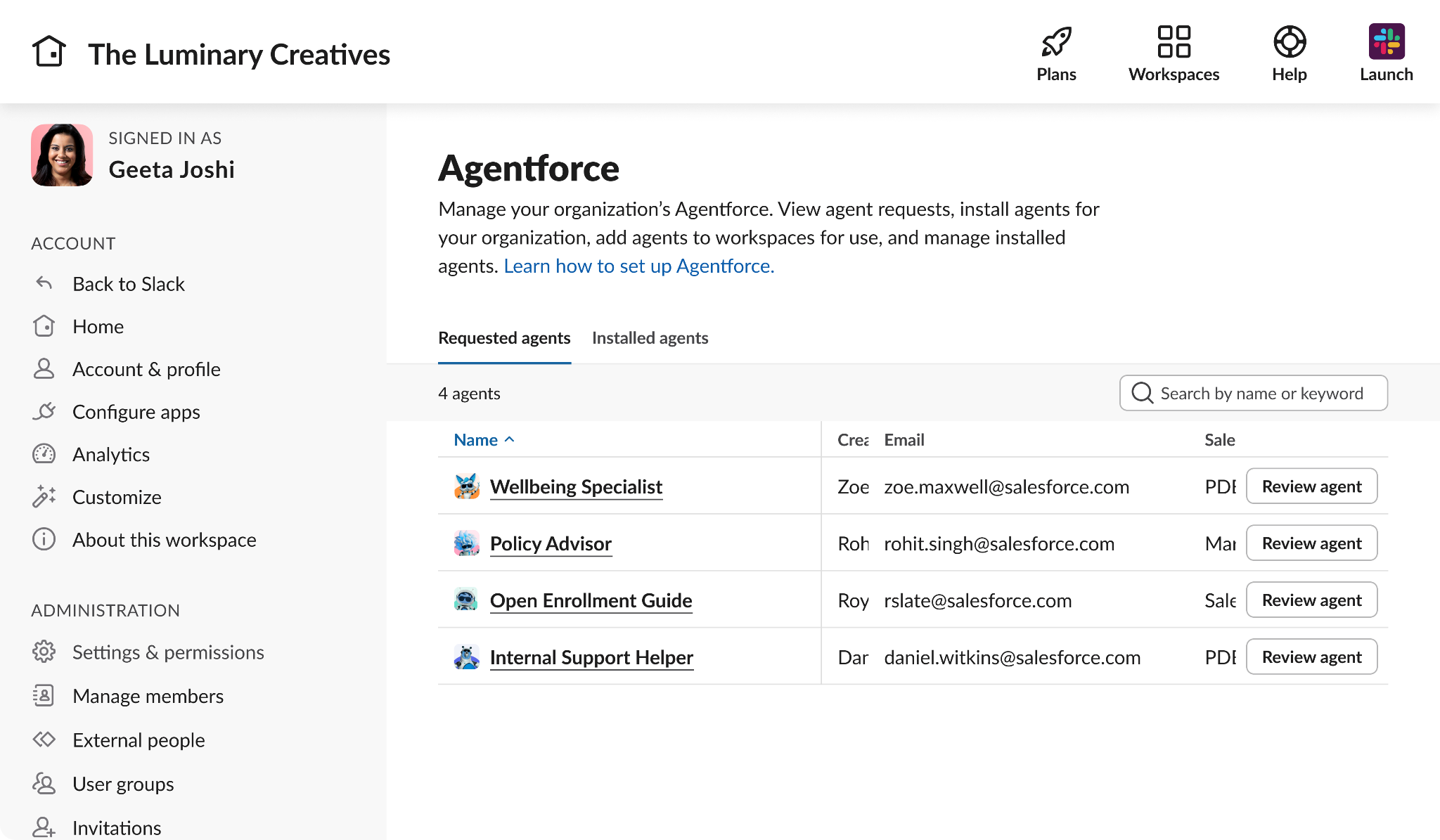
Slack admins can now build agents in Agentforce Builder and deploy them in Slack. This experience includes a new Agentforce interface within your Slack workspace where admins can install Agentforce and make it available to users.
-
Discover Agents in the Agentforce Hub
Once Agentforce is installed, users are able to view agent profiles, skills, and knowledge in the Agentforce Hub.

Chat with Third-Party AI Agents and Assistants in Slack
Members can now access third-party AI assistance directly within Slack using apps that include AI agents. These third-party apps use their own AI functionality, not Slack AI or LLMs, to enable interaction with external AI tools. Customer data is not used or retained to train third-party LLM models. Instead, retrieval augmented generation (RAG) sends necessary data at inference time, ensuring there’s no data retention. Slack provides a surface within your workspace to facilitate secure interactions with third-party AI.
Understand AI apps in Slack
- Apps with AI assistants or agents can be built by third-party developers or developers within your organization, and are distinct from Slack AI.
- These apps can be installed from the Slack Marketplace and follow the same policies and guidelines as apps that do not feature AI components.
- By default, any member can install apps with an AI assistant or agent, but owners and admins can enable app management to approve, restrict, or review apps before they’re installed.
- Before installing an app with an AI assistant or agent from the Slack Marketplace, you can review its privacy policy and security and compliance information on the app page. Salesforce recommends only choosing services you trust when installing apps to Slack.
Browse AI-Enabled Apps in the Slack Marketplace
The AI Assistants & Agents category in the Slack Marketplace lists all apps with an interactive AI component. To install an app, click the Add to Slack button on the app page. If a member doesn’t have permission to install apps, they can submit an app request if app approval is turned on.
Bring Customer Data into Slack with Salesforce Channels
Access and update Salesforce records right where teams are already working in Slack. Sales teams find exactly what they need in Salesforce channels, the centralized Slack space for conversations, data, and information about Salesforce records, such as Accounts or Opportunities. Salesforce channels are now available for customers who purchase Slack Sales Elevate.
Salesforce channel names match their corresponding records’ names, which means they can include spaces and capital letters. When you create or join a Salesforce channel, it’s added to your sidebar, and channel tabs are created for messages, record details, and more. The record details tab provides a snapshot of the associated record and is labeled by the record type, so an account record will have a tab named Account Details.
Your permissions in Salesforce channels match those for the corresponding record. The Access permission for a Salesforce record grants access to the corresponding Salesforce channel. The Edit permission for the Salesforce record grants edit permission in Slack. With Salesforce channels, your team can centralize conversations about customers, drive deal progress, and update Salesforce records, all in Slack.
Connect Slack Sales Elevate
Sales Elevate is an add-on for Slack that integrates with Salesforce Sales Cloud, allowing teams to centralize information and processes in Slack. Members can create a new Salesforce channel for any record that appears in Slack Sales Elevate. On the Enterprise Grid plan, people who can create org-wide multi-workspace channels can convert a channel to a Salesforce channel.
To get started with Sales Elevate, connect it to Sales Cloud by signing into your Salesforce account.
- Select Sales in the sidebar.
- Select Connect to Salesforce.
- Sign in to Salesforce if you’re not already signed in, then click Allow.
Slack Sales Elevate brings real-time CRM data from Sales Cloud into Slack and gives reps and leaders specific views of their sales business based on metrics they select. They can update opportunity numbers or deal stages, add notes, and share wins with the larger team. All updates made in Slack Sales Elevate are synced live with Sales Cloud.
Add Slack AI to Your Workspace
Summarize conversations, find answers, and get helpful daily recaps with AI tools built right into Slack. Slack AI is a paid add-on that uses information already in your Slack workspace to save you time and make your team more productive.
Slack AI draws from information you and your coworkers share in Slack to help you work more efficiently. You can:
- Search for answers to questions
- Summarize channels, DMs, and threads
- Get a daily recap of less important channels
Search and Summarize with Slack AI
Ask a question in your own words and get a concise answer based on messages and files already in Slack. Slack AI search answers are unique to you; they’ll never contain messages or files you don’t have access to. Data from search results is never used to train large language models (LLMs), so your data remains secure. Slack AI search answers can now include information found in files and documents shared in Slack.
Slack AI can summarize conversations in seconds, getting you up to speed quickly across channels, threads, and DMs. In channels and DMs, you can summarize just your unread messages, the last seven days, or a custom date range (desktop only).
Slack AI users can:
- View daily recaps of what happened in a channel from the Slack iOS or Android app.
- Catch up on new files quickly with automatic AI file summaries.
Take Huddle Notes with Slack AI
Use Slack AI to automatically take notes during a huddle so your team can focus on the conversation. Slack AI will use your real-time conversation and messages in the huddle thread to capture key takeaways, generate action items, and more. When your huddle ends, notes are organized into a canvas and shared to the huddle thread.
To begin taking AI notes in Slack, click  in any huddle.
- Slack AI huddle notes never start without permission. Someone in the huddle must manually turn them on by clicking
 .
.
- Everyone in the huddle is notified that AI notes are in progress. Anyone can stop, resume, or cancel AI huddle notes at any time.
- After the huddle, your Slack AI-generated notes (including a list of people in the huddle, topics discussed, action items, and more) are shared in a canvas in the huddle thread.
- Slack AI can’t take notes in huddles with people who are external to the workspace.
Build a Workflow Using Slack AI
Use Slack AI to create a workflow by writing a simple natural language prompt like, “Send a welcome message to people who join a channel.” Slack AI automatically generates a workflow for you to customize and then publish. This feature is available on paid plans with the Slack AI add-on. By default, all members can create workflows, and members and guests can use them.
Use Slack AI to help you build a workflow.
- Open Workflow Builder. From your desktop, hover over More in the sidebar, then select Automations.
- Click +New Workflow.
- In the Slack AI section, choose a prewritten prompt from the list or write your own.
- Click
 to submit your prompt. Slack AI will create the workflow.
- Review your AI-generated workflow. You can add, remove, or edit steps to customize your workflow.
- When you’re finished editing, click Finish Up.
- Review your workflow’s details and permissions, then click Publish.
By default, all members can use Slack AI to create workflows. Admins can restrict this by limiting who can use workflows.
Summarize a Public Channel with a Workflow Step
To generate a channel summary automatically, you can build a workflow with a Summarize public channel step. When the summary is ready, the workflow can send the Slack AI summary to a channel or add it to a canvas.
- From your desktop, hover over More in the sidebar, then select Automations.
- Click +New Workflow.
- Choose an event to start the workflow, and then add the steps that will follow.
- In the Steps search bar, enter
Slack AIand select the Summarize public channel step.
- Select the channel you’d like to summarize, then select a duration, and click Save.
- Choose either Send a message to a channel or Update a canvas.
- Follow the prompts to configure the step, then click Insert a variable and select Summary.
- Click Save.
- You can choose to add more steps to your workflow. When you’re finished, click Finish Up.
- Update the workflow’s details and permissions, then click Publish.
When someone uses the workflow, the summary appears in the specified canvas or channel and can be shared by anyone with access, anywhere in Slack.
Track Projects and Tasks with Lists
Use lists to organize work happening in Slack, keep tabs on tasks and projects, review and manage requests, and more. Anyone can create a custom list from scratch, or choose a template to get started. Before you learn about the latest updates to lists, take a moment to review the components that make up a list.
Lists are built with components that include 1) Items and 2) Fields. Every list also has 3) Views, 4) Filters and layouts, and 5) Threads. Here’s a brief recap.
-
Items represent the tasks or projects you’re working on.
-
Fields represent the important types of data you want to track about your items.
-
Views allow you to see your list with a saved set of filters, sort orders, and layout preferences. Saving more than one view allows you to shift between different visualizations of the data in your list.
-
Filters and layouts let you sort, filter, hide, and group items to narrow down a list to items that are most relevant to you. After you filter by fields, you can choose a table layout (rows and columns) or a board layout (Kanban style).
-
Threads are discussions about an item, created with @ mentions that notify people and organize the discussion.

Power Up Your Channels with a List Template
Convert any list to a template and share it with your workspace or Enterprise Grid org members. Slack templates bundle preconfigured tools, like canvases, lists, and workflows. If you've created a list your teammates might benefit from using, turn it into a template to share. (You can also keep list templates private, so they’re only visible to you.)
To convert a list to a template:
- From a list, click the
 and select Convert to a template. Now, any items in the list populate the template. You can remove items that don’t work as examples.
- To share your list template, click Share in the top right corner.
When you convert a list to a template, only people with the link can access it. You can also adjust your template’s access permissions to allow or restrict people from using or editing it.
View Previous Versions of a List
You can access past versions of a list, or view details about changes made to individual items.
- From a list on desktop, click
 .
.
- Select View version history from the menu.
- Click a row to view the version of the list from that specific date and time. Any information that has changed is highlighted in yellow.
- To view an item’s detailed history, hover over the item and select Open. Then, click
 and select View history.
For more ideas, review three short guides on using templates in Discover ways to use lists in Slack. Each video starts from a template, and shows you how to customize it.
Sum It Up
You’ve learned about key updates to Slack features from the past year, including using Agentforce and third-party AI agents in Slack, and how Salesforce channels help members manage Salesforce data. You reviewed how lists help members track projects, and ways to save time and get more done using Slack AI to summarize information, take huddle notes, or build a workflow. Now it’s time to test your understanding of these topics and complete the quiz to maintain your Slack Administrator certification.
Resources
- Blog: Agentforce in Slack: Start Revolutionizing Work Today
- Slack Help: Set up and manage Agentforce in Slack
- Slack Help: Use Agentforce in Slack
- Slack Help: Understand AI apps in Slack
- Slack Marketplace: Agents & Assistants Apps for Slack
- Slack Help: Use Salesforce channels in Slack
- Salesforce Help: What is Slack Sales Elevate?
- Slack Help: Use Slack Sales Elevate
- Slack Help: search with Slack AI
- Slack Help: Guide to Slack AI
- Slack Help: Use Slack AI to build a workflow
- Slack Help: Use Slack AI to take huddle notes
- Slack Help: Discover ways to use lists in Slack
- Slack Help: Use lists in Slack
- Slack Help: Create and share custom list templates