Manage Orchestration Fallouts
Learning Objectives
After completing this unit, you’ll be able to:
- Explain the importance of fallout management in automated fulfillment processes.
- Differentiate between different retry strategies.
- Configure a fallout rule to handle failed callout tasks.
- Test and observe fallout behavior in an orchestration plan.
Handle Unexpected Issues
Even with carefully defined SLAs, sometimes steps still fail due to unexpected issues, such as system outages, integration failures, or missed deadlines. In dynamic revenue orchestration (DRO), fallout management ensures your process doesn’t stop when something goes wrong.
When a step fails or times out, the system applies fallout rules that determine what happens next. These rules can include:
- Retrying the failed step
- Skipping to the next step
- Triggering manual intervention
- Assigning a risk level for prioritization
At InfinitraBytes, fulfillment designer Julian relies on fallout management to maintain operational continuity. For instance, while fulfilling a Laptop Pro Bundle order, the Create Shipping Order step times out due to an external shipping system failure. Because Julian configured a fallback policy, the system automatically retries the step. When it still fails, a notification is sent to the fulfillment lead and the flow reroutes to a backup shipping method. The result? No bottlenecks, no escalations, just smooth delivery.
In this unit, you learn how to implement robust fallout rules and retry policies to ensure your orchestration plans remain responsive, even when unexpected issues arise.
Retry Policies
Dynamic revenue orchestrator (DRO) supports multiple retry strategies to deal with these failures. Choose the policy based on how critical the task is and how likely it is to recover quickly. Here are the common options.
-
Immediate: The system retries the failed operation instantly after the first failure. Use this option for short-lived disruptions.
-
Staggered: The system retries the failed operation with increasingly longer delays between successive attempts, such as 1 minute, then 5 minutes, then 20 minutes. This strategy is particularly effective for stabilizing an overloaded or recovering external service.
-
Monotonous: The system retries the failed operation after a consistent, predefined delay, such as every 5 seconds. The intervals are identical and constant.
Using these policies, Julian avoids unnecessary manual interventions and resolves issues without derailing the full orchestration plan.
Configure Basic Fallout Rules
Follow Julian in your Developer Editor org to set up fallout rules for a Callout step.
- From Setup, in the quick find box, find and select Fallout and SLA Settings.
- In the Fallout section, enable Fallout and then click Configure.
- Click
 , and select All Fulfillment Fallout Rules.
- Select the 000000003 fulfillment fallout rule.
- Click Edit and update the details.
- Integration Definition: DFOApexMockService408
- Retry Intervals:
1
- Integration Definition: DFOApexMockService408
- Save your work.

The system attempts to retry the failed callout three times before marking it as fatally failed.
Refresh the Decision Tables
Your fallout rules don’t take effect until you refresh the decision table. So, do that now.
- From Setup, in the Quick Find box, find and select Decision Tables.
- From the available decision tables list, select Fulfillment Fallout Rules.
- Click Refresh.
Julian always makes this his final step whenever he configures or updates rules to verify they’re enforced during runtime.
Test the Fallout Rule
To understand how your fallout configuration behaves, simulate a failure and observe the response.
Update Fulfillment Step Definition
First, modify the Create Shipping Order step definition to intentionally cause a failure.
- From the App Launcher, find and select Dynamic Revenue Orchestrator.
- Click
 , and select Fulfillment Workspaces.
- Go to the Laptop Pro Master Plan workspace.
- In the Inventory lane, for the Create Shipping Order step, click
 , and select Edit.
- Update Integration Definition Name to DFOApexMockService408.
- Save the changes.
This configuration makes sure that when you execute this step, it triggers an error, so you can test the fallout rule.
Create an Order
Next, create an order for the Laptop Pro Bundle to see the orchestration plan in action.
- From the App Launcher, find and select Quotes.
- Click New Quote.
- In the New Order window, add these details.
- Quote Name:
Fallout Rule Test - Account for Quote: EdgeMX
- Quote Name:
- Save your work.
- Click Browse Catalogs.
- In the Choose Price Book window, if prompted, make sure Standard Price Book is selected, and click Save.
- In the All Catalogs list, select Hardware Catalog, and click Next.
- Under Categories, click Laptops.
- From the products list, select Laptop Pro Bundle.
- Click Add and Save Quote.
- Click
 , and select Create Order.
- Select Create Single Order and click Finish.
Almost there! The system is generating your order. You see your order number in a few moments.
Submit an Order
Next, submit the order you just created.
- Open the order you just created. Alternatively, click the Related tab in the Quote page and scroll down to the Orders section to find your new order.
- To make the order eligible for orchestration, activate it. Click
 , and select Activate.
- Click Activate.
- Click
 , and select Submit Order.
- Wait for the successful Submit Status message and click Finish.
Now that your order is submitted, follow Julian’s lead and monitor the fallout rule in action.
View Fulfillment Plan
Verify the fulfillment plan to observe the fallout behavior.
- From the order page, go to the Decomposition Details tab.
- Click View Orchestration Plan. You see your plan in action.
- As Pick and Pack is a manual task, complete this step.
- Refresh the page and notice that the Create Shipping Order status changes to Failed.

- From the Dynamic Revenue Orchestration navigation menu, select Home.
- In the Fatally Failed Fulfillment Steps section, you can see one failed step for Create Shipping Order.
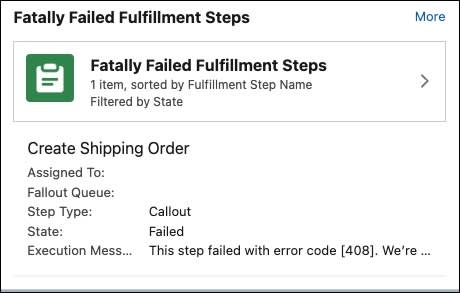
- Select the item and the fulfillment step details page opens.

The service is designed to return a 408 error, so the system retries the step based on the policy defined. Notice how DRO handles the retries. Initially the state is Failed and eventually marks the step as Fatally Failed after all the retries, just like it does in a real-world scenario.

By configuring fallout management, you make sure that even when things go wrong, the orchestration doesn’t fall apart. Instead of relying on reactive firefighting to every failure, your team can now work with a proactive safety net that retries, reroutes, and recovers automatically.
Wrap Up
At InfinitraBytes, Julian ensures service excellence by integrating SLAs and robust fallout management into the orchestration plans.
In this module, you explored how to manage exceptions with SLAs and fallout rules to maintain operational continuity. With these tools, you’re equipped to design efficient and reliable fulfillment processes that deliver a smooth customer experience.
You're well on your way to mastering dynamic fulfillment in Agentforce Revenue Management. Good luck!