Manage Service Appointments
Learning Objectives
After completing this unit, you’ll be able to:
- Filter the appointment list and perform actions on an appointment.
- Fix rule violations on the Gantt.
- Dispatch appointments on the Gantt.
You can follow along in your org as we explore filtering tools, appointments, and rule violations.
Filter Appointments
As a dispatcher, your appointment list is your starting point for every shift. Before diving into the day's work, it's good practice to scan for anything that needs immediate attention. The dispatcher console gives you powerful filtering tools to do exactly that, helping you cut through the noise and focus on what matters most.
Start by filtering your appointment list to surface any appointments that are in jeopardy of missing their due dates.
- In the dispatcher console, select All Service Appointments on top of the appointment list.
- From the dropdown menu, select In Jeopardy.
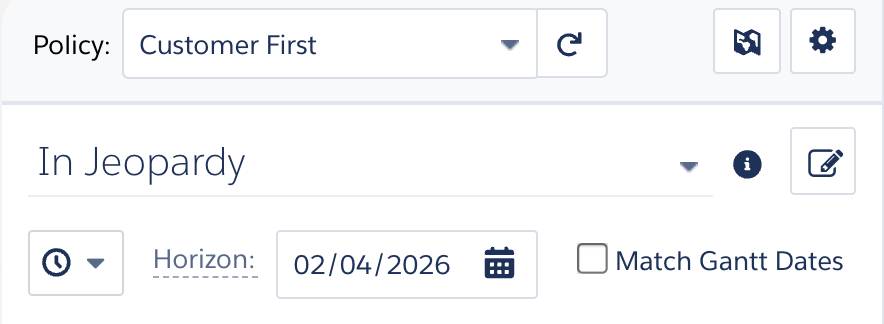
This is your first line of defense against missed commitments and unhappy customers. If no appointments come up, great news, your current schedule is in good shape.
Next, filter by unscheduled appointments. These are jobs that have been created in the system but haven't yet been assigned to a mobile worker or given a time slot. Leaving appointments unscheduled is one of the most common ways work orders get missed, so it's worth making this filter part of your regular routine.
Schedule Appointments
When unscheduled appointments show up in your list, the next step is straightforward: get them scheduled. Leaving appointments in an unscheduled state means the work simply won't get done, and that's a risk no dispatcher wants to take.
The dispatcher console makes this process quick and intuitive, so you can move through your unscheduled queue efficiently and get back to monitoring the bigger picture. Let's walk through how to schedule an appointment from your list.
- In the appointment list, select an unscheduled appointment to display more information.
- Select Schedule.
It’s that simple! The real power here lies in what happens behind the scenes once you kick off the scheduling process. Agentforce Field Service and Operations automatically matches each appointment to an available mobile worker who has the right skills and availability for the job. It's smart, automated scheduling that takes the complexity out of resourcing decisions and lets you focus on keeping operations running smoothly.
Fix Rule Violations
Appointments with  next to them have a rule violation. A rule violation occurs when the service appointment isn’t following the scheduling rules in the scheduling policy you’ve selected. For example, an appointment scheduled to a resource without a required skill or an appointment scheduled before the earliest allowed start date are both rule violations.
If you schedule an appointment using the Schedule or Candidates actions, you won’t see any rule violations. But if you do manual scheduling, like dragging an appointment into a blank space on the Gantt, they can happen. Not to worry—they’re easy to fix.

- In the Gantt, hover over the appointment to see more information.
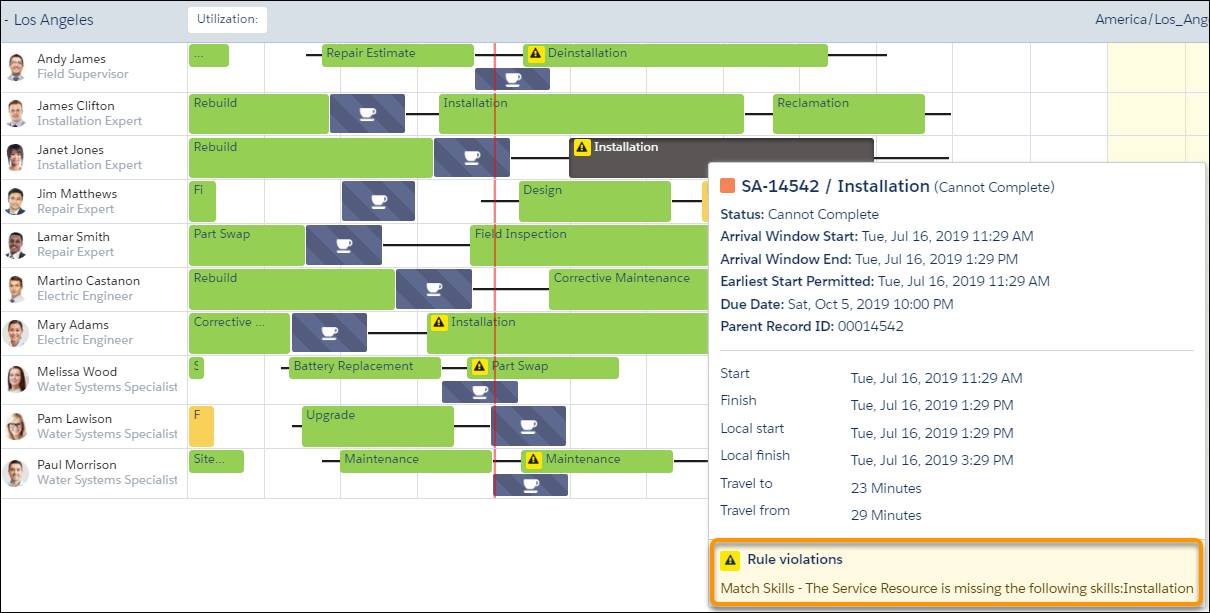
- Examine the rule violations. In this example from the screenshot, we see that the mobile worker assigned to this appointment doesn’t have the required skills.
Now that you know the source of the rule violation, you can go ahead and fix it.
- In the Gantt, right-click the appointment and select Get candidates.
- Select More and select Candidates. After a few seconds, you’ll see a list of candidates with the correct skills.
- Select the desired candidate. If you have several mobile workers with the right skills, you can group them by date to see who is available at the best time.
- Hover over the best time slot and select Schedule.
The appointment is moved to the new candidate, and shows up in the Gantt assigned to them in the selected time slot.
Dispatch Appointments
With your appointments scheduled, it's time to dispatch them. Dispatching is what bridges the gap between the schedule on your screen and the work happening out in the field. When you dispatch an appointment, the assigned mobile worker receives a notification on their mobile device letting them know they have a new job and when to get started. Different organizations handle dispatching in different ways, and there's no single right answer. Here are some common approaches:
-
Dispatch all at once. If your schedule is stable and appointments rarely change, dispatching everything at the start of the day gives your mobile workers a full picture of what's ahead.
-
Dispatch in batches. If your schedule tends to shift throughout the day, dispatching in batches, a few times a day or even hourly, gives you more control over what gets communicated and when.
-
Drip feed appointments. Assign a new appointment to a mobile worker only after they've completed their current one. This works well in high-variability environments where locking in future appointments too early creates more problems than it solves.
-
Use private appointments. Limit what mobile workers can see by marking appointments as private until they're dispatched. This keeps workers focused on their current job without being overwhelmed by the full schedule.
A good approach is to dispatch your morning appointments first thing, so your mobile workers know what they're working on at the start of their day. Then, before midday, check your schedule again and dispatch the afternoon appointments. This keeps your workers informed without locking in the second half of the day too early.
To dispatch an appointment, simply right-click the appointment in the appointment list and select Dispatched from the actions dropdown list.
With your appointments dispatched, your schedule is in good shape for now. But field service rarely stays predictable for long. In the next unit, we'll look at how to handle two of the more challenging situations a dispatcher can face—unexpected absences and emergency dispatches that need to be slotted in on the fly.
Resources
- Salesforce Help: Work in the Field Service Classic Dispatcher Console Gantt
- Salesforce Help: Filter the Gantt in Field Service
- Salesforce Help: Control Which Field Service Appointments Appear in the Classic Dispatcher Console
- Salesforce Help: Check Rule Violations on the Field Service Gantt