Connect to Semantic Models
Learning Objectives
After completing this unit, you’ll be able to:
- Explain the difference between connecting to a semantic model directly versus using the Tableau Semantics connector.
- Describe how to connect to a semantic model from Tableau Desktop or Tableau web authoring.
- Build a visualization in Tableau using data from a semantic model.
Explore Semantic Model Connection Methods
Let’s assume your data lives in Data 360 and you’ve created a semantic model in Tableau Semantics.
You can connect to a semantic model directly from Tableau Next, or use the Tableau Semantics connector with Tableau Classic. Both options preserve the power of Data 360 and Tableau Semantics, but give you the freedom to work in your environment of choice. This means:
-
Standardized definitions: All measures, dimensions, and calculations are already defined for you.
-
Centralized governance: The model is centrally managed, so any changes or updates are reflected for all users. This prevents data silos and conflicting analyses.
-
Business-friendly language: The fields and metrics are named with business terms, making it easier for non-technical users to find and analyze the data they need.
Work in Tableau Next
Tableau Next assumes your data is in Data 360 and there's a semantic model between the data and analysis. Using Tableau Next for analysis on a Tableau Semantics data model is a seamless experience that stays in one environment—your Salesforce org.
Work in Tableau Classic
If you're used to doing analysis in Tableau Cloud or Tableau Desktop, you're also used to being able to access your data from nearly anywhere. The Tableau Semantics connector is special, however. Instead of just connecting to your data, it's a semantic connector and leverages semantic queries. This means that definitions established in the semantic model are honored in Tableau's authoring environments.
The connector relies on semantic queries, which act as bridges between the way humans talk and the way computers process information. The semantic model handles the translation for you, turning your natural questions into the technical syntax the database needs. As an author, you don't have to worry about any of the technical details behind the scenes. All you see are clear, human-friendly terms that already have your business logic built in.
Because semantics is all about providing human-friendly definitions and business logic on top of the underlying data, certain settings are controlled by Tableau Semantics. After all, it wouldn't make sense to build a semantic layer that defines what data type a field should be and then allow that definition to be changed in the analysis. This means some functionality usually available in Tableau is blocked when using the Tableau Semantics connector.
If you're currently recreating semantics in Tableau from a Data 360 data source, stop reinventing the wheel. Instead, connect one step further down the process and leverage a semantic model built in the same environment as your data.
Connect to a Semantic Model in Tableau Next
- In your workspace, from the Add dropdown, select New Visualization.

- For the data source, select the semantic model to use for the visualization.
- Drag and drop the fields you want in the visualization under Columns or Rows.
- In the Marks section, select the chart type for your visualization.
- To visually represent additional information, drag fields to Color and Label.

That’s it! You’re now connected to your semantic model and can start building vizzes.
Use the Tableau Semantics Connector
The Tableau Semantics Connector brings centralized data models from Data 360 into your Tableau environment (Desktop or Cloud). This bridge is crucial because it solves two main challenges in data analysis: consistency and speed.
Using centrally defined business logic, the connector makes sure every key metric (such as “profit” or “customer retention rate”) has the exact same definition across all reports and departments. For example, without going through a semantic layer connector, an analyst on the marketing team might define “Active Customer” as anyone who clicked an email in the past 90 days, while an analyst on the sales team defines it as anyone who made a purchase in the past 180 days.
When you connect to a semantic model, you can skip the time-consuming step of preparing or modeling data in Tableau. You simply connect to a prebuilt model and start building your visualizations immediately.
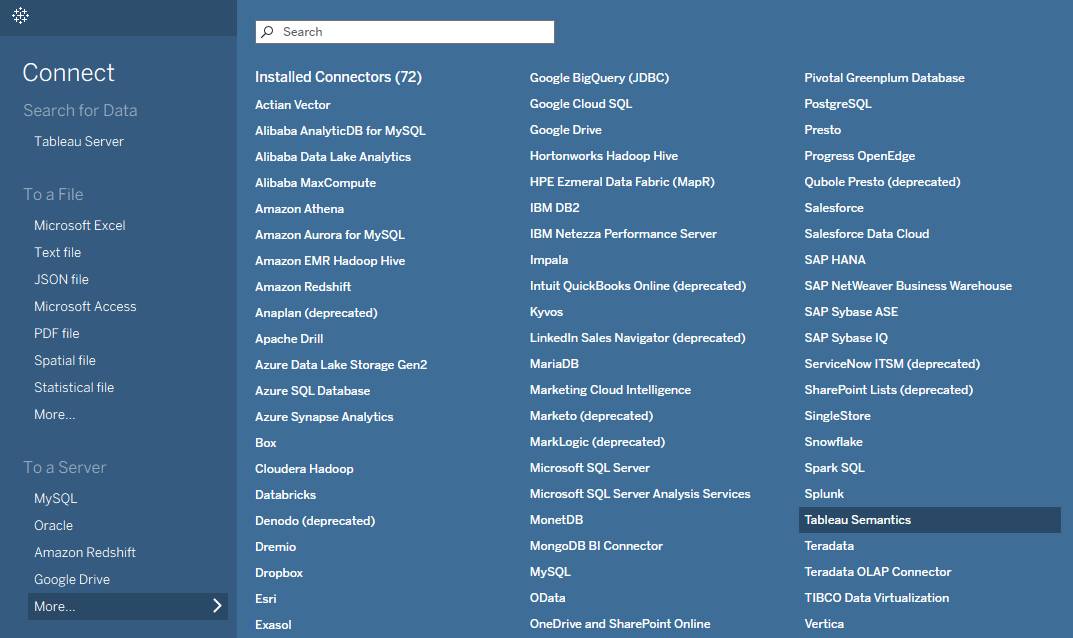
Connecting to a semantic model using the connector is easy.
- Open a Tableau authoring tool, either Tableau Desktop or in the browser in Tableau Cloud.
- From the Connect pane, under To a Server, select Tableau Semantics.
- Enter the instance URL of the org with your semantic data model and select Sign In. This may open your browser to authenticate.

- In the search box, enter the name of the semantic model you want to connect to, or find it in the list.
- Select the semantic model and select Connect.
So long are the days of being forced out of your preferred tool or unnecessarily rebuilding your assets. By using a consistent semantic model regardless of where you do your analysis, you can use a single source of truth and dive straight into getting reliable answers from your data.