Build Households and Groups
Learning Objectives
After completing this unit, you’ll be able to:
- Explain how households are tracked in Agentforce Financial Services.
- Create a household and assign members and related contacts to it.
- Provide examples of the types of groups and households that can be defined using party relationship groups.
How Households Work
Most of your organization’s work may primarily focus on individual clients, and in this case, the Person Account object is enough. For services like wealth management, however, it’s critical to understand family relationships. Fortunately, Agentforce Financial Services comes with a built-in way to track households and other groups.
As you learned earlier in this module, business accounts represent households in Agentforce Financial Services. The members of the household are related to that business account with account-contact relationship records.
A business account is defined as a household—and not a business—because it’s related to a party relationship group with the type of Household. Party relationship groups define groups—such as a family, trade group, board, and neighborhood—and help tailor your communications and services for that group.

Party relationship group records can also track temporary or former situations, such as short-term roommates.
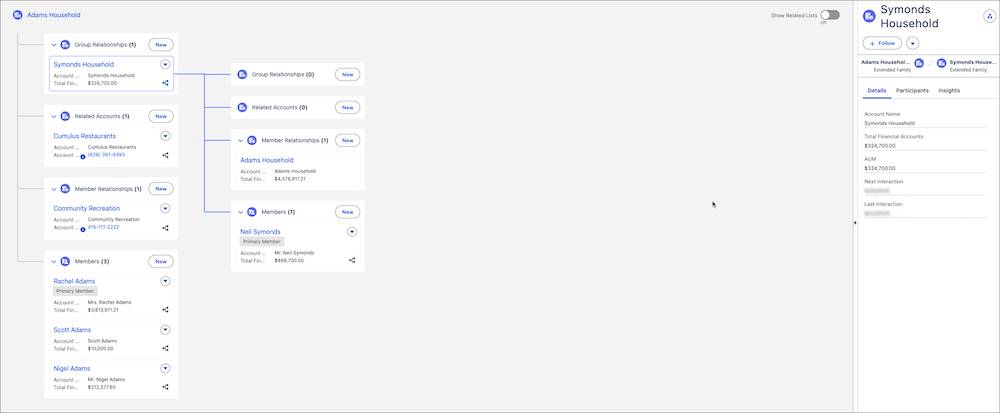
If your organization uses Actionable Relationship Center (ARC) components, such as the Relationship Graph, you can view connections in a visualization to explore how individual stakeholders and households are connected.
Here’s an example that shows a business account that represents a household. The household includes three members and other relationships to the household, such as related businesses and groups.
Plus, person accounts can be part of several party relationship groups at the same time, such as if you want to track a client’s household and trade association membership. Each person account can only have one primary group, however. You can also select which information rolls up to the group for each client.
In this unit, you learn about households by using the New Group creation flow. Time to get started!
Create a Household Account and Associate Household Members
Earlier in this module, you created a person account for Abigail Moss. Her person account may be good enough for much of how your organization works with her, but you want to track more information about her household and other relationships. For example, you can track Abigail’s relationships to both her spouse and her attorney.
You learned earlier that these relationships require a few records to model. Fortunately, the New Group flow helps you create all of them together at one time. Follow along using your trial org to try it out.
- From the App Launcher (
 ), find and select Retail Banking.
- Select Accounts from the navigation menu.
- Select New Group.
- Specify these details in the Party Relationship Group Details section.
- Name:
Moss Household - Type: Household
- Name:
- In Members, find and select Abigail Moss and Alfred Moss. Alfred’s person account exists on the trial org.
- In Related Contacts, find and select Becky Rios. Becky’s person account exists on the trial org.
- Browse over the other fields, but skip filling them out for now.
- Click Next.
Abigail and Alfred are classified as members because they’re part of the household. Becky is a related contact because she’s outside the household but has a relationship with it. In this example, Becky is Abigail’s attorney.
The first step included many other fields, such as primary address fields and fields to relate other groups and business accounts. We skip those here, but those are worth exploring on your own.
Let’s move to step two, where you start to define relationships between the person accounts and the household business account. Start with Abigail.
- Select Abigail Moss under Members if her record isn’t already selected.
- Turn on Show All Fields.
- Specify these details.
- Select Active
- Select Primary Member
- Select Primary Group
- In Roles, find and select Decision Maker.
- Select Active
- In the How is Abigail Moss Related to Others in the Group?, specify these details.
- For Alfred Moss
- Party Role Relationship: Spouse-Spouse-CCR
- Select Active
- Party Role Relationship: Spouse-Spouse-CCR
- For Becky Rios
- Party Role Relationship: Client-Attorney-CCR
- Select Active
- Party Role Relationship: Client-Attorney-CCR
- For Alfred Moss
With these selections, Abigail becomes the primary member of this group, and this group is also marked as her primary group. She can have only one primary group.
You also specified how Abigail related to the other person accounts we selected earlier. For the Party Role Relationship for Becky Rios, you selected Client-Attorney-CCR because Abigail is selected here in the flow, so her role is listed first.
Those selections only map Abigail’s relationship to the other members and related contacts, though. To fully map these relationships, you must create reciprocal relationships. Do that for Alfred now.
- Select Alfred Moss under Members.
- Specify these details.
- Select Active
- Select Primary Group
- In Roles, find and select Influencer.
- Select Active
- In the How is Alfred Moss Related to Others in the Group?, specify these details.
- For Abigail Moss
- Party Role Relationship: Spouse-Spouse-CCR
- Select Active
- Party Role Relationship: Spouse-Spouse-CCR
- For Abigail Moss
That maps Alfred’s relationship to the household and Abigail, but you skipped a relationship to Becky because she's Abigail's attorney, not Alfred’s. Move on to map Becky’s relationship to the household and members now.
- Select Becky Rios under Related Contacts.
- Specify these details:
- Select Active
- In Roles, find and select Legal Counsel
- Select Active
- In the How is Becky Rios Related to Others in the Group?, specify these details.
- For Abigail Moss
- Party Role Relationship: Attorney-Client-CCR
- Select Active
- Party Role Relationship: Attorney-Client-CCR
- For Abigail Moss
- Save your work.
Notice that for Becky’s relationship to Abigail you chose Attorney-Client-CCR, because Becky’s side of the relationship comes first because she’s selected in the flow.
Just like that, you’ve mapped the entire household and created all the records you need: a household account, a party relationship group designating the account as a household, and all the necessary relationship records that connected everyone to the household and each other. You’re sent to the party relationship group record by the flow, but you can click through to the related account to check that out, too.
Visualize Households
After a household is created, you can use ARC to visualize and manage households and groups. ARC helps you understand the complex web of relationships between people and businesses by presenting them in an interactive graph. This map shows a simple way to understand a client's personal and financial relationships, like their home, family, and work.
To provide users with an ARC graph, customize Lightning record pages to include the ARC Relationship Graph component.
For example, here’s an ARC graph of the records you just created. One of the person accounts is selected to show related records, such as financial accounts.

Notice how all of the different members and related contacts are shown in nodes that relate to each other.
This example shows the Household Graph included with Agentforce Financial Services. The template graph comes preconfigured with nodes to show a client’s household members, related households, and other related accounts. Depending on your settings, users can interact with these graphs to view, edit, delete, and create records directly from the visualization.
Gain Insights with Rollups
After the members of a household are connected, you can get a comprehensive view of a household’s finances with the Record Rollup and Financial Summary Rollup features. These features aggregate data from related records to give your team at-a-glance information so that they can provide more personalized service.
Rollups aggregate information from any related records at the household or client level. For example, you can use a summary rollup to calculate the total number of open or closed cases related to a household’s members. Record rollups are available for all standard and custom objects that have activities enabled, and the same record can be rolled up to multiple households. Record rollups can be viewed in a Lightning web component on record pages.
Financial summary rollups aggregate financial information at the household or client level. This includes the total value of investments, liabilities, and bank deposits linked to a household or an account. Agentforce Financial Services includes eight predefined Data Processing Engine definitions to calculate these values. You can modify these definitions or create your own. Check out the Resources section in this unit for a helpful Trailhead badge about Data Processing Engine.
The aggregate values are stored in the Account Financial Summary object, which relates to Account and Party Relationship Group. You can show fields from account financial summaries on the account record page using the Related Records Detail Display component.
Other Types of Groups Using the Party Relationship Group Object
In this example, you created a household living under the same roof with a related household and a related service provider. Remember that party relationship group records can bring together any group of individuals, such as:
- Trade association members
- Corporate and nonprofit board members
- Top customers
Work with your team to define households and groups. Also, make sure you have the correct values in the Category and Subtype fields on the Party Relationship Group object. These settings can help you define many different types of groups. See Define Groups and Relationships Between Individuals and Groups in Salesforce Help for details.
In the next unit, you learn how to use business accounts to track businesses for your corporate client team.