Engage Learners with Activities
Learning Objectives
After completing this unit, you’ll be able to:
- Explain how to reinforce product usage in a learning activity.
- Design sandboxed-based learning activities for live training.
Product Usage Reinforcement
Throughout the live training session, consider incorporating activities into the training channel to confirm the learner’s knowledge of Slack skills. This unit covers suggested learning activities you can use to make learning stick. Learning activities need to be set up ahead of time for the live training sessions. You might even need to reset or tailor them for each client and live training topic.
Incorporate these interactive Slack learning activities into your learning deliverables. Not only do practical application activities make for a more engaging learning experience, they reinforce the features that users and admins use daily.
Sandbox Setup
With your Slack sandbox, you can share clear demonstrations of the concepts you plan to teach in your classes. Set up your environment with the features and settings relevant to the training topic. This makes the training seamless for you during delivery and provides a professional and comprehensive experience for the client.

Complete the following preflight steps to ensure your sandbox is set up to support your demonstration.
Start Fresh
Make sure you’ve restored any scenarios you plan to demonstrate, especially if you’ve previously facilitated the session or have practiced beforehand. For example, if you plan to demonstrate emoji reactions on a specific message, remove any reactions from that message before beginning the session.
Create Elements That Support the Material
You might wish to demonstrate specific features or use cases as a part of your training. Add elements to your sandbox that help tell that story. This can require creating specific channels, adding multiple users, or enabling workflows in your sandbox environment.
Tidy Your Sidebar
Your sidebar should be an accurate representation of what a user can encounter when using Slack for the first time, but be careful not to overwhelm participants. A long list of channels with lots of bold channels or notification badges can overwhelm learners and distract from your training. Aim for 20 channels or less in your sidebar.
In-Channel Activities
You can customize the learning activities for each live learning deliverable. To prepare, create your in-channel activities ahead of your live training session by incorporating them into your facilitator guide. Be sure to include instructions on how to facilitate these activities during the training.
Here are some examples of in-channel activities to consider to get your ideas flowing. Get creative and have fun with it!
Conversation Starters
Engage your audience by asking open-ended questions that can help learners get comfortable with using Slack in a live training session.
Here are a few examples of open-ended questions you can try.
- Say hello and let us know where in the 🗺️ world you are joining from!
- How much ⏰ time have you already spent in Slack?
- ✏️ Where are you currently collaborating with colleagues?
Practice Activities
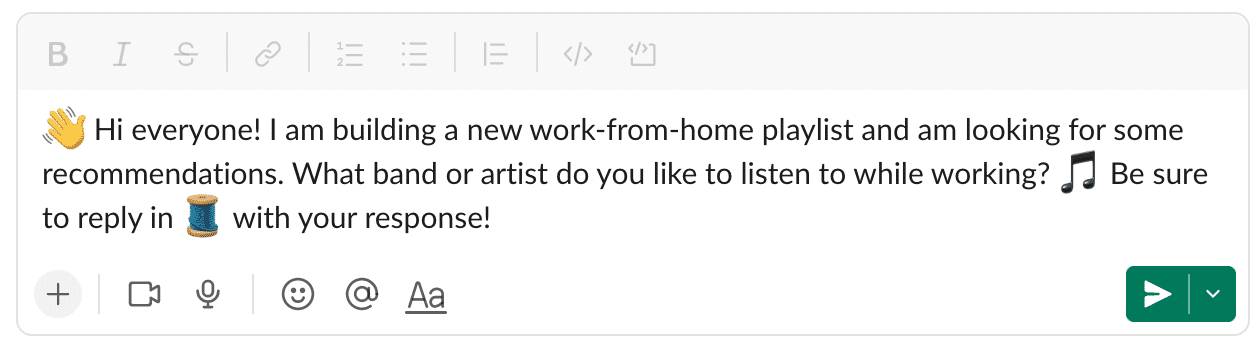
Use this activity type when you want to reinforce the content that you have taught. For example, if you have just shared how to thread a response, prepare an interactive practice question so that people can get hands-on practice with what they just learned. For a practice activity on this topic, ask learners to respond to the following question about music playlists in the thread.
👋 Hi everyone! I'm building a new work-from-home playlist and am looking for some recommendations. What band or artist do you like to listen to while working? 🎵 Be sure to reply in 🧵 with your response!
Emoji Polls
Use this activity type when you want to gauge understanding from your live training class. You can use emoji polls to break the ice at the start of a session or to perform a knowledge check on content you have just taught.
This in-channel activity type is a great tool to use to get learners comfortable with using emoji reactions, which they ultimately need to know about to be productive in Slack. Post your poll in a message, and ask learners to submit their answer by reacting to it with the associated emoji.
Here’s an example poll to try.
⭐ What feature should you use to reply directly to a post and organize your response?
👀 reactions
🧵 threads
👋 @-mentions
⏰ reminders
💡 Remember: React to the message with the emoji reaction associated with the answer you believe is correct.