Set Up and Manage Slack Channels
Learning Objectives
After completing this unit, you’ll be able to:
- Describe the administrative actions a channel manager can perform.
- Describe common use cases for channel notifications like @channel, @here, and @everyone.
- Explain the benefits of an admin request channel.
Explore Effective Channel Management
As a channel manager, you’re the go-to person to keep things running smoothly. You help team members understand the channel’s purpose and the best ways to communicate and collaborate. In this unit, you explore what channel managers do and learn some handy administrative settings that make channel management easier.
Dive Into the Channel Manager Role
When you create a channel, you automatically become its channel manager. You can adjust administrative settings and permissions for your channels and promote other members to be channel managers as needed. There can be up to 100 channel managers in one channel!

As a channel manager, you can set channel topic and description, rename or archive a channel, convert a channel from public to private, remove someone from a channel, adjust channel posting permissions, and more. Check out the resources for the full list of channel actions.
Use Channel Notifications
Channels offer a way to reach many to all members with the use of @mentions. @mentions can be a powerful tool. They can also create noise for users. It’s important to understand what each one does and, as channel managers, admins and org owners, guide users to the right use. Workspace owners can change default settings for how these @mentions work. You can check out the resources section for more information.
@here
To notify only the active members of a channel, use @here. By default, all members can use @here mentions (except in large channels in organizations on the Enterprise+ plan).
Use @here when you only need the attention of members who are actively working in the channel. It's perfect for when you don't want to bother members who are unavailable. For example, you can use @here to schedule an impromptu lunch or get a question answered quickly by teammates who are actively working.
@channel
@channelnotifies all members of a channel, whether they’re active or away. It triggers a desktop and mobile alert for all channel members. By default, all members can use @channel (except in large channels in organizations on the Enterprise+ plan).
Use @channel to let everyone in a channel know about timely, relevant information. You might want to use @channel to communicate last-minute changes to an important deadline or to introduce a new employee or cross-functional partner to the channel.
@everyone
In a workspace-wide channel, which starts as #general, use @everyone to notify every channel member
@everyone can only be used in the #general channel. Include @everyone in your message to trigger a desktop and mobile notification for all members of the channel whether they're active or away.
Only members who can post to #general workspaces can use @everyone. For example, you can use @everyone to remind the entire office about a private event in the cafe space, tell your organization about a new vacation policy, or alert everyone in the company about an emergency evacuation drill.
Create Admin Request Channels
Sometimes members need an admin’s help to get certain permissions or to connect with a guest or partner. Use an admin request channel to facilitate requests like these. Directing members to use a request channel has multiple benefits.
- Admins can distribute the work of answering requests when they are posted into a public channel. This reduces resolution time for requests compared to when requests are sent in a direct message.
- Members can search the channel first to see if their request or question has already been answered.
Recommended Request Channels
The names of these request channels may change depending on your organization's channel naming conventions. Help channels might include #help, and admin channels might include #admin.
For example, you can create a #help-admins channel for workspace members to send requests to their workspace and org admins.
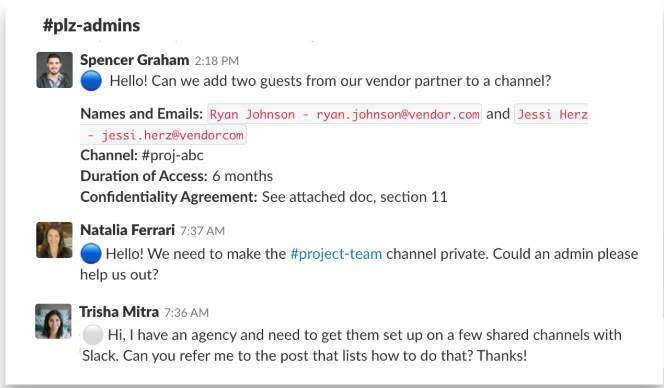
In the admin request channel #plzhelp-admins, members post requests that include details and urgency.
Recap
In this badge, you explored the different types of channels that help organize your company’s communication and collaboration. You also learned about the channel manager role and common use cases for notification features. These foundational elements and best practices will help you set up channels and communication standards in your workspace.
Resources
- Slack Help: Adjust Channel Management Permissions
- Slack Help: Understand Channel Managers in Slack
- Slack Help: Use Channel Management Tools
- Slack Blog: Six Ways That Channels Can Transform Your Work
- Slack Help: Notify a Channel or Workspace
- Slack Help: Use the General Channel to Share Announcements
- Slack Help: Manage Who Can Notify a Channel or Workspace
- Slack Help: Convert a Group Direct Message to a Private Channel