Set Up and Configure AI Summary
Learning Objectives
After completing this unit, you’ll be able to:
- Create custom prompt templates.
- Add and enable the AI Summary component on the Account record page.
Follow a Business Scenario
You’re a Salesforce admin working for a global telecommunications and media company using Salesforce across multiple operations. Sellers use Agentforce Sales (formerly Sales Cloud) to manage enterprise accounts and advertising deals. Service teams rely on Agentforce Service (formerly Service Cloud) and Agentforce Field Service to handle customer support and technician dispatch. Account managers and billing specialists work in Agentforce Communications (formerly Communications Cloud) to oversee contracts and subscriber data. And the media division uses Agentforce Media (formerly Media Cloud) to manage advertisers and campaign performance.
With Salesforce deeply embedded across so many teams and workflows, there’s a big opportunity to use AI Summary to bring AI into users’ day-to-day workflow. You know that the right summaries and insights being surfaced in the flow of work, can save time by cutting through repetitive tasks, and helping people focus on what is most important .
As an admin who loves solving problems and finding better ways to work, you decide to meet with different teams across the company. Your goal is to understand what slows them down and where they spend the most time on manual tasks. This informs how you use AI Summary.
After a week of conversations, you’ve gathered notes from sales, service, field, and media teams. Here’s a summary of your findings and where AI Summary can make a difference.
Problem Statement |
Cloud |
Resolution with AI Summary |
Object |
|---|---|---|---|
Sellers who manage enterprise advertising accounts need a quick, data-driven view of each client’s overall relationship and engagement before quarterly reviews. |
Agentforce Sales |
Add AI Summary to the Account record to create a 360° Account Health Check. |
Account (Standard) |
Customer service reps struggle to understand the full history of a subscriber’s issues when handling escalated complaints. |
Agentforce Service |
Add AI Summary to the Case record so reps can instantly see a summarized view of the issue, recent interactions, and resolutions. |
Case (Standard) |
Field technicians often lack quick access to the context they need before on-site visits and end up scrolling through lengthy work orders just to find prior notes and used parts. |
Agentforce Field Service |
Add AI Summary to the Work Order record to surface a clear summary of completed tasks, used parts, and pending actions before each visit. |
Work Order (Standard) |
Support leads reviewing outage-related cases struggle to get a quick, consolidated summary of affected regions, severity, and resolution progress before executive standups. |
Agentforce Service |
Add AI Summary to the Case record to capture outage impact, resolution progress, and top open issues. |
Case (Standard) |
Sales operations teams preparing quarterly reviews spend hours compiling opportunity summaries for leadership reports. |
Agentforce Sales |
Add AI Summary to the Opportunity record to generate a clear overview of deal stages, blockers, and upcoming closings. |
Opportunity (Standard) |
The process for creating a prompt template is the same for every record type. What changes is how you write the prompt, which depends on the specific problem you’re trying to solve. If you want a quick refresher on prompting, check out Prompt Fundamentals and brush up on how to build strong prompts and work with prompt templates.
You’re now ready to tackle the first problem statement for your sellers and create a 360° account health check capability, and see AI Summary in action.
Sign Up for a Developer Edition Org with AI Capabilities
To complete this module, you need a special Developer Edition org with required licenses enabled. Get the free Developer Edition and connect it to Trailhead now so you can complete the challenges in this module. Note that this Developer Edition is designed to work with the challenges in this badge, and may not work for other badges. Always check that you’re using the Trailhead Playground or the special Developer Edition org that we recommend.
- Sign up for a free AI Summary Developer Edition org.
- Fill out the form.
- For Email, enter an active email address.
- For Username, enter a username that looks like an email address and is unique, but it doesn’t need to be a valid email account (for example, yourname@example.com).
- After you fill out the form, click Sign me up. A confirmation message appears.
- When you receive the activation email (this might take a few minutes), open it and click Verify Account.
- Complete your registration by setting your password and answering the challenge question. Tip: Save your username, password, and login URL in a secure place—such as a password manager—for easy access later.
- You’re logged in to your Developer Edition Org.
Now connect your new Developer Edition org to Trailhead.
- Make sure you're logged in to your Trailhead account.
- In the Challenge section at the bottom of this page, click the org name and then click Connect Org.
- On the login screen, enter the username and password for the Developer Edition you just set up.
- On the Allow Access? screen click Allow.
- On the Want to connect this org for hands-on challenges? screen click Yes! Save it. You’re redirected back to the challenge page and ready to use your new Developer Edition to earn this badge.
Set Up AI Summary
As a global leader in telecommunications and media, the company’s sales team manages a growing portfolio of enterprise advertising accounts. These include major brands, agencies, and partners who rely on the company for high-impact advertising and media solutions. Each seller handles multiple accounts, and with so many moving parts, it can be tough to keep track of every detail.
Every manual, repetitive task takes time away from what really matters: building strong customer relationships and spotting risks before they turn into problems. What the team needs is a simple way to get a clear, comprehensive health check for each account without spending hours digging through data and history.
As an admin, you know that AI Summary on the Account object can make this a reality. You’re ready to set it up so your sellers can stay focused on what they do best. It only takes two simple steps: create a prompt template that fits your team’s exact needs, then add the AI Summary component to the Account page so sellers can use it in their daily workflow.
Create a Prompt Template
- From Setup, in the Quick Find Box, search for and select Einstein Setup.
- Confirm that Einstein is enabled. If not, switch on the Turn on Einstein toggle.
- Refresh the page in your browser.
- From Setup, in the Quick Find Box, search for and select Prompt Builder.
- Click New Prompt Template.

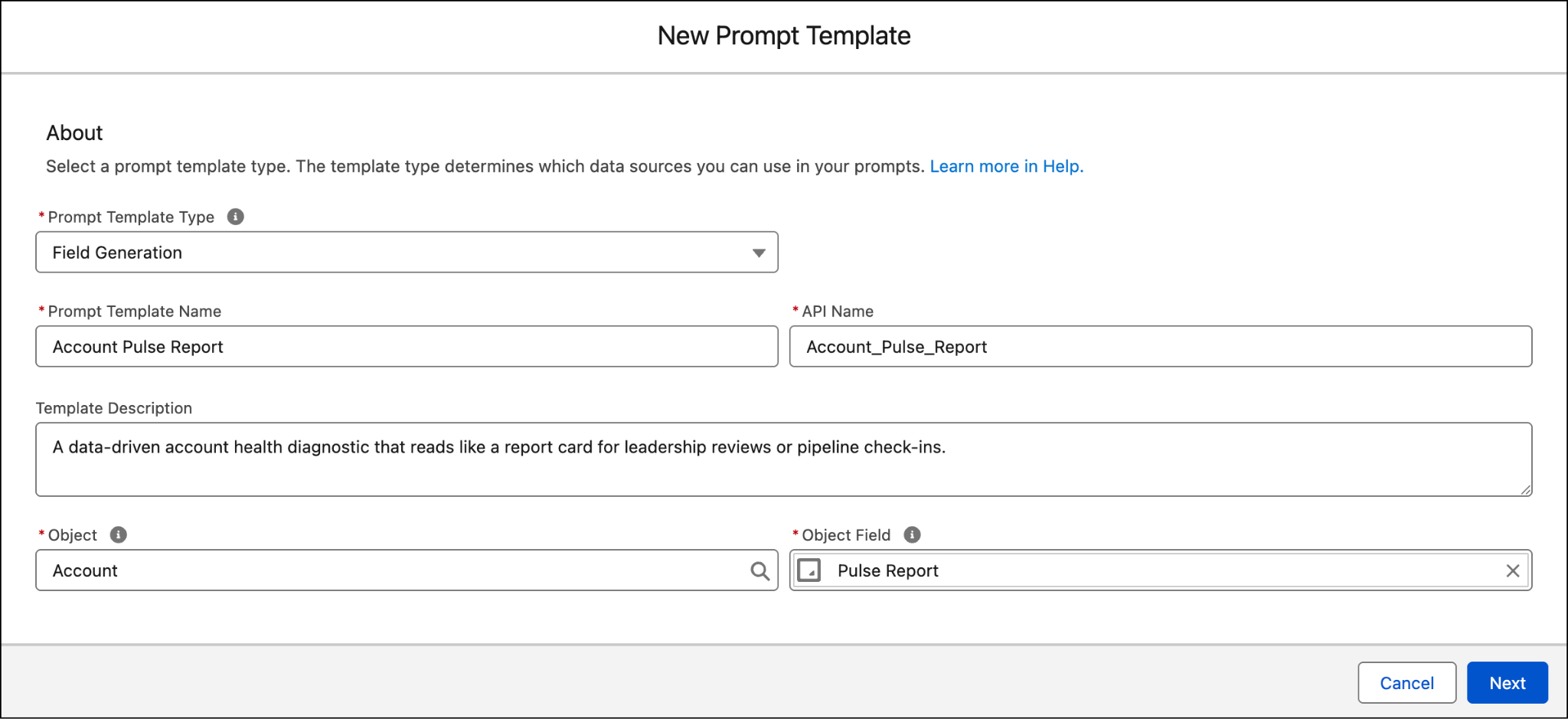
- In the New Prompt Template pop-up window, enter the following details:
-
Prompt Template Type: Field Generation (If you see multiple options, choose the first one)
-
Prompt Template Name: Account Pulse Report
-
API Name:
Account_Pulse_Report(auto-generated)
-
Template Description:
A data-driven account health diagnostic that reads like a report card for leadership reviews or pipeline check-ins. -
Object: Account
-
Object Field: Pulse Report
-
Prompt Template Type: Field Generation (If you see multiple options, choose the first one)
- Click Next.
- In the prompt window, enter the following prompt instruction:
Create a 360° Account Health Check report for {!$Input:Account.Name}.
Follow this structure:
🩺 Account Health Overview — summarize the account's current engagement level (based on open opportunities, recent activities, and cases)
💰 Open Pipeline — total value and count of open opportunities
🏆 Wins This Year — highlight recent won deals and their impact
📉 Risks — flag closed-lost opportunities, unresolved cases, or inactivity
📅 Next Steps — suggest a short summary of where focus should be
Use {!$RelatedList:Account.Opportunities.Records} and {!$RelatedList:Account.Cases.Records} to assess health metrics.
Keep the tone analytical, clear, and professional.
Hyperlink {!$Input:Account.Name} to [/{!$Input:Account.Id}].- Click
 in the top-left corner. Allow the template to save and continue once you see a successful saved confirmation.
- In the Related Record field, enter
infinitra, then select InfinitraBytes.
- In the Response Language drop-down, choose English.
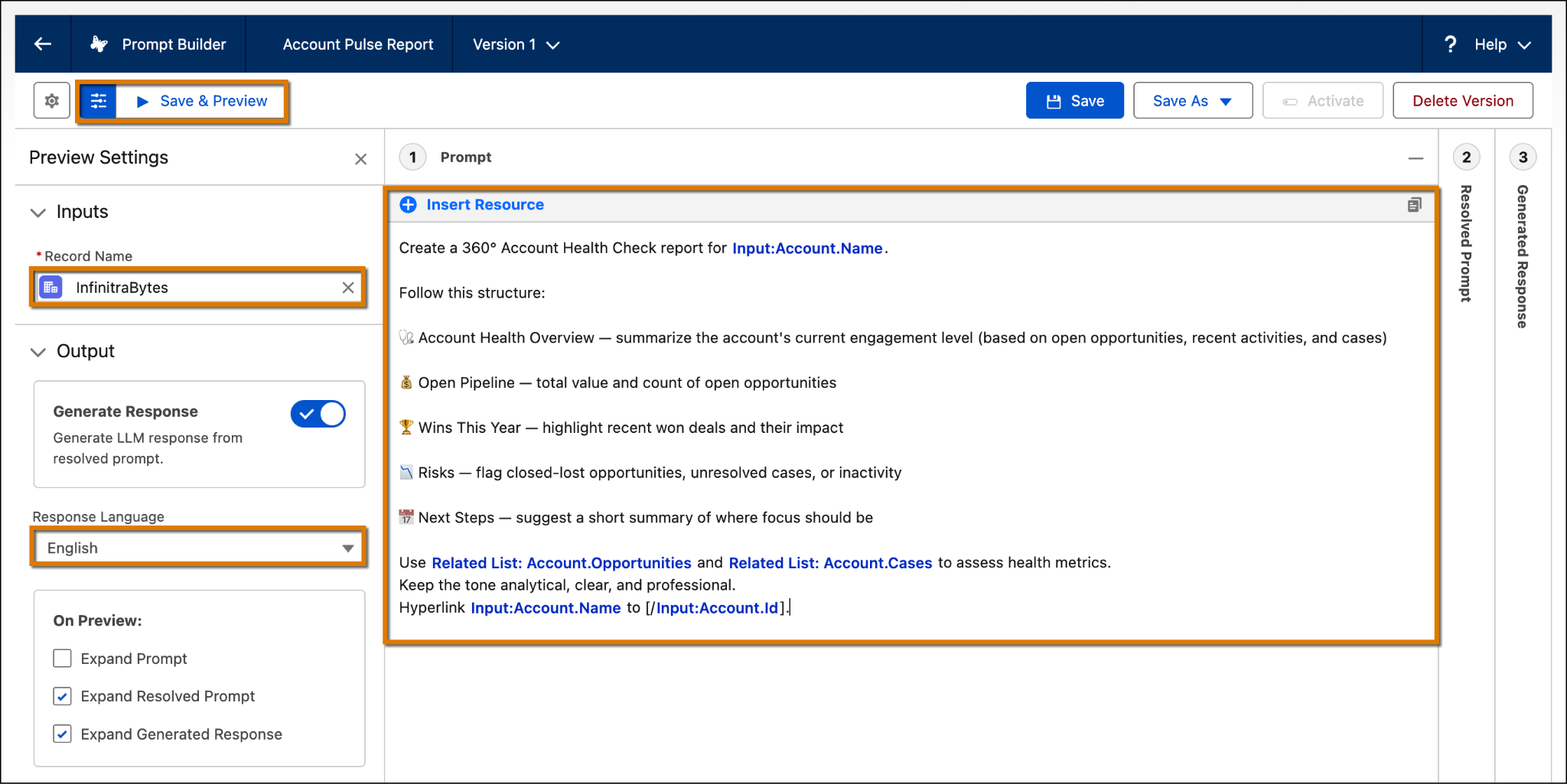
- Click Preview to test the output.
- When you are happy with the generated response, click Activate. Wait a few seconds until the template is activated successfully.
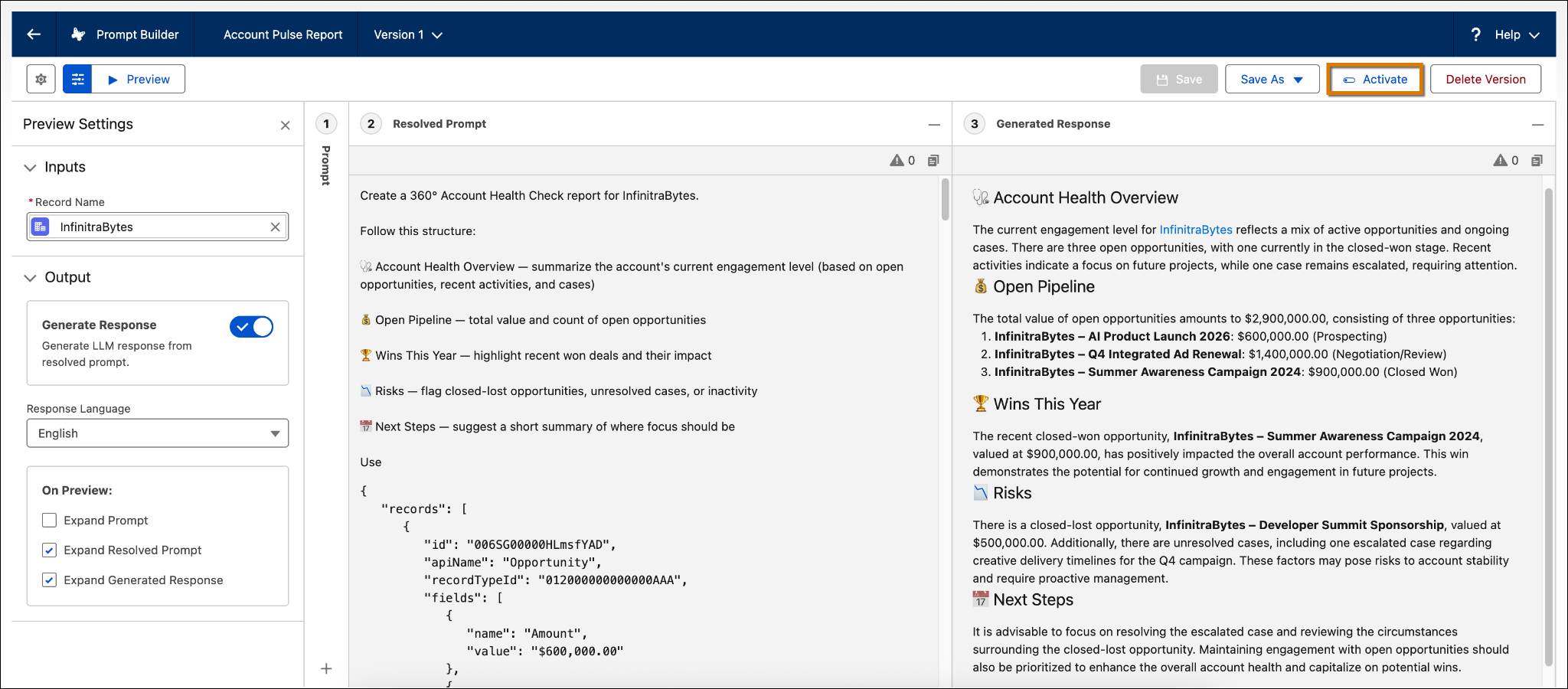
You’ve successfully created a new prompt template that generates a health check report. Now it’s time to add the Einstein component so your sellers can access it in their workflow.
Add the AI Summary Component to Your Account Page
- From
 , search for and select Accounts.
- Click Recently Viewed and select All Accounts.
- Click the InfinitraBytes account.
- On the account page, click
 , then select Edit Page.
- On the Lightning App Builder page, type
ai summaryin the search bar under Components.
- Drag AI Summary onto the Account page and place it above the Activity tab.
- Under Prompt Templates, confirm that the template you created in the last section, Account Pulse Report, is listed.
- Click Save and wait a few seconds while the system saves the changes. If prompted, click Activate and Assign as org default.
- Click the
 to exit the Lightning App Builder and return to the Account page; Refresh the page if you don’t see the component yet.
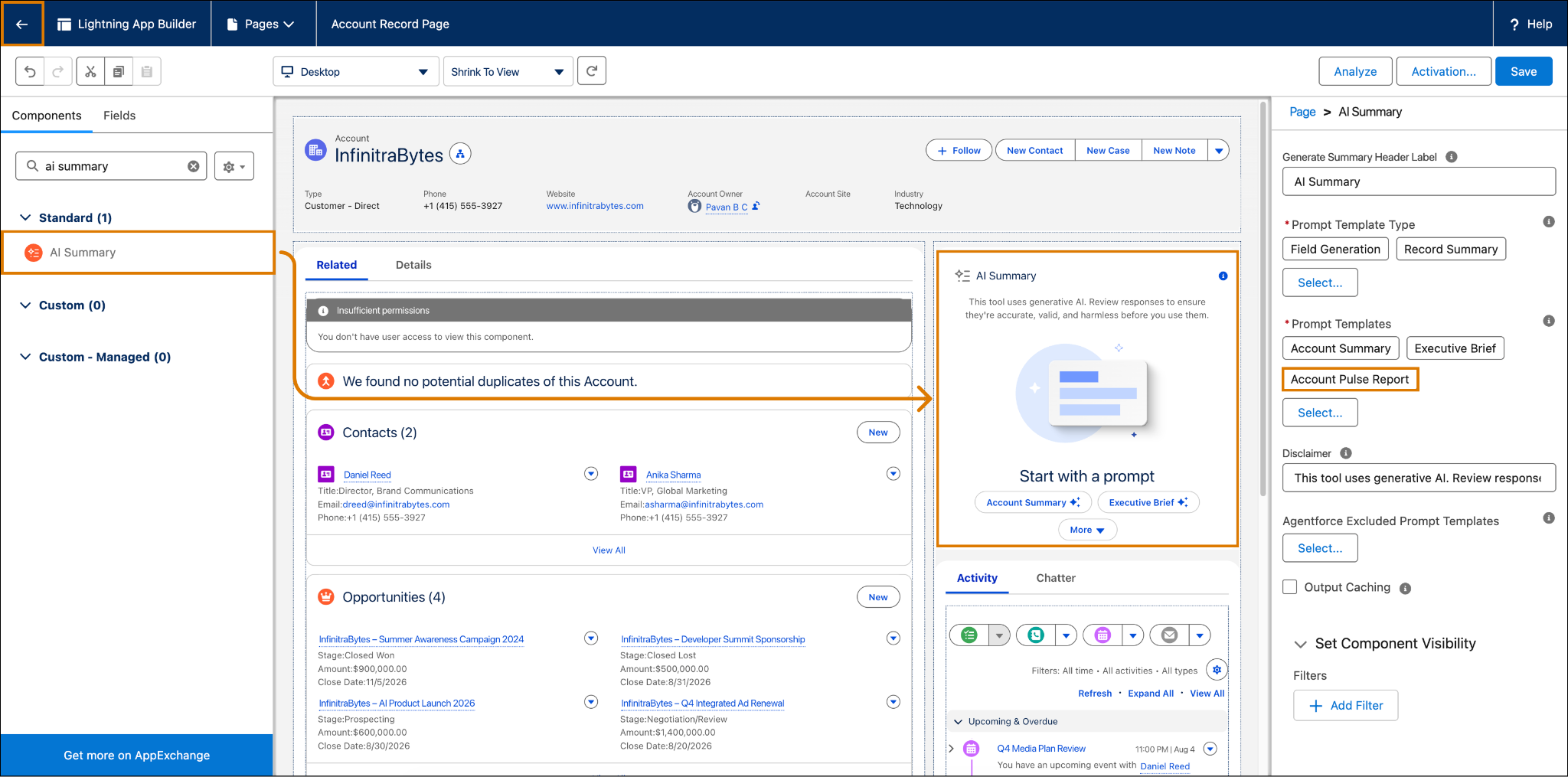
You’ve successfully added the AI Summary component to the Account record page. Let’s take a look:
- From
 , search for and select Accounts.
- Click the InfinitraBytes account.
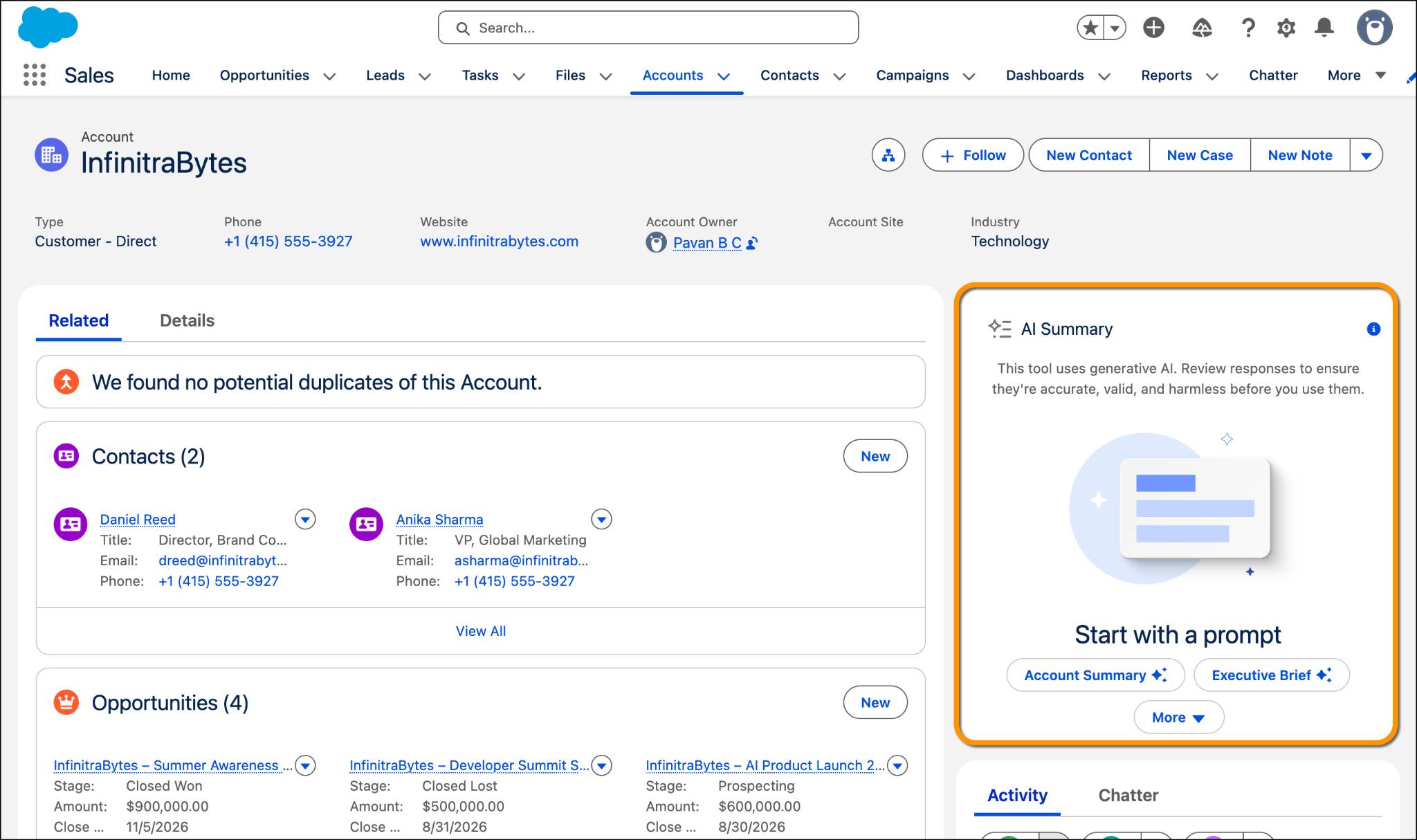
You can see the AI Summary component added to the account record.
Wrap Up
You’ve taken the first big step forward and used AI Summary to help your teams save time with quick access to data. The prompt template is set up to deliver a clear overview of account health, and the AI Summary component is live on the Account record page. Your sellers can now get a complete snapshot of each account with a single click; no more digging through endless notes or activity history. One challenge down, and plenty more opportunities ahead. You’re already thinking about how to simplify workflows for other teams and use AI Summary to give every team the insights they need right where they work.
In the next unit, you step into the seller’s shoes and see exactly how AI Summary transforms their workflow in action.