Learn About B2C Commerce Replication
Learning Objectives
After completing this unit, you’ll be able to:
- Describe the process flow between instances.
- List three types of data you can replicate.
- List two differences between the import and export and replication processes.
- Describe two ways to control replication.
- Explain the benefit of replication tasks.
Introduction
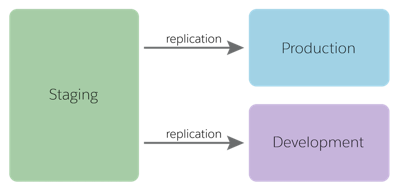
Salesforce B2C Commerce uses replication to move data and code from a staging instance to a development or production instance. This controlled process reduces the potential for errors during the transfer. Replication only happens on instances in the primary instance group (PIG), and not on the secondary instance group (SIG) or sandboxes.
Source and Target
Replication pushes changes from a replication source to a replication target. The replication source is always the staging instance; while the replication target can be a development or production instance. The main goal of replication is to push changes from staging to production. A preliminary step is to push the same changes to development. This approach helps you verify that replication was successful.
Replication Control
Start by creating a replication process in Business Manager, the B2C Commerce tool for site configuration and management. A replication process is a collection of replication tasks that specify the changes made after the last replication. The changes can be data (such as product data, content, and image files) or code.
You can define multiple replication processes and specify which replication tasks to include in each. Specifying replication tasks helps control the level of granularity that’s pushed each time. You can push an entire site or a selected subset; for example, just the site's custom objects. Similar flexibility is available with organization-level changes.
Schedule start and end dates during times of low traffic, so it doesn't impact your site's performance, or adversely affect the shopper experience.
Two-Step Publishing
You can replicate data via two-step publishing, which helps you avoid running the entire process only to have it fail. This process helps if you’re just starting your replication and transfer processes, and need more control over the results.
-
Transfer: Create a new replication, configure it for your site, and select Transfer as the replication type. If the transfer fails, figure out what went wrong. After you've fixed it, try again.
-
Publish: After the transfer succeeds, you create a second task called Data Publish to publish the data. For data replication, the data in the transfer is required to match the published tasks data. For example, you can’t transfer catalog, index, and promotion data, and then only publish catalog data.
Data Replication
Replication is a replace operation, and not a merge. Data replication first copies the data from the source instance to a new location in the target instance, preserving the original data. When the process completes, you switch from the existing data to the new data in the target system, effectively replacing the data.
For subsequent replications, you can replicate on a granular level. For example, you can replicate individual sites and their associated catalogs: all catalogs, one catalog, or the product catalog.
Selecting Data to Replicate
B2C Commerce data can have an organization or site scope. At the organization level, all sites share data. At the site level, only the site uses the data. Within each scope, you can select different sets of data to replicate, such as the organization's catalogs or a storefront's promotions and coupons. This level is the lowest level of data replication granularity supported. This capability is useful when some data is ready to replicate and some isn’t. For example, new content assets are ready for production, but new catalog definitions aren’t.
There are some limitations. You can’t select a single product in a catalog or a promotion from within a dataset to replicate. Data replication doesn’t copy these objects from staging:
- Orders
- Inventory lists
- Business Manager user profiles and login credentials
Schedule Data Replication
You can schedule a replication process four ways.
-
Automatic: At a specified date and time, by default, or immediately after you’ve defined the replication process
-
Manual: Ready for a user with the proper permissions to start in Business Manager
-
Recurring: On a daily, weekly, or monthly schedule
-
Job Step: When triggered by a job
Be careful when you replicate. If a recurring data replication fails, subsequent repetitions of the job don’t run. Replication usually clears the page cache, which can have a dramatic impact on storefront performance.
Best Practices
Here are some effective data replication strategies.
- Test the replication process from staging to development first.
- Test the resulting configuration on development to make sure that it works as expected.
- Always run transfer, followed by publish so you can verify the transfer process.
- Identify dependencies between different data replication groups.
- Always replicate the search indexes with catalogs.
- Perform the transfer to production step when storefront activity is at a minimum.
- Turn off incremental and scheduled indexing and stop other jobs while replicating data. Though incremental indexing doesn’t require turn off incremental and scheduled indexing for the transfer, make sure to turn them off before you publish. You can either replicate the search index or manually build it on the target instance.
- Avoid major data replications during the B2C Commerce standard maintenance windows.
- Use Business Manager permissions to limit who can perform data replication.
Code Replication
With Business Manager code replication, you replicate a code version between a source and a target instance. A code version is a folder that contains custom cartridges. An instance can have multiple code versions, but only uses the active code version.
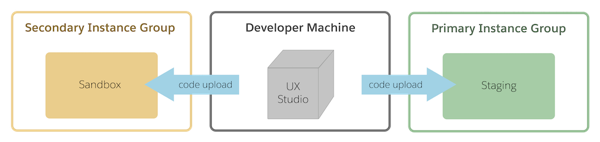
When you’ve finished developing in your sandbox, upload your code to staging. Make sure that the server connection is secure.
On the production instance, the system automatically creates a version, naming it a combination of the original version name with a timestamp. You can copy the code to production without activating it, or copy it while making it active. If you revert to a previous code version, B2C Commerce knows which version was previously active and reactivates it. On a production instance, do the following.
- Deploy the code version on staging.
- Replicate the code (and data) to development to test the process.
- Replicate the code to production.
Replication Types
Configure the target system to create code replication processes with a manual, automatic, or job-step start. Here’s a description of the replication types.
Replication Type |
Description |
|---|---|
Code transfer |
The source system transfers the currently activated code version to the target system. Every replication creates a new code version on the target system, even if all files within the version have the same name as an existing version. Unlike data replication, the process doesn’t synchronize because synchronization can affect the existing or active version on the target. |
Code transfer and publishing |
An immediate activation of the new version follows a code transfer. |
Code publishing |
No transfer occurs. The system activates the previously transferred version. This mode is only available when the previous replication type was code transfer. Because the version name can change between the two systems, extra logic ensures the correct handling. If this version no longer exists, publishing fails. If the system has activated it already, nothing happens. |
Code undo |
The prior process is either code transfer and publishing or code publishing. If the reverted version is no longer active, nothing happens. If the version no longer exists or no version to roll back to exists, the process fails. |
Email Notification
You can configure email notifications for code replications by using a comma-delimited list of recipients. The system sends an email after the process finishes or fails. If the process hangs, the email isn’t sent.
Replication Groups
Replication groups (or tasks) organize your data and processes manageably. You can also replicate data at the site level, organizational level, or both. For example, you can replicate custom objects at both the organizational and site level.
Business Manager groups multiple replicated objects together. Spend time reviewing the relationships among the objects to understand their complexity.
Data and Code Replication Versus Import and Export
Use both import and export and data replication to populate instance databases.
- After the code and data is in the B2C Commerce system, replication moves code and data from one instance to another.
- Import and export moves data to and from external systems, from and to a B2C Commerce database.
Next Steps
In this module, you learned a lot about B2C Commerce architecture. You learned how Agentforce for Commerce structures sites and organizations into PIGs and SIGs, the nuances of import and export, and how the replication process moves code and data from one instance to another.
Resources
Salesforce Help: Replication in B2C Commerce